ListIn a Dashboard, you can use the following list of widgets:
| |
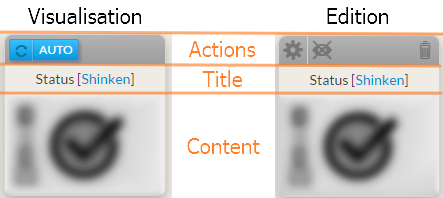
OverviewWidgets are included in a Dashboard. They have a different behaviour if the Dashboard is in visualization or in edit mode (see Dashboard chapter). All widgets are composed of 3 parts: The Action bar
The title section which contains
The content section is specific to each type of widget
In Visualization mode, the user can click inside the title or content section to open the detailed view of the reference element (see Host Detail Panel chapter)
When a dashboard is in Edit mode, widget can be moved by dragging them. Configuration |
|
Each widget needs to be configured in order to display information. It will be easy to locate un-configured widget:
Enter in Dashboard Edit mode and click on the wheel icon (in the top left corner of the widget box) to open the configuration pop-up. Configuration options depends on the widget type and will be detailed in chapters describing the widget behaviour. | 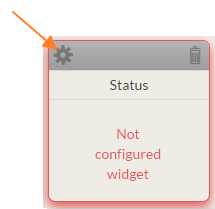 |
DeleteYou can remove the widget by clicking on the garbage can icon. | 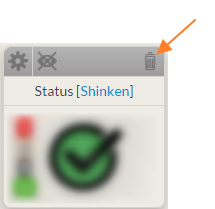 |
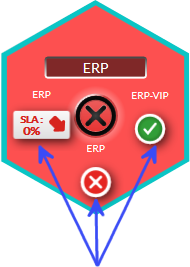
Favorite widgetIn the hive, the tile status is determined by up to 3 favorite widget (See Hive chapter). The summary of these 3 widgets is displayed around the status.
You can select up to 3 widgets as favorite.
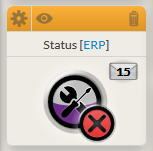
Only 2 types of widgets can be set as favorite :
When a widget is set as favorite, the header is orange and the eye icon is displayed.
|  |
| If you already have set 3 favorites, the following pop-up will be displayed to warn you that setting a new one is impossible. | 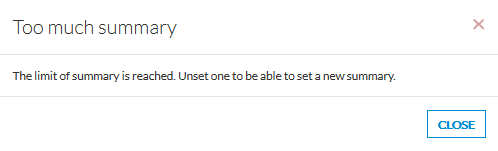 |
Overview
Content Tools
Tasks
0 Comments