Access the interface
To access the Interface, you must point your Web Browser to the URL provided during installation.
By default the Configuration Tool is accessible on the dedicated port 7766 (HTTP). For example : http://172.16.1.130:7766
HTTPS
The UI can be now protected by an HTTPS access
- The file /etc/shinken/synchronizer.cfg has new parameters.
- To activate the HTTPS:
- http_use_ssl=0
- by default it is set to 0 (no HTTPS)
- Set it to 1 to activate.
- http_use_ssl=0
- Set certificates by updating the 2 following parameters:
- http_ssl_cert=/etc/shinken/certs/server.cert
- http_ssl_key=/etc/shinken/certs/server.key
Accessing to the UI will still use the default dedicated port 7766 (but in HTTPS).
- For example : https://172.16.1.130:7766
Log in to the configuration tool
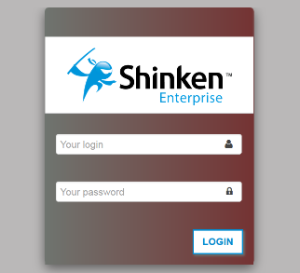
You must Sign in to access the Administration Tool :
- Enter your Username and Password
- Click the Login Button or hit Enter
- Enter your Username and Password
If Shinken is connected to an active directory, please use your usual active directory account (without the DOMAIN\ part).
You can also use your active dorectory email address as your login.
If an error occurred (wrong login or password), you will be prompted again
Link the Login authentication to an Active Directory Server
Configure the auth_active_directory module
Edit the auth_active_directory.cfg in /etc/shinken/modules:
| Property | Example | Description |
|---|---|---|
| ldap_uri | ldaps://myserver | The address of the Active Directory server. |
| user | user | The user name to connect to the lapd server. |
| password | password | The password. |
| basedn | DC =google,DC=com | Base OU for the users. |
Then activate this module in the synchronizer configuration file
By default, edit the synchronizer-master.cfg file in the directory /etc/shinken/synchronizers/
| Property | Example | Description |
|---|---|---|
modules | modules Cfg_password, auth-active-directory | Add auth-active-directory in the line starting by modules. |
Add Comment