Introduction to Flapping
Shinken Enterprise supports optional detection of hosts and checks that are flapping. Flapping occurs when a check or host change state too frequently, resulting in a storm of problem and recovery notifications. Flapping can be indicative of configuration problems (i.e. thresholds set too low) or real network problems.
When an element is detected to be flapping, its notification will be bloked until it came to a stable state (whatever it's UP/OK or DOWN/CRITICAL).
How Flap Detection Works
Whenever Shinken Enterprise checks the status of a host or check, it will check to see if it has started or stopped flapping. It does this by.
- Storing the results of the last 21 checks of the host or check
- Analyzing the historical results and determine where state changes/transitions occur
- Using the state transitions to determine a percent state change value (a measure of change) for the element
- Comparing the percent state change value against low and high flapping thresholds
An element is determined to have started flapping when its percent state change first exceeds the high flapping threshold.
An element is determined to have stopped flapping when its percent state goes below the low flapping threshold (assuming that is was previously flapping).
Example
Let's describe in more detail how flap detection works with checks.
The image below shows a chronological history of check states from the most recent 21 check. OK states are shown in green, WARNING states in yellow, CRITICAL states in red, and UNKNOWN states in orange.
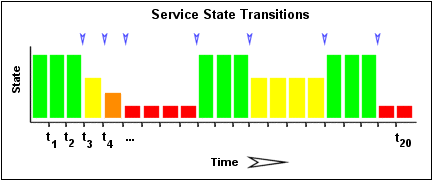
The historical check results are examined to determine where state changes/transitions occur. State changes occur when an archived state is different from the archived state that immediately preceedes it chronologically. Since we keep the results of the last 21 checks there is a possibility of having at least 20 state changes.
In this example there are 7 state changes, indicated by blue arrows in the image above.
The flap detection logic uses the state changes to determine an overall percentage state change. This is a measure of volatility/change for the element:
- Element that never change state will have a 0% state change value,
- while services that change state each time they're checked will have 100% state change.
Note: when calculating the percentage state change, the flap detection algorithm will give more weight to new state changes compare to older ones.
If for example the calculated percentage state change for en element is 31% it will then be compared against flapping thresholds to see what should happen:
- If the element was not previously flapping and 31% is equal to or greater than the high flap threshold, Shinken Enterprise considers the service to have just started flapping.
- If the element was previously flapping and 31% is less than the low flap threshold, Shinken Enterprise considers the service to have just stopped flapping.
Flap Detection Thresholds
Shinken Enterprise uses several variables to determine the percentage state change thresholds is uses for flap detection.
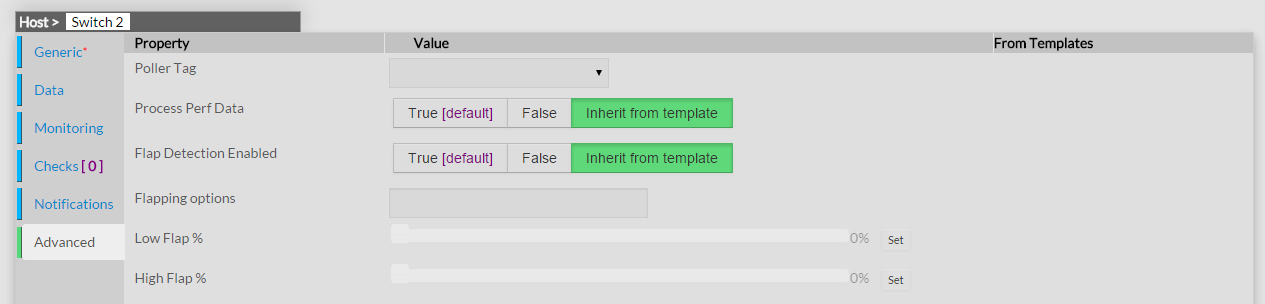
For both hosts and checks, there are high and low thresholds that you can configure.
This screenshot shows the variables that control the thresholds used in flap detection for an host.
Flap Handling
When an element is first detected as flapping, Shinken Enterprise will:
- Log a message indicating that the element is flapping.
- Send a "flapping start" notification for the element to appropriate contacts.
- Suppress other notifications for the element.
When an element stops flapping, Shinken Enterprise will:
- Log a message indicating that the element has stopped flapping.
- Send a "flapping stop" notification for the element to appropriate contacts.
- Remove the block on notifications for the element.
Enabling Flap Detection
In order to enable the flap detection features in Shinken Enterprise , you'll need to:
- Set enable_flap_detection directive is set to 1 in the main configuration file
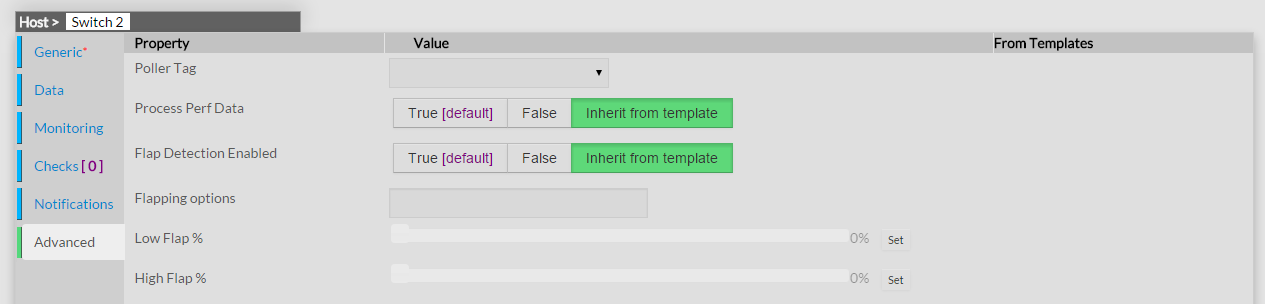
- Set the Flap Detection Enabled directive in your host and check definitions is set to True.
Change Flapping Threshold for a specific element
In order to change the Flapping Thresholds for a specifc element, you'll need to:
- Set the Low Flap % option to the desired value. Default value is 25%
- Set the High Flap % option to the desired value. Default value is 50%
0 Comments