Principe | ||||
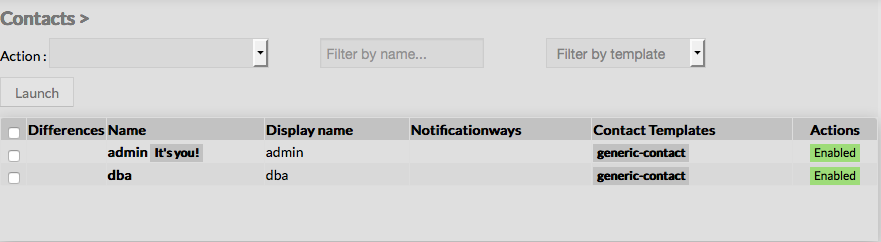
La page contact de la configuration fait apparaître le tableau suivant | ||||
Overview | ||||
When accessing the Contacts Configuration Page, a Contact Table is displayed, listing all existing contact objects.
This page also provides, on the left, an action Menu, used to :
On the top of the table, A tool bar let Administrators the ability to :
| ||||
Créer un nouveau contactVoir la page Créer un nouveau contact Create a new ContactSee chapter Create a contact for more details | ||||
| ||||
Data | ||||
Données | ||||
Les données sont utilisées pour montrer et créer des variables utilisées par Shinken Enterprise pour exécuter des commandes. Ces valeurs sont appelées Macros. Pour un contact, la donnée est important pour définir quelles données seront utilisées lors des notifications.
Comme sur cette copie d'écran, aucune donnée n'est disponible à la création, même après héritage d'un template.
Les données sont constituées de la paire clé/valeur Data is used to show and create variables used by Shinken Enterprise to execute commands. Those values are also called Macros. For a contact, data is useful to set values that will be used when notifying.
As shown on the picture, when creating a new contact, no data are available,
You can add local data by using the button. Data consists in key / value pairs . | 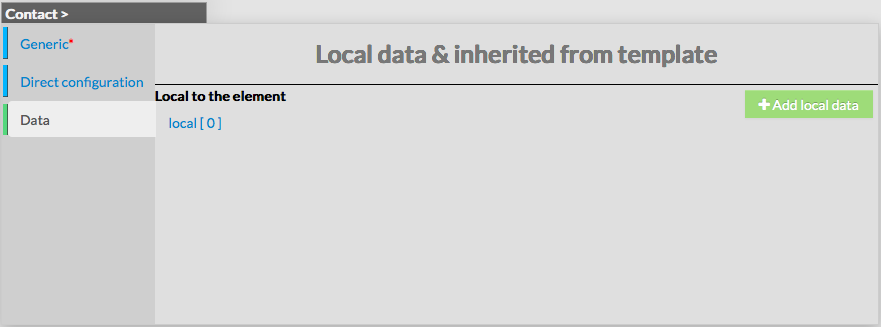 | |||
Modify a contact | ||||
Modifier un contact | ||||
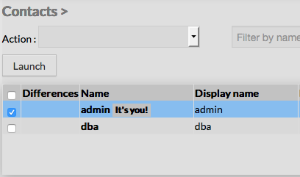
Pour modifier les propriétés d'un contact :
To modify properties of a contact :
|  | |||
Delete a contactTo delete a contact, you can use the form of the contact, or delete it directly from the list page. | ||||
From the Form pageFirst go to the Contacts page, in the Main menu, then click on the contact name you want to delete. Once in the page displaying the form, click on the Delete button available on the left menu. A confirmation popup will be displayed. | 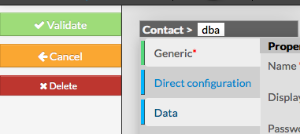 | |||
Supprimer un contact
| ||||
Depuis le formulaire Allez sur la page contact, puis cliquer sur le nom du contact à supprimer . Cliquer ensuite sur le bouton "supprimer", une fenêtre de confirmation va alors apparaître. | | |||
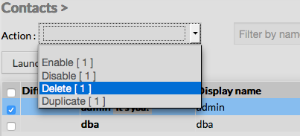
Depuis la page principale Allez dans la page contact du menu principal, puis cliquer sur la boîte de choix placée dans la 1ère colonne à gauche. Utilisez le menu Action et sélectionner Supprimer, puis cliquer sur le bouton Lancer. Une fenêtre de confirmation apparaître. Passer par le menu principal permet d'en supprimer plusieurs d'un coup
From the Main pageFirst go to the Contacts page, from the Main menu, Use the Action menu on the top to select Delete, and click to the Launch Button. A confirmation popup will be displayed.
Info | |
| ||
Duplicate a contact | ||||
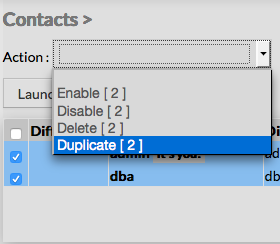
Duplication operation is very useful when similar contacts must be added. To duplicate a contact, first go on the Main page listing all contacts,then select a contact by clicking on the check box placed on the first column. | ||||
Dupliquer un contact | ||||
| ||||
Utilisez le menu Action et sélectionner Dupliquer, puis cliquer sur le bouton Lancer. Once selected, the contact can be duplicated by selecting Duplicate in the select Action of the tool bar. Duplication is executed by clicking the Launch button.
|  | |||
| The name of contact duplicated is suffixed by Le nom de la nouvelle commande aura le suffixe"(copy)" | 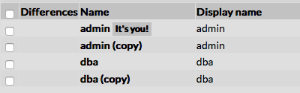 | |||
Page History
Overview
Content Tools
Tasks