Description
This widget displays the list of the Root Problems linked to an element.
...
- In the list of root problems, each line displays:
- Status and context
- The name of the element
In the exemple, 2 hosts are the roots problems of the ERP status.
- So first select the ERP via the configuration window
- All elements that prevent the ERP to run correctly will then will be displayed.
Ce widget présente la liste des problèmes causes liés à un élément.
- La barre de titre indique:
- le nombre de problèmes présentés.
- le nombre de problèmes de l'élément.
- le nom de l'élément référence
- Dans la liste, chaque ligne présente:
- le statut et le contexte
- le nom de l'élément
Dans cet exemple, 2 hôtes sont le problème source du statut de l'ERP . | 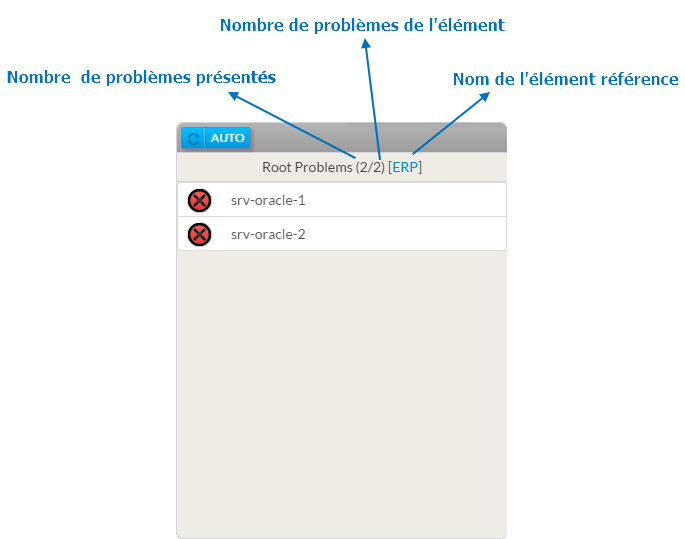 Image Added Image Added |
Usage
Configuration
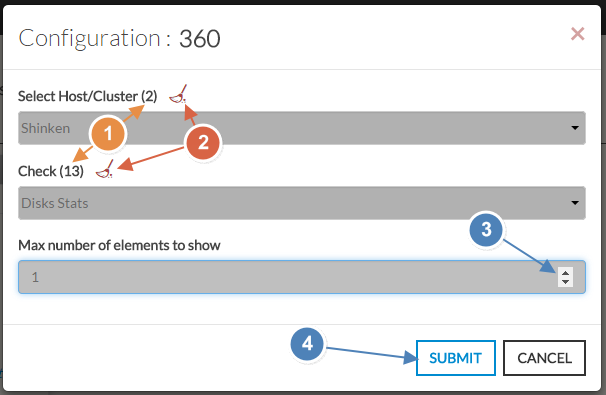
- Sélectionner un nom d'hôte ou de cluster dans la 1ère liste.
- le nombre total des hôtes et clusters apparaîtra (1).
- si aucun hôte n'est sélectionné, la liste de tous les hôtes disponibles apparaîtra
- vous pouvez faire une recherche (filtre) sur le nom en saisissant le début du nom dans le champs .
- vous pouvez supprimer votre sélection avec cette icone (2).
- Une fois l'élément sélectionné, si vous souhaitez suivre un check spécifique, vous avez juste à saisir son nom dans la liste .
- Vous pouvez définir le nombre maximum d'éléments visibles dans la liste (3).
- Une fois configuré, appuyer sur le bouton SUBMIT
|
...
Usage
Configuration
- Select a host or cluster name in the first list.
- The total number of hosts and clusters will be displayed near "Select Host/Cluster" (1).
- If no host selected yet, the list of available hosts will automatically opened.
- You can search (filter) for a host name, typing into the input on top of the list.
Youcan clean the current selection by clicking on the swipe icon (2).Once your element is selected, if you want to monitor a specific check, you just have to select check name inside the second list.
You can set the maximum number of elements displayed in the list (3).
When configured, press the SUBMIT button (4).
|  |