Présentation | |||||||
L'utilisation des Groupes d'Hôtes est très utile à différents niveaux:
| |||||||
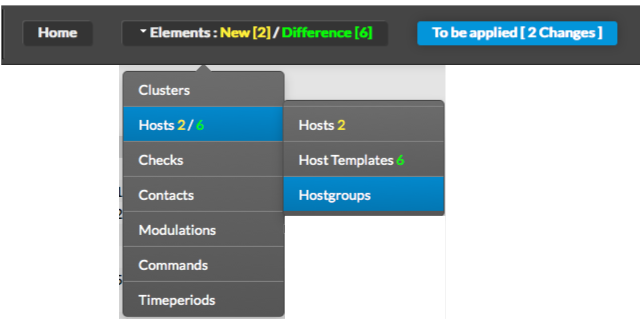
Vous pouvez accéder à la configuration des Groupes d'Hôte en utilisant le lien dans le menu principal
| |||||||
Overview | |||||||
Host group usage is very useful in many ways :
| |||||||
You can access to the Host groups configuration by using the link in the main menu.
 | |||||||
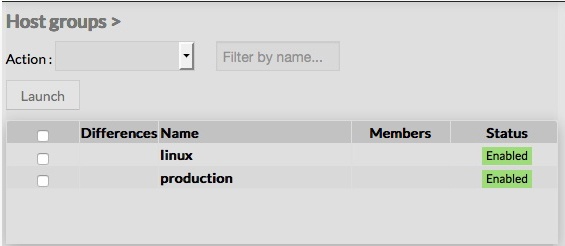
The main page of Host groups Configuration is composed of a table, This table contains the following information:
A tool bar on top of the table, gives administrators the ability to do the following :
|  | ||||||
Like other configuration element pages, an action menu is displayed on the left. This Menu provides following operations :
|  | ||||||
Create a new hostgroup | |||||||
To create a new Host Group, use the button "Add new [Hostgroup]" located in the Action Menu.
|  | ||||||
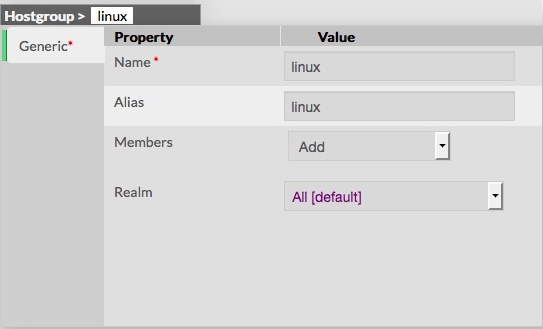
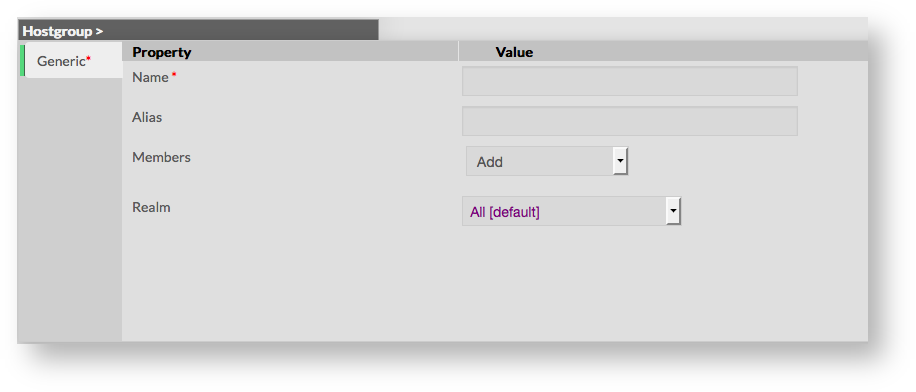
Host group creation form will be displayed. This form is composed of one tab, containing the following properties :
|
| ||||||
La page principal de la configuration des Groupes d'Hôte se compose d'un tableau répertoriant tous les Groupes d'Hôtes existants. Le tableau contient les information suivante:
Une barre d'outil en haut du tableau donne différentes possibilités à l'administrateur:
| | ||||||
Comme dans d'autres pages de configuration, vous trouverez sur la gauche un menu d'actions qui vous permettra de:
| | ||||||
Créer un nouveau Groupe d'Hôte | |||||||
Pour créer un nouveau Groupe d'Hôte, utiliser le bouton "Ajouter un nouvel Groupe d'Hôte" situé dans le Menu d'Actions
| | ||||||
S'affiche alors un formulaire de création d'un Groupe d'Hôte Ce formulaire se compose d'un onglet contenant les champs suivants :
|
| ||||||
Comme dans d'autres formulaires, le menu de gauche donne à l'Administrateur la possibilité de:
Une fois validé, le nouveau Groupe d'Hôte apparaîtra dans le tableau Like on other forms, the left menu give to Administrators the ability to :
Once validated, the new host group will appear in the table list.
|  | ||||||
|
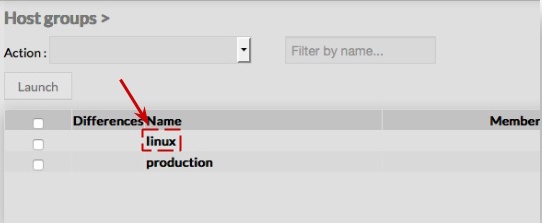
To modify properties of a host group, first go on the Host Groups page, from the Main menu, and then click on the Host group name you want to modify:
|  | ||||||
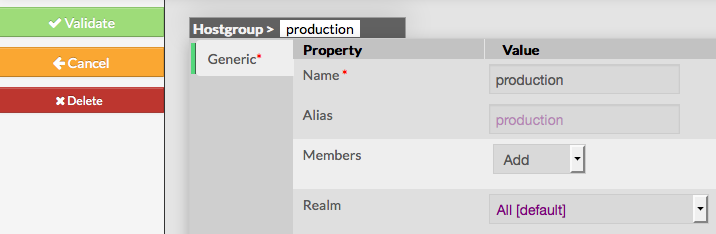
The form displayed is the same form used to create a new host group.
|  | ||||||
Add or remove Members | |||||||
| Members can be added either by editing the group, either by editing Host or Host Template. | |||||||
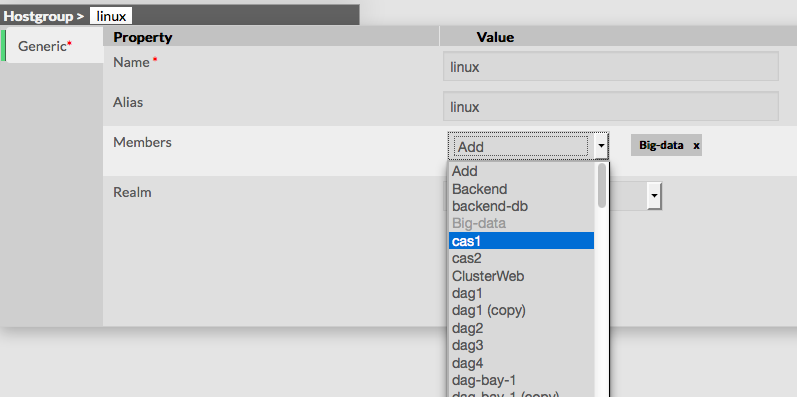
Add a member to groupTo add one or more members, first edit the group of your choice.
|  | ||||||
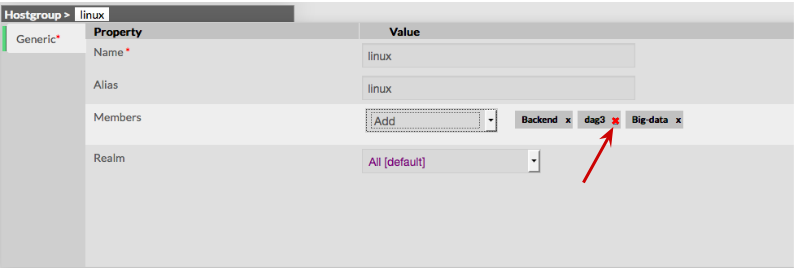
Add a member to groupTo remove a member, click on the mark displayed in the member.
|  | ||||||
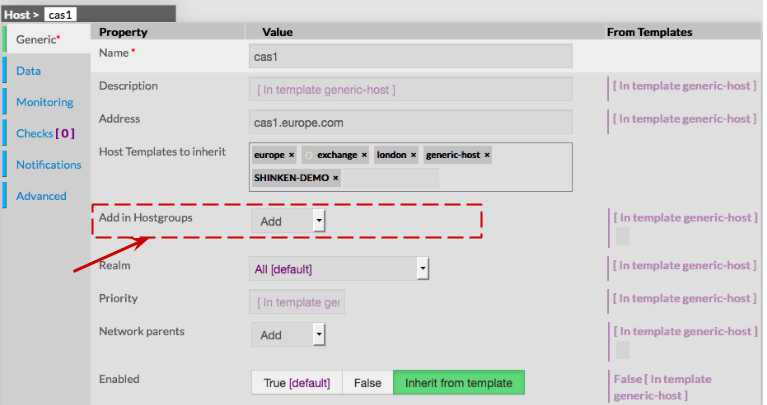
Add a host to a host groupTo attach a host group to a host, go first to the Hosts Page, then click on the Host of your choice.
|  | ||||||
Delete a Host groupTo delete a host group, you can use the form of the host, or delete it directly from the list page. | |||||||
From the Form pageFirst go to the Host groups page, from the Main menu, then click on the host group name you want to delete.
Once in the page displaying the form, click on the Delete button available on the left menu. A confirmation popup will be displayed. |
| ||||||
From the Main pageFirst go to the Host groups page, from the Main menu, then click on the check box placed on the first column of the table.
A confirmation popup will be displayed.
|
| ||||||
Duplicate a Host groupDuplication operation is very useful when similar Host groups must be added. | |||||||
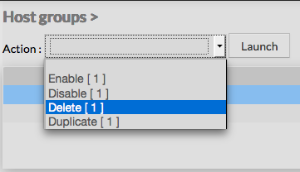
To duplicate a host group, first go on the Main page listing all host groups, then select a host group by clicking on the check box placed on the first column.
| 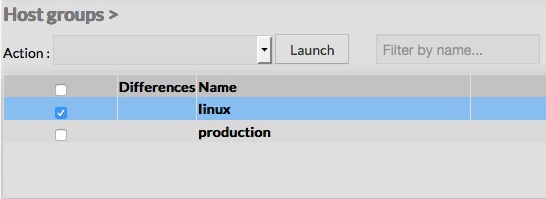 | ||||||
Once selected, the host group can be duplicated
Duplication is executed by clicking the Launch button.
|  | ||||||
Using the Main page gives Administrators ability to Duplicate many Host groups at once. All properties are kept when duplicating operation, as well as Members. Duplicated Host groups are totally detached and independent of the cloned Host group. No relation is made in the configuration. | |||||||
...