Visualization UI
GENERAL
Translated in French
The Visualization User Interface is now available in french:
.
Responsive design
| Tip | ||||||
|---|---|---|---|---|---|---|
| ||||||
Table of content
|
DASHBOARD
[Improvement]
The Dashboard status is no more limited to 3 widgets STATUS
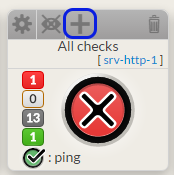
The STATUS of any widget in the dashboard can be added to the computation of the Dashboard status.
- Select any STATUS widget in the Dashboard.
- Click on the PLUS icon located on the widget title bar.
- A summary bar of this widget will be displayed near the status icon.
- The PLUS icon will become a MINUS icon.
- Click on the PLUS icon located on the widget title bar.
- Select any STATUS widget in the Dashboard.
- You can remove this STATUS by clicking on the MINUS icon.
- The MINUS icon will be replaced by PLUS icon.
- The MINUS icon will be replaced by PLUS icon.
Summaries displayed in tiles are no more linked to the status of the tile
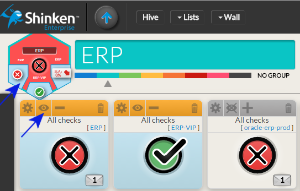
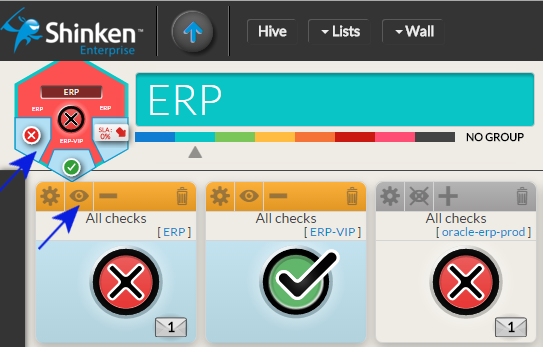
- You can display a summary (on a Widget SLA or a Status) without taking it into account for the status evaluation.
- Adding a summary is now only to provide additional information on the tile.
- To add a summary, click on the EYE icon.
- The EYE icon will be replaced by a crossed EYE icon.
- To remove it, click on the crossed EYE icon.
- The crossed EYE icon will be replaced by the EYE icon.
- You can display a summary (on a Widget SLA or a Status) without taking it into account for the status evaluation.
The tile can be seen directly on the dashboard
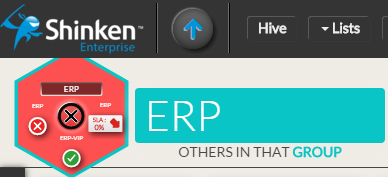
The tile is located on the top left corner of the dashboard:
- It is exactly the same tile displayed in the hive. It will prevent you to go back and forth between the hive and the dashboard in order to see the status and summary displayed.
- Any change (Dashboard status or adding/removing a summary) will be seen immediately in the tile.
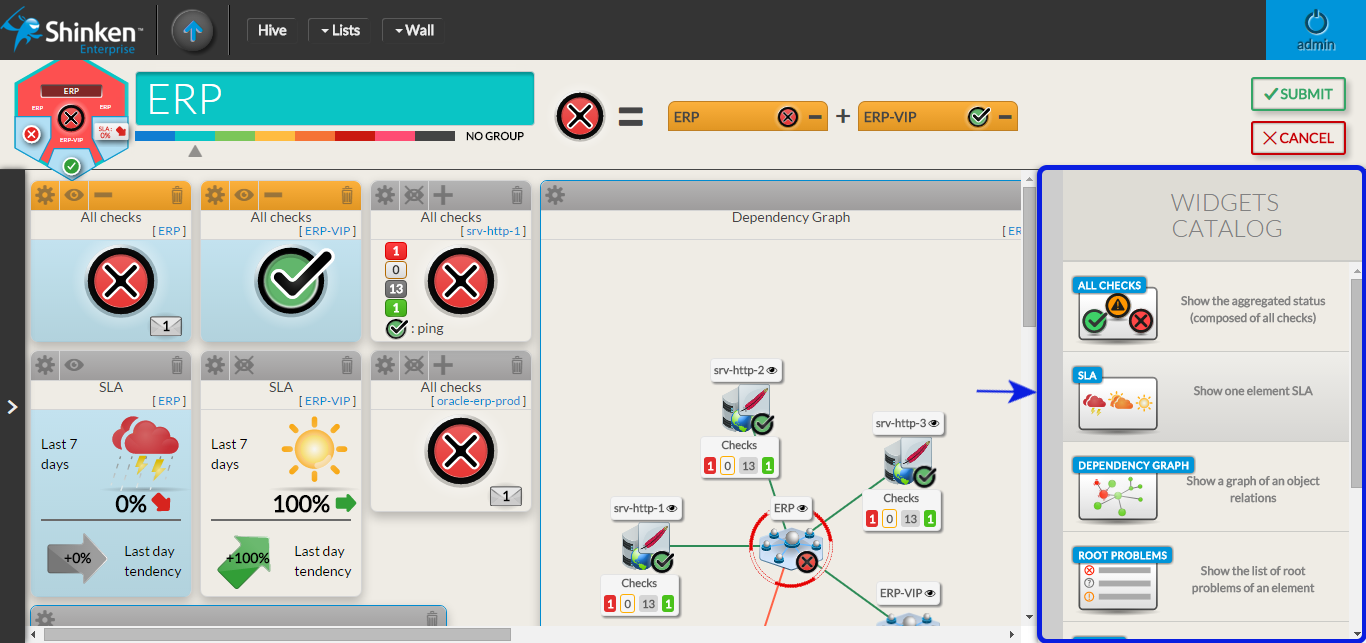
In edit mode, Widgets catalog is now in a panel on the right
The widget catalog is in vertical, the user can see more widget without scrolling.
Responsive design
The layout of the Dashboard is adapting to the size of the web browser.
Click on the widget in the status bar of the Dashboard to focus your screen on it
It is useful in 2 cases:
- Click on the widget in the status bar of the Dashboard will help you to locate it, if for example the dashboard is too big to be totally displayed on your screen (
 )
) - If the Widget is not totally viewable, it is quicker to click on the title than moving the mouse on slide bar.
- Click on the widget in the status bar of the Dashboard will help you to locate it, if for example the dashboard is too big to be totally displayed on your screen (
The screen focus on the new widget created
User doesn't have to search the added widget by himself.
The widget layout has been improved
- Limits of the dashboard is now displayed (a grey background, surrounded by a black Area).
- The size of the dashboard can be increased by dragging a widget on the left or bottom edge.
- Dragging a widget don't immediately change the layout of widget:
- Moving a widget outside the visible part will now generate an automatic scroll of the dashboard. The widget will always be visible.
- A shadow will be displayed, showing the future position
- When you release the dragged widget on the spot of another one, the latter shifts to the bottom.
DETAIL PANEL
[Improvement]
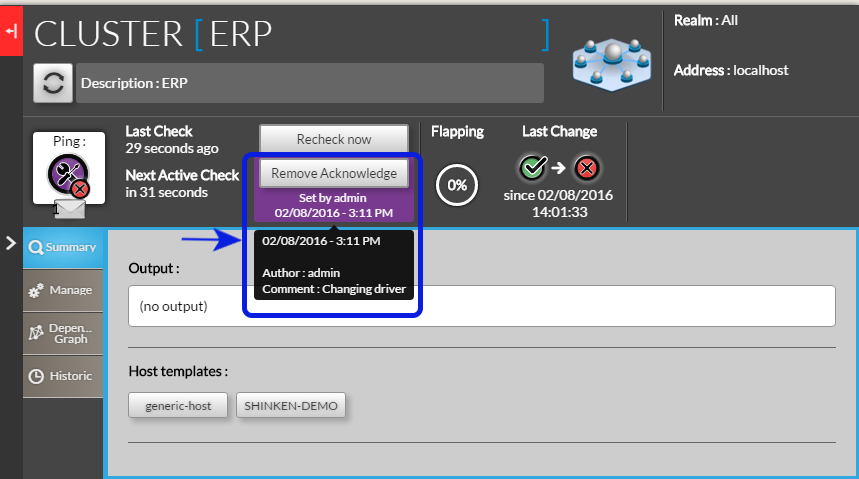 The user that have set the acknowledge is displayed
- Once the acknowledge is set
- A purple area surround the Submit/Remove acknowledge button
- Inside this area is displayed:
- The user name that set the acknowledge,
- The time with it has been set at.
- A hover show the comment that the user has written.
- Once the acknowledge is set
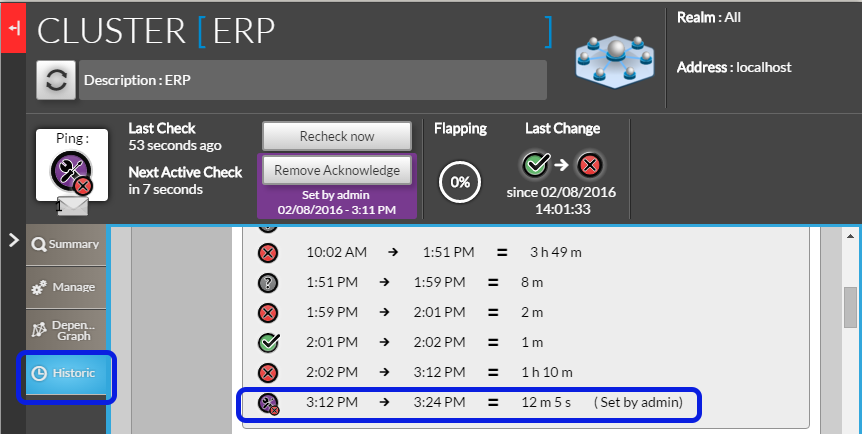
Tab Historic is updated in real time
- The historic of a host is now updated on every refresh of the detail panel.
- The name of the user that set the acknowledge is displayed on the historic
A padlock and forbidden message is displayed for unauthorized host
- if a user try to open a host he doesn't have access to
- The detail panel will be empty
The text " " will be displayed with a padlock.
- Showing this screen will allow users to discuss with Shinken Administrators of the reason of this unauthorized access.
- if a user try to open a host he doesn't have access to
[Bugs]
Tab Summary: Host template name too long
 In the host template area, if the host template name is longer than the outline of the box, this latter is now automatically re-sized.
Checks Tab: Setting or removing an acknowledge on a host refresh the checks tab
- When an acknowledge is set on a host, all checks will automatically have the acknowledge context.
- If the tab checks is opened, it be automatically refresh to show the acknowledge context on all checks.
- When an acknowledge is set on a host, all checks will automatically have the acknowledge context.
WIDGETS
[Improvement]
ALL WIDGETS: Instead of hiding non-authorized host, Widgets will show the name of the host adding a padlock
We changed this behavior to provide more information to Shinken user
- If a user has been able to configure a host but has no more right to see it, it will be easier to discuss with supervision administrator to check if it is not an error.
- A user may need to see a cluster but doesn't have access to host composing. This feature will let him understand why the cluster is down and discuss with the right person.
Je ne peux pas créer le screenshot à partir de ma démo
[Bugs]
Widget Graph
- A check with a name containing a space wasn't displayed.
- If there is no value for a metric during a period, the graphic was not showing this period. Activity period were directly concatenated.
- (For example, if the check has run up to 10:00, then stop 1 hour then restart, it was displaying a continue graphic)
- It will now show a period with metric set to 0
Widget Root Problem
- When we keep mouse over an element in the list of root problems widget and the detail panel is opened, the tooltip describing the host was displayed over detail panel, hiding it.
Il manque le screenshot du bugg d'avant
LISTS
[Improvement]
Overview: new design and behavior
The behavior of list has been improved to get a better user experience.
- On the previous list:
- By default, filtering fields on column were basic selector or string filter.
- Advance filtering was possible, but wasn't user friendly:
- it was visual difficult to make the link between the complex filter defined and the result in the list.
- it was visual difficult to make the link between the complex filter defined and the result in the list.
- So the new list has been design with the following objectives:
- integrating the advanced filtering directly in the list
- more flexibility on the layout of the list
- all modifications done on the list will be saved. User will have the list the same layout and filter on the next load of the list.
- On the previous list:
Hiding/Showing column
We kept this feature from the previous list:
- Each column can be removed or added depending of the user need
- You can do it in to way:
- In a column, open the column menu and click on the entry hide the column.
- In the right side of the list, open the column selector menu and choose which column has to be displayed or hidden.
Moving column
The user can choose the display order of column:
- Click on the header of the column and maintain pressed.
- A copy of the header will appear.
- Drag it to the location you expect.
- Release the mouse.
Docking column on the left side
A column can be always be seen:
- If the number of column is to big to be displayed in the navigator width. It can be useful to always see the host name for example.
- Adding a column;
- open the column menu
- click on the entry "pin on the left".
- The column will be transferred to the left and always be visible.
- Removing the column:
- open the column menu
click on the entry "Détacher".
- The column will be removed from the left container and will come back to it previous location in the list.
Sorting column
Multi filter
Quick filter
Opening the detail panel
Configuration UI
MENU
To improve the efficiency of the Configuration UI, the menu bar will provide more dynamic information.
| Info |
|---|
In next release, this menu will also be refreshed every 30 secondes |
Home page
The configuration home page now offers a summary of your current Stagging configuration. It also shows new/changed elements that were detected by the automatic modules, so you can validate them.
- The home page is automatically refreshed every 30 seconds.
- Elements summary table is added (number of elements, automatically detected new and modified elements)
- Element's Type name are now hyperlinks.
- Clicking on it will display the list page of this element's type.
It displays the list of Automatic Detection Modules.
- The fact that a Source is enabled is now differentiated from its status (running well or not, for example):
- 2 columns (Enabled and State) are now present.
A source can be Enabled or not in its configuration file (cf module description in the chapter Automatic+Detection+modules).
- State column is filled if the source is enabled.
- The fact that a Source is enabled is now differentiated from its status (running well or not, for example):
- Buttons (Add host, Show hosts, Show sources) on the home page were useless and have been removed.
Elements Page
Global Layout modification
Huge improvements in the Elements page:
They are now more clear and dynamic.
- The Cancel button has been added (to clearly indicate to the user how to leave the page without taking into account modification done in the element)
They are colored in purple.- Mandatory fields are pointed out by a red star near to the label.
- The type and the name of the element are always displayed on the top of the page.
- Template values will be shown on the right of the value property.
- Inherited Template values will be used only if the property is not set in the element (in the example, Business impact is set to 2, so the inherited value 1 from Shinken Host is displayed but not applied)
- Adding/removing a template will automatically recompute all the inherited property with the value.
A help window for each property field is displayed on the right of the screen.
Hovering the property will automatically fill the help area if help text is available for the property.
Improvement too, on List pages displaying all elements of a type:
- Automatic changes proposal are now easier to see. Buttons design changed by separating;
- the button to add a new elements and the button to see/validate differences from the automatic detection modules.
- for both button, text and color buttons will change if Automatic Modules detected updates.
- All elements can now be selected (only the elements with automatic changes proposal were selectable before)
- massive actions can now be launched:
- Enable: allow the element to be send in the monitoring production environment.
- Disable: do not send this element to the production environment.
- Delete: delete this element from the Staging database.
- Duplicate: create a clone of the element with all its property, and the "(copy)" suffix at the end of its name.
- New filters are also available:
- All pages now have a filter by name option.
- Host: filter by template
- Checks: filter by template and filter by pack
- Contacts: filter by template
- All pages now have a filter by name option.
Clusters/Cluster Pages
Now the clusters have their own list and edition page. They are separated from the hosts page.
They can have a name, a definition rule and the same notification options as the hosts.
| Tip |
|---|
Note: A cluster can't be named with a name already used by a cluster or by a host. |
Host/Host template Pages
The host page inherit from the global layout modification (default and template display, ...) and have also special improvements:
- Checks linked to your templates are also displayed in a specific "Checks [ X ]" tab
- where X is the total number of checks this host will inherit.
- you can see the checks name, their contact groups, the check command
- You can also click on "try this check" button to launch a check on this host. You will see:
- the command (definition and expanded command line),
- the data used to launch the check command,
- the return from the plugin execution
| Tip |
|---|
Note: For "Try this check", checks are launched on the Synchronizers, not on Pollers, so make sure that all plugins are as well configured as on Pollers. |
- a new field "Checks to exclude" is avail
It's a comma separated list of Check names you do not want to be present in this specific host.
Check/Check template Pages
The check page inherit from the global layout modification (default and template display, ...) and have also special improvements:
- Properties to link checks to hosts, hostgroups and host templates are now with explicit labels.
- Check Templates to inherit
- Apply on Host Groups
- Apply on Host Templates
To be applied Page
The "To be applied" page did have several improvements. The focus is to facilitate and allow the user to easily see the main differences between its staging database and the production database:
- Modifications to apply to the production environment are listed:
- The new, changed and removed elements are automatically displayed on the page right panel.
- For new element, or changed elements, clicking on the name will directly open the element page.
- On the changed elements:
- The full list of changed property are displayed per element
- you can unfold all diff tables of your elements if you want, or unfold it one element by one element
- You can filter the modifications list by using the two filters located in the left panel:
- Filter by Status (new, changed, removed)
- Filter by Type (host, checks, command, ....). Only the type with elements will be display on this filter.
- Both status and type filter can be applied, to only see "new hosts" filter for example
|
- Only two buttons are now available on the left:
- Check: check the current staging database
- Apply:
- will check the current staging database,
- erase the production database with the staging database,
- Reload your monitoring production daemons.