Overview
Each user have its own hive of dashboards sumary which can be customized as needed, organizing the monitoring overview in the most efficient way.
Let’s study this hive to learn the possibility of the visual monitoring interface.
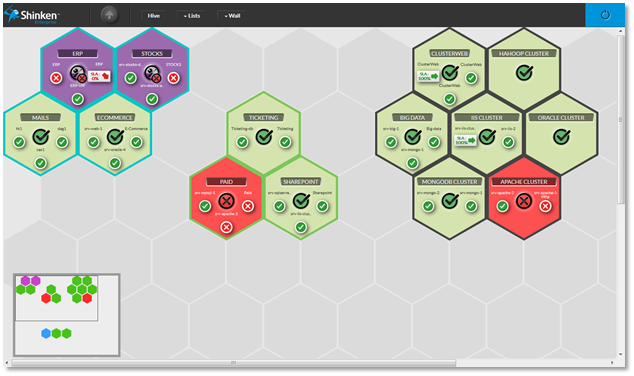
| The hive consists in empty alveolus or tile hiding empty alveolus. | |
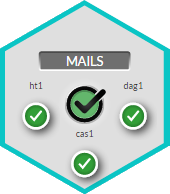 | Each Tile of the hive is a summary of a Dashboard. A dashboard is a visual container of information which will help you to investigate issue sources (see Dashboard chapter for more details). |
| The hive will help you to organize visually your overview of elements that need to be monitored. | |
Edit the hive
| 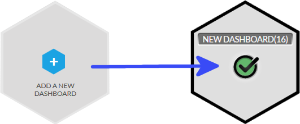 |
| |
| 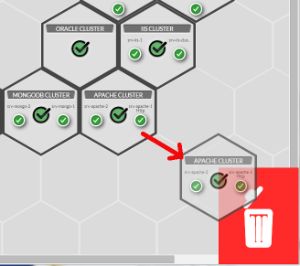 |
Color group
You will notice that some tiles have the same border color. You can set this color to tiles group. It will be then very easy to locate a type of tile.
It is up to you to choose you organization. As an example, you can choose a color to differentiate data centers. This color can be set when editing a tile (see the next chapter)
(the example of the green group).