Description
The aim of the widget status is to provide an overview of an host, a cluster or a check. Il will contain:
- The name of the element
- The status and it context (see Monitoring logic for more details)
- Notifications sent:
- Notifications can be configured in Shinken administration UI in case an element becomes WARNIGN or CRITICAL.
- So if notification has been sent for this element, an envelope will be displayed with the number of notification on the right.
- For host, it display also the number of check, sorted per status.
...
- If the status refer to an element, a click in the widget will open the “Detailed view” of the element.
Configuration
...
Once your element is selected, if you want to monitor a specific check, you just have to type check name inside this second box. | 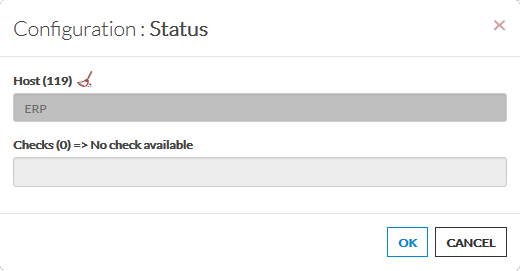 |
· The total number of host will be displayed near host (119 in our exemple).
· It will automatically show the list of available hosts.
· If you type characters, the list will be automatically filtered.
Once your element is selected, if you want to monitor a specific check, you just have to type check name inside this second box. As soon as you have typed 1 letter, a matching list of checks will be displayed below.