...
|
|
|---|
Period selector + Refresh
You can choose different periods for the displayed graph among , the default on open is "1 day".
On the right of period buttons, a refresh button is available, click on it to refresh the graph with last values.
Graphs
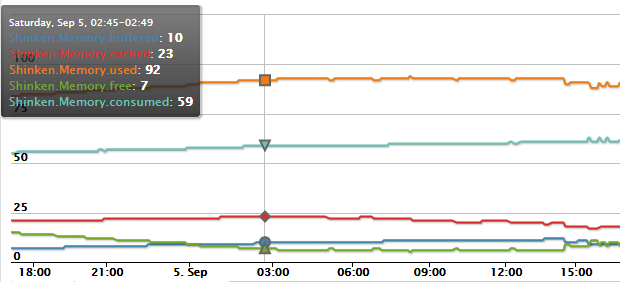
You can display multiple metrics on the same graph, so, each metric is traced in a different color.
Move the mouse on the graph to display the info tooltip. In this one, you can retrieve the affected colors of each metric.
The tooltip, for a mouse position given, displays values for each metric for a precise date and time.
Time slider
Below the graph, you have two sliders.
With these you can adapt the current view on the desired time period.
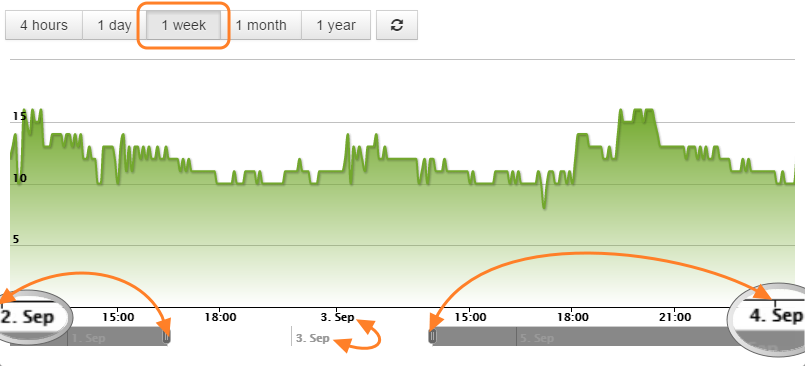
Like a magnifying glass, when you move the sliders the graph scale is updated in live.
On the sample above, the chosen time period is "1Week", but the time slider zoom a period of 2 days (2. Sept → 4. Sept).