...
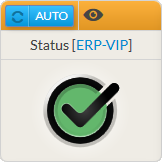
The aim of the widget status is to provide an overview of a an host, a cluster or a check. Il will contain:
|
...
|
...
|  |
|
...
|
...
|
- Here are the possible states:
Ok => no problem. | |
Warning => the element is running but in a degraded mode. | |
Critical => not running. | |
Unknown => no information is available. |
- Here are the possible contexts:
FLAPPING => its state changed often (by default, checks are made every five minutes, so its means that the X last checks results were different) | |
DOWNTIME => the element has been flagged by a Shinken user as “under maintenance” | |
ACKNOWLEDGED => the problem has been taken into consideration by a Shinken user | |
PARTIAL ACKNOWLEDGED => the problem has been taken into consideration by a Shinken user |
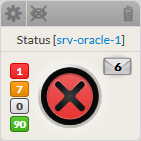
- If you you select a host (not a cluster or a check), number of checks in each status will be displayed
|  |
...
- If the status refer to an element, a click in the widget will open the “Detailed view” of the element.the Detailed View Panel providing detail on the element (see the Host Detail View chapter).
- For an host, clicking on one of the checks summary box, will directly open the Detail panel on the tab checks panel.
- The list of check will be filtered to only display check matching this status.
- To get the full list of check, simply remove the filter ( See Checks Tab chapter)
Configuration
|  |
...
|
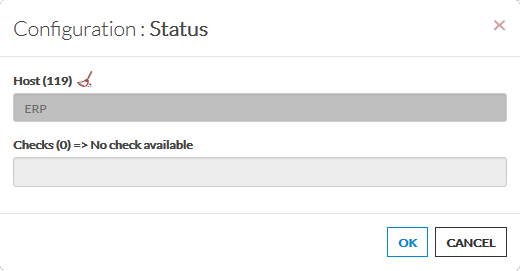
· It will automatically show the list of available hosts.
· If you type characters, the list will be automatically filtered.
| |
As soon as you have typed 1 letter, a matching list of checks will be displayed below.