Description
Visualize 1 metric of a check for the last 24 hours (like CPU, RAM, response time, …)
...
from a chosen host.
- Move Moving the mouse on the graph to display the value of each checks on the services.will displayed a black explanation pop-up
- This pop-up contains the date and a time plus the corresponding value of the metric at this moment.
- The possition of the mouse correspond to the time line at the bottom of the graph
| 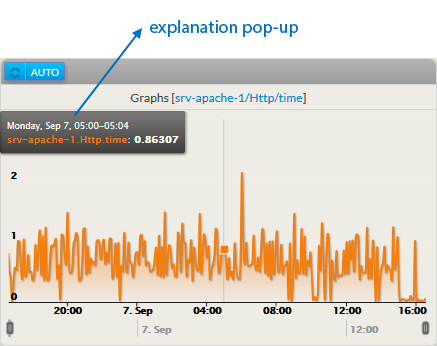 Image Added Image Added |
- Up to 1 day values will be displayed in the graph.
| 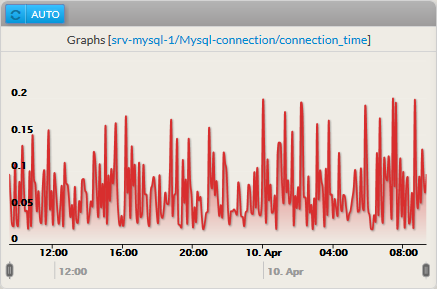 Image Removed
- You can reduce the period displayed by moving the 2 range selectors
| 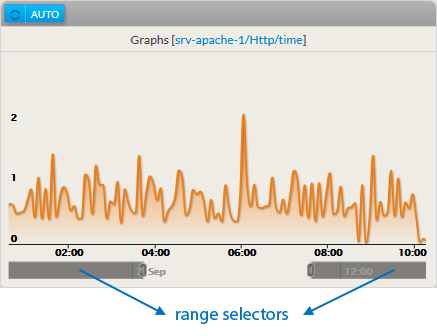 Image Added Image Added |
Configuration
- Open the configuration box:
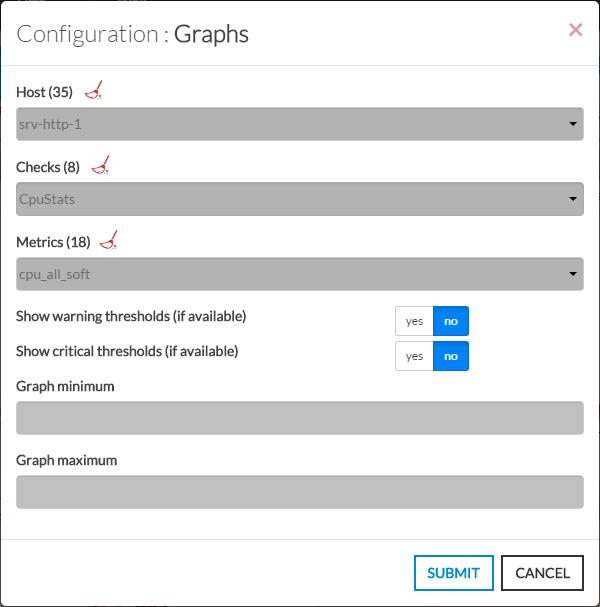
- Select Type the host in the edit field under Host.
- The total number of host and cluster will be displayed near host (119 in our exemple).
- It will automatically show the list of available hosts.
- If you type characters, the list will be automatically filtered.
- As soon as you have typed 1 letter, a matching list of checks will be displayed below.
- Once the host selected, it .
It will fill the check area with all available checks with metrics. - Type or Select the checks.
- It Once the check selected, it will fill the metrics area with all available metrics.
- Then select the metrics.
- You can also:
- activate the display of warning and critical limits (if set in the configuration for this metric).
- Define the maximum and the minimum value displayed on the graph.
For example, if you set a value a 75 and the metric has values like 125, only will be displayed values under 75.
| 
|
...