Versions Compared

Key

  • This line was added.
  • This line was removed.
  • Formatting was changed.

...

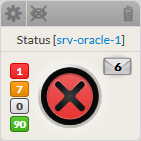
  • The name of the element
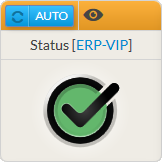
  • The Status and it its Context (see Monitoring logic for more details)
  • Notifications sent:
    • Notifications can be configured in Shinken Administration UI (see Notifications and Notification Way chapters)
      in case an element becomes WARNING or CRITICAL.
    • So if notification has been sent for this element, an envelope will be displayed with the number of notification on the right.
  • Only for hosts, it displays also the number of checks, sorted per status.

Red

Critical checks

Orange

Warning checks

Grey

Unknown checks

Green

Ok checks

  • If the status refer refers to an element, a click in the widget will open the Detailed View Panel providing details on the element (see the Host Detail View chapter).
    • For a host, clicking on one of the checks summary box, will directly open the Detail panel on the tab checks panel.
    • The list of check will be filtered to only display checks matching this status.
    • To get the full list of checks, simply remove the filter ( See Checks Tab chapter).

...