Versions Compared

Key

  • This line was added.
  • This line was removed.
  • Formatting was changed.

...

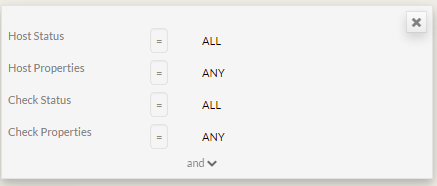
The filter panel can be opened by clicking on the left bar (Overview image : 4). In this menu, you will be able to stack “and/or rules”.

“AND” filters are in a block

By default, the following filters are defined

  • All status and properties are presents
  • All status and properties of services are presents
  

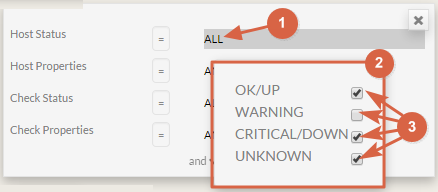
You can select host matching status type.

  1. Click on “all” text
  2. The pop-up showing all type appears
  3. Chose the states you want to keep
  

 You can select host properties

  1. Click on “any” text
  2. The pop-up showing all properties appears.
  

To add other filters:

  1. Click on the “and” at the bottom of the filter box
  2. A new line will be added.
  3. Select the new filter
  4. Select the type of comparaison.
  5. Type the matching value.


ADD a new block to set a

...

“OR” between two “AND” blocks


To add a block, click on the “or” "OR" button.

 Image Added


Validate the filter

Simply click on Filter button.

Image Added

In the list, you will see only elements matching the defined filter.

...