Overview
Hostgroup usage is very useful in several points :
- let Administrators to organize and order hosts by type, datacenters, applications, family etc.
- let Administrators the ability to apply common properties like the Realm
| You can access to the Hostgroups configuration by using the link in the main menu. | 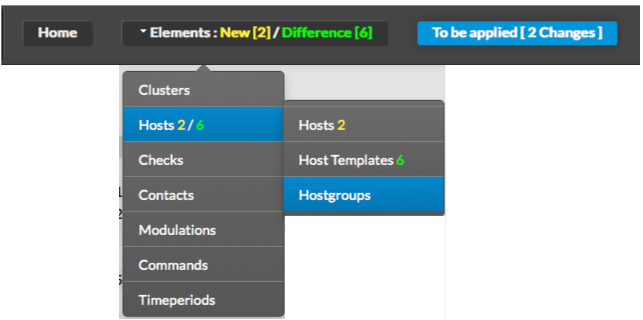 |
The main page of Hostgroups Configuration is composed of a table, listing all existing Hostgroups. This table contains the following informations :
A tool bar on top of the table, gives administrators the ability to do the following :
| 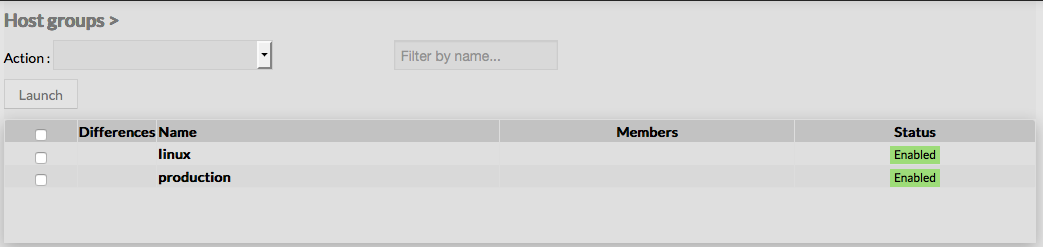 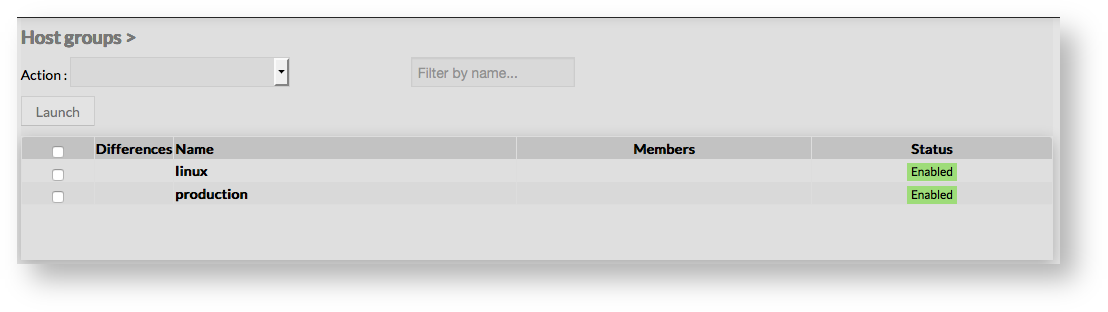 |
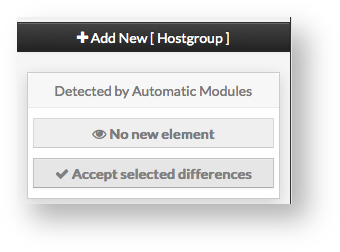
Like other configuration element pages, an action menu is displayed on the left. This Menu provides following operations :
| 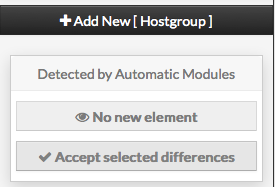  |
Create a new hostgroup
| To create a new Host Group, use the button "Add new [Hostgroup]" located in the Action Menu. | 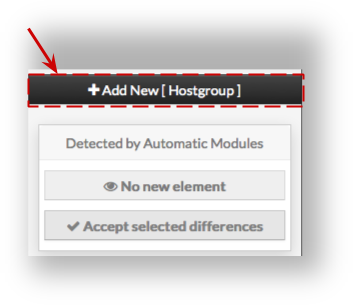 |
Hostgroup creation form will be displayed. This form is composed of one tab, containig the following properties :
|  |
Like on other forms, the left menu give to Administrators the ability to :
|
|
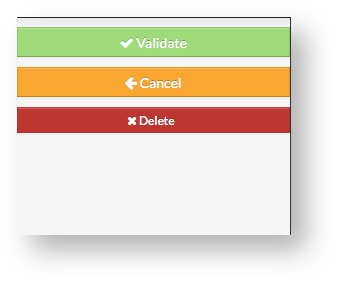
Once validated, the new hostgroup will appear in the table list.
| Anchor | ||||
|---|---|---|---|---|
|
| To modify properties of a hostgroup, first go on the Hosts page, from the Main menu, and then click on the host name you want to modify. | 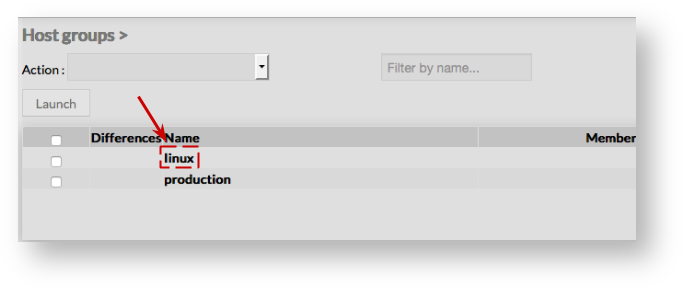 |
The form displayed is the same form used to create a new hostgroup. All fields are filled using the hostgroup properties. | 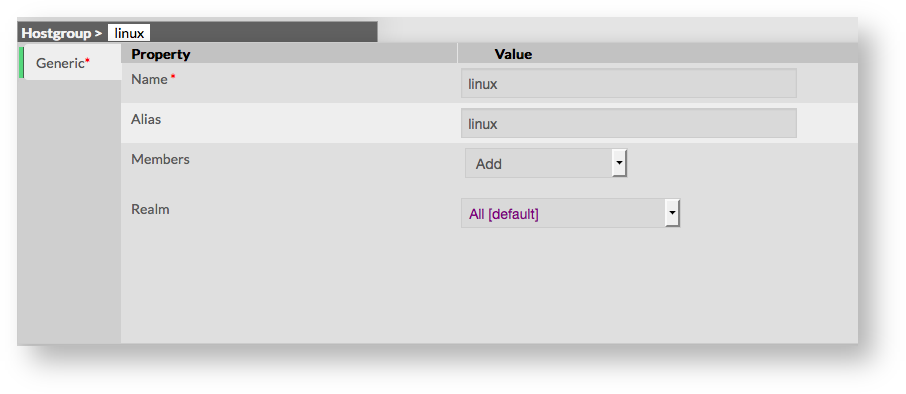 |
Add or remove Members
Members can be added either by editing the group, either by editing Host or Host Template.
Add a member to group
Then in the Hostgroup Form, select hosts you want to add by opening the select list | 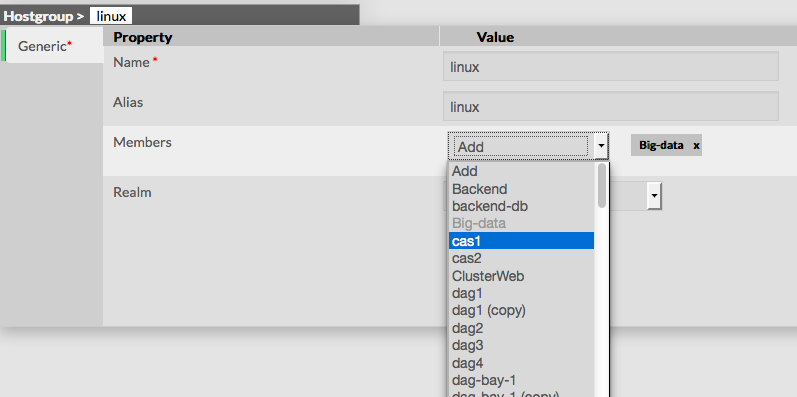 |
Add a member to group To remove a member, click on the mark displayed in the member.
|