...
There are 2 kinds of filters:
Text: like on host and check. - Type some letters (from 1 to as many you want)
- Press enter
- The list will be filtered, displaying only line containing letters you typed
- To remove the filter, select the the typed text, delete it and press enter
|  Image Modified Image Modified
|
| | |
List of values: like on Priority and Status - Click in the field
- The list with possible values will be displayed
- Select one of then
|  Image Modified Image Modified
|
Only line matching this selected value will be displayed.
...
“AND” filters are in a block
By default, the following filters are defined - All status and properties are presents
- All status and properties of services are presents
| 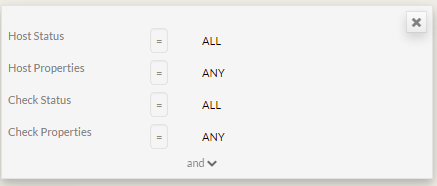 Image Modified Image Modified |
| | |
You can select host matching status type. - Click on “all” text
- The pop-up showing all type appears
- Chose the states you want to keep
| 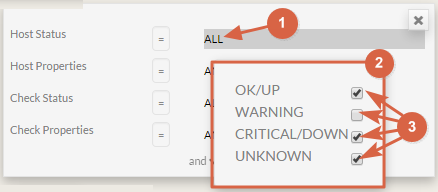 Image Modified Image Modified |
| | |
You You can select host properties - Click on “any” text
- The pop-up showing all properties appears.
|  Image Modified Image Modified |
| | |
To add other filters: - Click on the “and” at the bottom of the filter box
- A new line will be added.
- Select the new filter
- Select the type of comparaison.
- Type the matching value.
|  Image Modified Image Modified |
ADD a new block to set a “OR” between two “AND” blocks
...