Versions Compared

Key

  • This line was added.
  • This line was removed.
  • Formatting was changed.

Overview

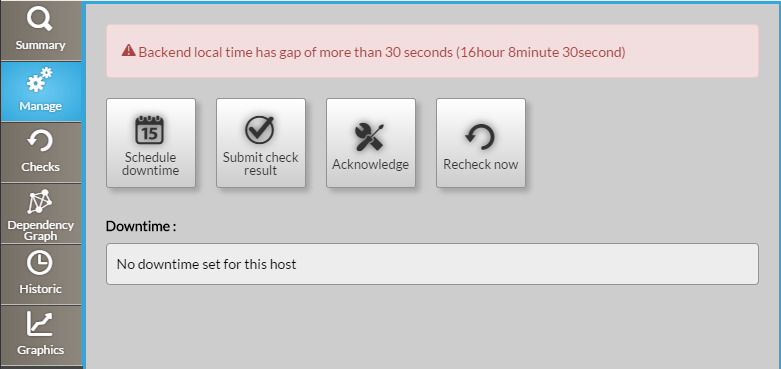
The manage tab is split splitted in 2 rows :

  • Action buttons
  • Scheduled Downtimes scheduled (the list of planned downtime)

Warning

Note: An error could be displayed on the top of this tab if the backend server has a gap
of more than 30 seconds with the computer displaying the UI Visualisation portal.

Having a difference between your computer and the server will prevent you to schedule
good downtime.


Action buttons

Button schedule downtime

Schedule Downtime button


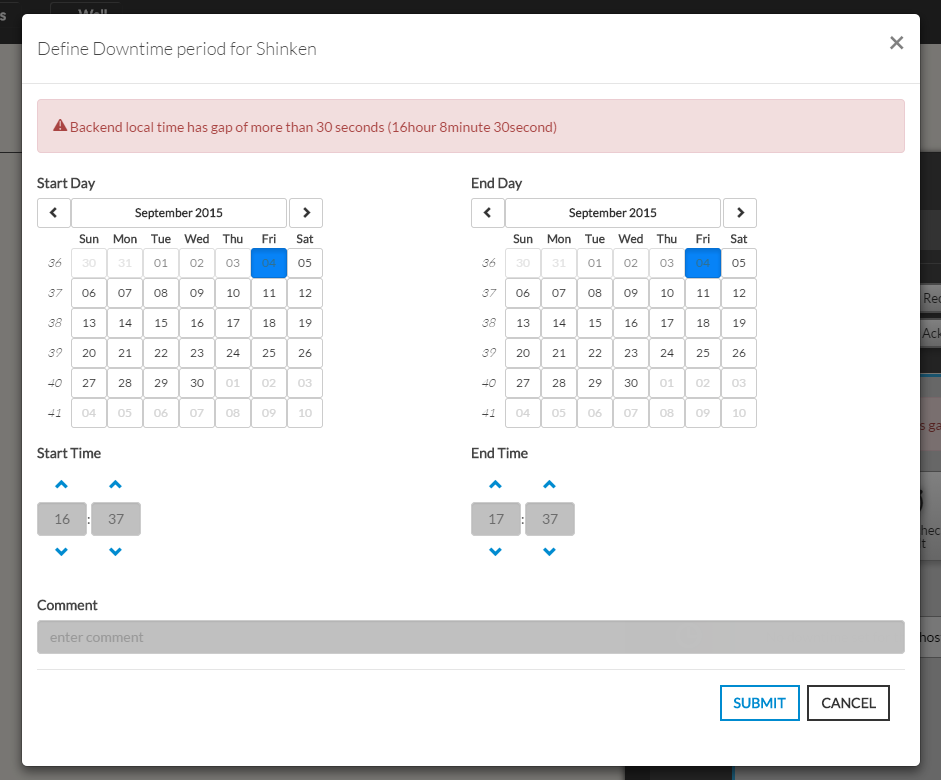
  • It opens the following a pop-up.

  • The form presents shows two calendars and two hour selectors.

  • Defines a You have to define the Start and a the End for of the downtime period for the downtime period.

  • Even if not mandatory, we advise you to add a comment as it wil will be
    very usefull for anybody looking at the list of planned downtime.
    The purpose of the downtime will be displayed in the list of downtime.


Button

Submit check result button


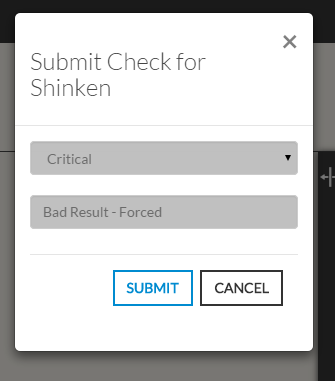
  • This button opens a modal form to force the status of the element

Note: On submit, the element status will be updated with your selection and
the new output will be displayed in the Summary tab.

The new "forced" status will only be valid until the next check.

Acknowledge


  • This button opens a modal form to acknowledge the current status of the host.
  • The acknowledgement informs that the issue (Critical, Warning, Unknown) has been taken
    into account by a user.
    • A text describing the reason is required to submit the acknowledge.
    • The context of the Element will change to Acknowledge ( See Status & Context )

Remove Acknowledge


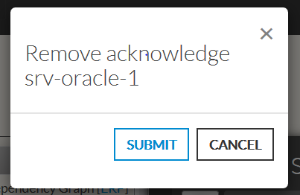
  • This button opens a modal form to remove the current Acknowledge context
    set on the element.

Recheck Now

  • This button force ask a check request to the Shinken Enterprise Backend for a check of the host status.
 

Downtimes scheduled

If there is no downtime

are define

defined for the host

  • the list of downtime is empty (like the first image in 'overview').


 Else a list of

 Otherwise scheduled downtimes

is shown

are listed:


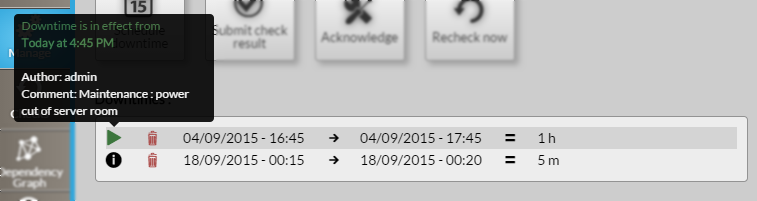
  • For each downtime in list :   Each downtime line indicates  Start Date/Time        End Date/Time  =  Duration
    • The first icon  , on hover, shows the author of the downtime and the his comment given (like explained in "Action Buttons : Schedule downtime"). 
    • If a downtime is in effect progress:
      • This icon is replaced by  icon (like shown in this picture, in green).
      • It will be specified in this a tooltip.
      • the The context of the element be is set to downtime (see Status & Context)

    •  To delete a downtime, you just have to click on bin icon  in the desired downtime row.