...
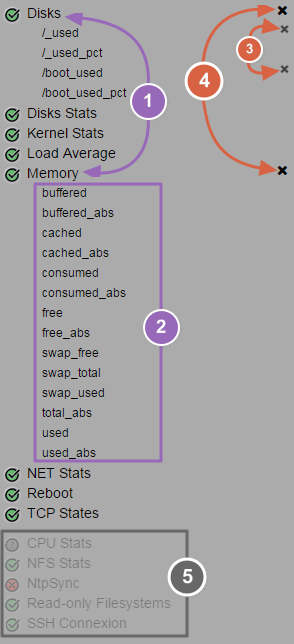
(1) Click on check name to develop its list of metrics (2) Click on desired metrics name to select thesethem (3) To deselect a metric, click on the cross on the right of the metric name (4) To deselect all metrics from a check, click on the cross on the right of the check name (5) Checks without metrics are dimmed at the end of list |
|
...
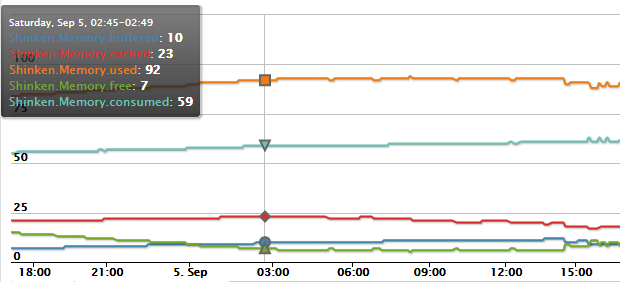
You can display multiple metrics on the same graph, so, each . Each metric is drawned drawn in a different color.
Move the mouse on the graph to display the info tooltip. In this one, you can retrieve the affected colors of The info are displayed with the right colors for each metric.
The tooltip , for a mouse position given, displays values for each metric for a precise date and time .(corresponding to the mouse position),
Time slider
Below the graph, you have two sliders .With these you can allow to adapt the current view on the desired time period.
...
Like a magnifying glass, when you move the sliders the graph scale is instantly updated in live.
On the sample above, the chosen time period is "1Week", but the time slider zooms on a 2 days period (2. Sept → 4. Sept).
...