...
Every page for elements configuration are organized in the same way.
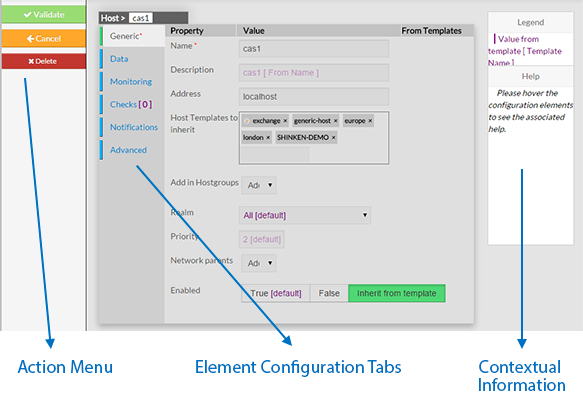
Action Menu.The Layout is divided in 3 sections :
- Action Menu.
- Element Configuration Tabs
- It contains all information of an element.
- Contextual information and Help.
...
Element Configuration Tabs
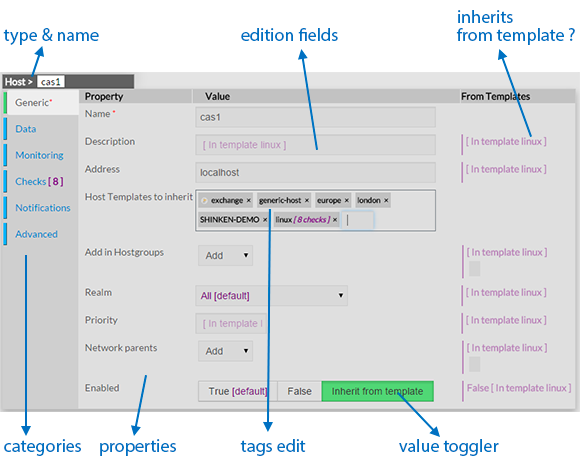 Image Added Image AddedThe type of the element and its name are displayed on the top of the | Aera (1)Area. As they are numerous, elements properties are split by category among tabs. | different - differtent following the type of the selected element.
- Tab layout is always the same:
- A list of properties linked to the category
- A row of this list contains
| always - altways 3 columns:
- Name of Property
- Value of Property
- Value inherited from template
( only for hosts, checks and contact)
Note: Values displayed in purple are by default value or inherited from a template.
| 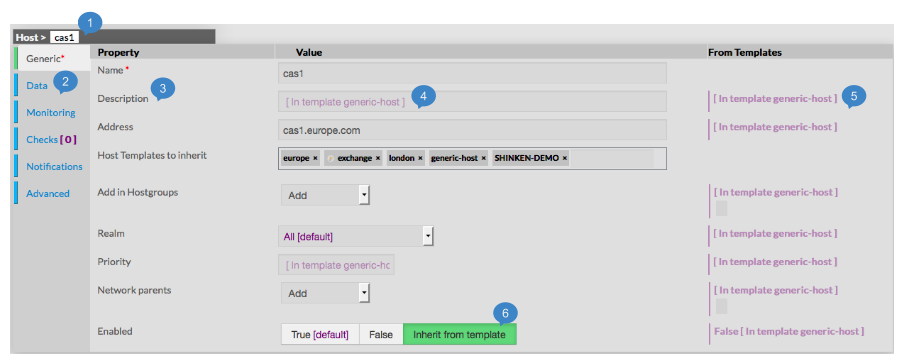 Image Removed Image Removed
|
- Values Editing Field can be of different kind:
| |
|  | - tTag Editing field
- Type the value
- Typed caracters may match an existing tag:
- If yes, list below will show you possible values.
Clicking or pressing enter will validate the choice. - If not, you can create a new tag by pressing the space bar.
|  | - Tag Adding Dropdown list
- Select in the dropdown list the tag you want
Note: You can't create tag for this value. | 
| - Dropdown list
- Select in int the dropdown list the value you want
Note: Only one value is possible for this fied.
| 
| - Toggle buttons
- Select one of the 3 possibles values (True, False, Inherit)
Note: the green one is the one selected.
| 
| - horizontal gauge
- Move the cursor up to the expected value.
| 
|
|
...