...
- Quickly filter the list with typed values
- Choose column data displayed or the number of lines displayed per page.
- Make a refresh Refresh of the whole list.
- Select elements.
- Make a complex filter
Quickly filter elements
On the top of the list, field fields will allow you to filter the this list:
There are 2 kinds of filters:
Text : like on host and checkfilter (like Host or Check columns). - Type some letters (from 1 to as many as you want)
- Press enter
- The filtered list will be filtered, displaying only line containing letters you typeddisplay the lines containing your letters
- To remove the filter, select the the typed text, delete it and press enter
| 
|
| | |
List of values : (like on Priority and or Status columns): - Click in the field
- The list with will display possible values will be displayed
- Select one of then
|  Image Removed Image Removed
|
...
- them
- The filtered list will display the lines matching the selected value
| Image Added |
Select displayed data column
Click A click on the gearing button button  will will open the following pop-up.
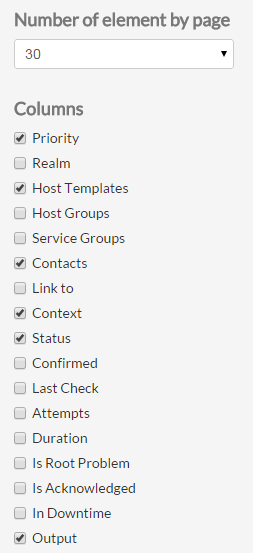 | You can choose which column to display: - StateStatus:
- UP : no problem on an host
- OK : no problem on an service
- Warning : The service is running but in degraded mode
- DOWN : the host is not running
- Critical : the element is not running
- UNKNOWN : no information is available on the element.
- FLAPPING : the element state is changing (by default, checks are made every five minutes, so its means that the X last checks results were different).
- DOWNTIME : The element has been flagged by a Shinken user as “under maintenance”.
- ACKNOWLEDGED : The problem has been taken into account by a Shinken user.
- Duration : Since when the element is in this state
- Output : The output string provided by the last plugin checking the element.
- State type
- HARD : the status is validated
- SOFT : the status is not sure. In this type, a check has been done but the result is not 100% sure so the engine will send a new check attempt to be sure of the status.
- Last Check : When did the previous check occur.
- Attemps Attempts : Attemps column will be useful only if the state type of the element is SOFT. It indicates how many checks can be possibly done before the State type becomes HARD.
- Realm : The realm to which the element belongs. Realms can be geographical or logical organization.
- Priority (Bussines impact) : The importance of the element defined in the Shinken Enterprise configuration is reprensented by star (from 0 to 5). This view is sorted by business priority importance.
|
Refresh the list
If you don't make no any action in the page, the page will be refreshed every minutes
...