...
- Element type : Host or Cluster
- Element Name
- Element description
- Element icon
- The icon is determined by the first host template that is displayed in the summary tab.
It there is not a template attached to your host, or if the attached template has not a defined icon.So in
In our srv-web-1 the icone displayed is the apache one because the first template is the apache host template. 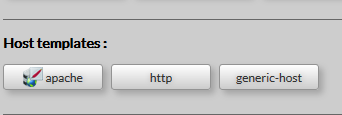 Image Modified Image Modified
- If there is no template attached to your host, or if the attached template has no defined icon, so the icon displayed will be the default one.
- The realm to which the element belongs
- Address of the element.
- A button to refresh host detail view
- All data displayed brought back again from the Shinken Enterprise Backend.
|  |
...
This zone will provide the status, details on this status, and some of the command to manage the status of the chosen element.
...
- Current element status (like status widget with context)
- The time elapsed from the last check and when the scheduled check will occur.
- Click this button to launch an instant check
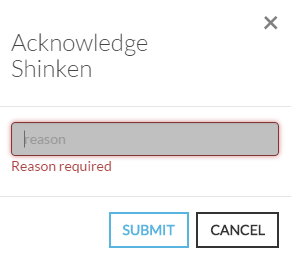
- Click this button to open a modal form to acknowledge the current status of the host.
The acknowledgement informs that the current status has been seen by somebody, this is why a reason in form is required.
 - A gauge informs if the element is flapping and how
- The last zone on the right, informs the user when the state changed.
It precises the previous and the new status and the exact date and time.
|  |
...