...
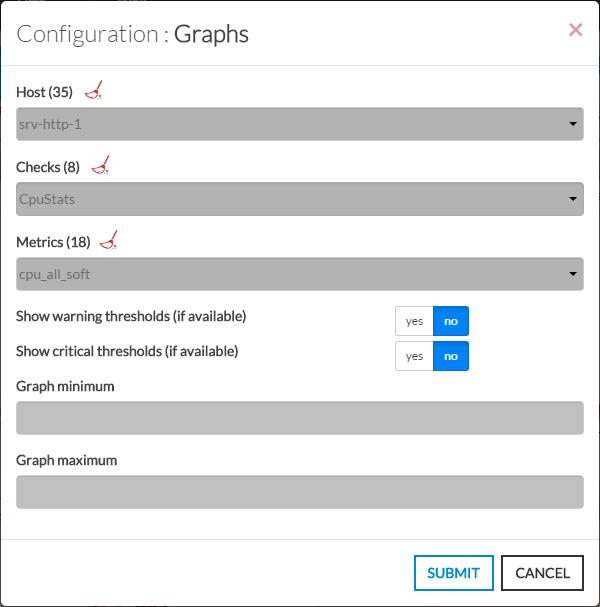
These are the required steps to configure a Graphs widget.
- Open the configuration box:
- Type the host in the edit field under HostSelect a host or cluster name in the first list, only those which have checks will be suggested.
- The total number of host hosts and cluster clusters will be displayed near "Select Host (35 in our exemple/Cluster" (1).
- It will automatically show If no host selected yet, the list of available hosts .If you type characters, the list will be automatically filtered.
- As soon as you have typed 1 letter, a matching list of checks will be displayed below.
- Once the host is selected, it will fill in the check area with all available checks with metrics.
- Type or Select the checks.
- Once the check is selected, it will fill in the metrics area with all available metrics.
- opened.
- You can search (filter) for a host name, typing into the input on top of the list.
- Youcan clean the current selection by clicking on the swipe icon (2).
- Select the check in second list, only those which have metrics will be suggested.
- Select the metric in thirdThen select the metrics.
- Activate Warning and Critical thresholds display.
Note: a check may not have metrics. It depends of the command used to implement the check.
| 
|