...
| Time period Configuration can be accessed by the Main Menu "Time Periods". | image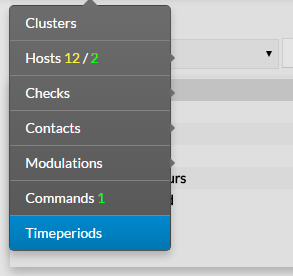 |
When accessing the Time Periods Configuration Page, a time period Table is displayed, listing all Time period objects. This table contains the following informations :
This page also provides, on the left, an action Menu, used to :
| image |
On the top of the table, A tool bar let Administrators the ability to :
|
...
| To create a new Time Period, use the button "Add new [Time Period]" located in the Action Menu | image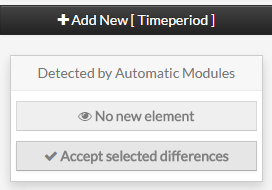 |
Time Period creation form will be displayed. This form is composed of tabs, corresponding to categories of properties :
| image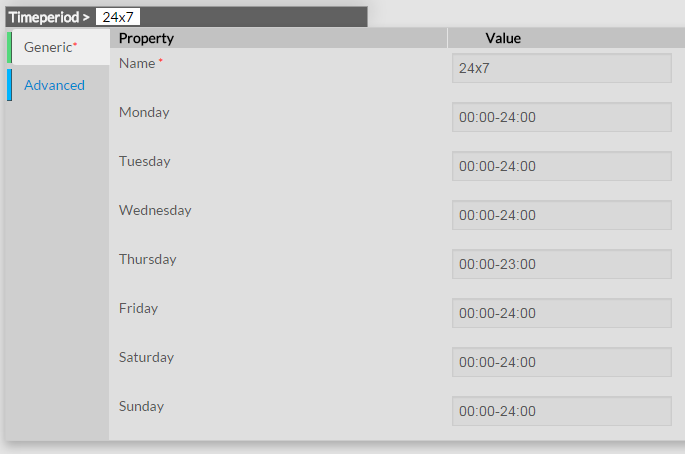 |
The left menu give to Administrators the ability to :
| image |
For each category, a corresponding form is displayed.
...
| To modify properties of a time period, first go on the Time Periods page, from the Main menu, and then click on the name you want to modify. | image |
The form displayed is the same as the form used to create a new Time Period. All fields are filled with element properties. Once changes have been made, configuration of the Time Period must be saved by clicking the Validate button available on the left menu | image |
| Cancel button revert all changes to precedent configuration. | image |
Delete a Time Period
To delete a command, you can use the form of the command, or delete it directly from the list page. | |
From the Form page First go to the Time Periods page, from the Main menu, then click on the time period name you want to delete. Once in the page displaying the form, click on the Delete button available on the left menu. A confirmation popup will be displayed. | image |
From the Main page First go to the Time Periods page, from the Main menu, then click on the check box placed on the first column of the table. Use the Action menu on the top to select Delete, and click to the Launch Button. A confirmation popup will be displayed. | image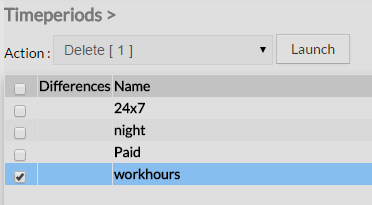 |
Using the Main page gives Administrators ability to Delete many Time periods at once.
...
| To duplicate a Time Period, first go on the Main page listing all time poeriodsperiods, then select a time period by clicking on the check box placed on the first column. | image |
Once selected, the time period can be duplicated by selecting Duplicate in the select Action of the tool bar. Duplication is executed by clicking the Launch button. | image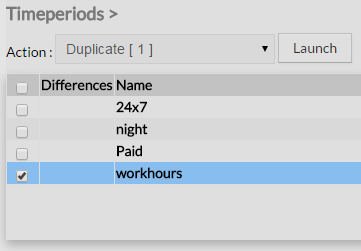 |
| The name of time period duplicated is suffixed by "(copy)" | image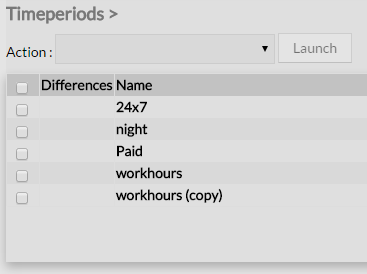 |
Using the Main page gives Administrators ability to Dublicate many Time Periods at once.
...