Overview
This document describes how you can import hosts and users from Active Directory.
There are some steps you’ll need to follow in order to be able to import hosts and users :
- Enable the Active Directory source,
- Configure the Active Directory module,
- Configure the connection to Active Directory,
- Configure the mapping rules,
- Configure the import rules.
What is already available in the Shinken Installation
To make your life a bit easier, a few configuration tasks have already been done for you:
- Installation of the Active Directory import module,
- Availability of an example of pre configured active directory source ready to be customized.
| Panel | ||
|---|---|---|
| ||
|
Setup the pre-installed source
Installation and update script of Shinken will set up a default active directory source already configured:
- You can see it in the source table of the UI Configuration home page.
- This source uses 2 kinds of configuration files
- Source definition files
- Configuration files to customize the data mining.
- available in folder ( /etc/shinken-user/source-data-active-directory-sample ).
- available in folder ( /etc/shinken-user/source-data-active-directory-sample ).
Tip title Advice The first time, we are advising you to only update Configuration files.
You will then decide if you want to have 1 or more active directory sources ( if you have a big active directory, it might be interesting to have many sources pointing of specific entries for performance gain).
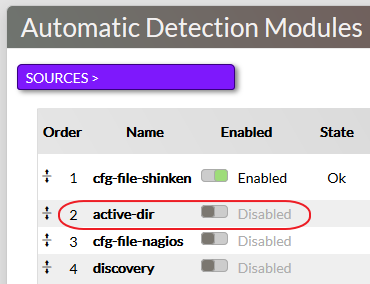
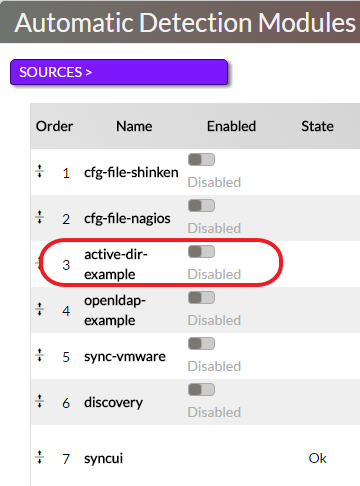
Source definitions:
Enable the activ-dir-import Source:
In the Automatic Detection Modules panel, clic on the selector button to enable the module. | 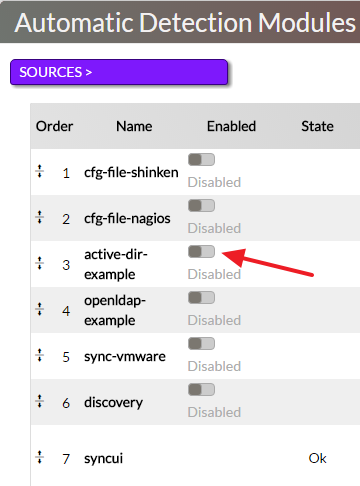 |
You can find the following parameters in the source file /etc/shinken/sources/active-dir-hosts.cfg :
| Property | Example | Description |
|---|---|---|
| source_name | active-dir-example | Name of this source. Must be unique. |
| order | 2 | Order in the merge algorithm of this source data. Look in the Synchronizer page for more information about it. |
| import_interval | 5 | Launch this source every import_inverval minutes. |
| modules | active-dir-example | (module used by shinken to parse active directory data) |
| enabled | 0 | Activate or Disable the source. |
| description | This source is about loading hosts from active directories |
Configure the Active Directory Module
The source If
neccessarynecessary, the file /etc/shinken/modules/activ-dir-import.cfg
- Uncomment and change the following parameters to point to the file located in /etc/shinken-user/source-data/source-data-active-directory
| Property | Value | Description |
|---|---|---|
| module_name | active-dir-example | Module's name. Must be unique. |
| module_type | active-dir-import | Type of module. |
| connection_configuration_file | /etc/shinken-user/source-data/source-data-active-directory/_configuration/active-directory-connection.json | Connection information. |
| rules_configuration_file | /etc/shinken-user/source-data/source-data-active-directory/_configuration/active-directory-rules.json | Rules configuration. |
| mapping_configuration_file | /etc/shinken-user/source-data/source-data-active-directory/_configuration/active-directory-mapping.json | Mapping rules. |
Connection configuration
This file is used to make the connexion to your Active Directory server.
 | Edit the file /etc/shinken-user/source-data/source-data-active-directory/_configuration/active-directory-connection.json |
| Property | Default | Description |
|---|---|---|
| url | ldap://YOUR-DC-FQDN/ | URL of your Active Directory server. |
| base | dc=YOUR,dc=DOMAIN,dc=com | Base OU for your objects discovery. |
| hosts_base | OU=DataCenter Servers,dc=YOUR,dc=DOMAIN,dc=com | Base OU for the hosts discovery. |
| contacts_base | dc=YOUR,dc=DOMAIN,dc=com | Base OU for the contacts discovery. |
| username | SHINKEN@YOURDOMAIN.com | Username used to connect to the Ldap server. |
| password | PASSWORD | Password used by the user to connect to the Ldap server. |
Example
| Code Block | ||||
|---|---|---|---|---|
| ||||
{
  "url": "ldap://vm-w2k8r2.shinkendom.local/",
  "base": "dc=shinkendom,dc=local",
  "hosts_base": "OU=serveurs,dc=shinkendom,dc=local",
  "hostgroups_base": "OU=serveurs,dc=shinkendom,dc=local",
  "contacts_base": " OU=utilisateurs,DC=shinkendom,DC=local",
  "username": "administrateur@shinkendom.local",
  "password": "P@ssword1"
}
|
| Tip | ||
|---|---|---|
| ||
The account used to request LDAP only need read-only access. You should create a user account with read-only access dedicated to the Active Directory import module. |
Mapping rules configuration
This file allow you to do the mapping between Active Directory and Shinken properties.
Unless you know what you're doing here, you should keep this file unmodified.
You can find some customization in the How to section.
File /etc/shinken-user/source-data/source-data-active-directory/_configuration/active-directory-mapping.json
| Code Block | ||
|---|---|---|
| ||
# IMPORTANT: Do not edit this file.
# To have your own mapping, copy it under the /etc/shinken-users directory and edit your copy instead.
# Note: comments should be with a # starting the line, NOT after a value
{
# first hosts propertyes (computer object in Active Directory)
   "host.name": "name",
   "host.dNSHostName": "dNSHostName",
   "host.operatingSystem": "operatingSystem",
   "host.operatingSystemServicePack":"operatingSystemServicePack",
   "host.distinguishedName": "distinguishedName",
   "host.filter": "(objectClass=computer)",

# Now contact properties
    "contact.name": "name",
    "contact.telephoneNumber":"telephoneNumber",
    "contact.mobile":"mobile",
# Co: for country
    "contact.co":"co",
# l: for city
    "contact.l":"l",
    "contact;company":"company",
    "contact.filter":"(&(objectCategory=person)(objectClass=user))",
# By default hostgroup are not requested. Setup a filter to enabled it
    "hostgroup.filter":""
}
|
Import rules configuration
This file is used to apply host template, contact template and tags to the hosts and contacts while the import.
| Edit the file /etc/shinken-user/source-data/source-data-active-directory/_configuration/active-directory-rules.json |
| Tip | ||
|---|---|---|
| ||
A host template called windows is already available in Shinken checking : Cpu, Disks, EventLogApplication, EventLogSystem, Memory, Network Interface, Reboot, Services, Swap. As a good start, you can configure the property hosts_tag in this way :
|
The mandatories properties to modify are in green.
| Property | Default | Description |
|---|---|---|
| hosts_tag | yourdomain | Shinken host template applied during the import |
| contacts_tag | generic-contact | Shinken contact template applied during the import |
| contacts_filters | CN=Domain Admins,CN=Users,DC=YOUR,dc=DOMAIN,dc=com | CN=OTHERGROUPS,OU=Groups,OU=Users Groups,DC=YOUR,dc=DOMAIN,dc=com | User group to import |
| hosts_tag_citrix | OU=Terminal Servers,OU=DataCenter Servers,DC=YOUR,dc=DOMAIN,dc=com | host tag citrix |
| hosts_tag_database | OU=Database Servers,OU=DataCenter Servers,DC=YOUR,dc=DOMAIN,dc=com | host tag database |
| hosts_tag_exchange | OU=Email Collaboration Servers,OU=DataCenter Servers,DC=YOUR,dc=DOMAIN,dc=com | host tag exchange |
| hosts_tag_fileprint | OU=Files Print Servers,OU=DataCenter Servers,DC=YOUR,dc=DOMAIN,dc=com | host tag fileprint |
| hosts_match_operatingSystem_windows | windows | host tag windows |
| hosts_match_operatingSystem_windows2008 | windows*.*2008(?!.*.(?:r2)) | host tag windows2008 |
| hosts_match_operatingSystem_windows2008r2 | windows*.*2008*.*r2 | host tag windows 2008r2 |
| hosts_match_operatingSystem_windows2003 | windows*.*2003 | host tag windows2003 |
| hosts_match_operatingSystem_windows2012 | windows*.*2012(?!.*.(?:r2)) | host tag windows2012 |
| hosts_match_operatingSystem_windows2012r2 | windows*.*2012*.*r2 | host tag windows2012r2 |
| hosts_match_operatingSystem_windows2000 | windows*.*2000 | host tag windows 2000 |
| hosts_match_operatingSystem_windowsxp | windows*.*xp | host tag windows xp |
| hosts_match_operatingSystem_enterprise | Enterprise | host tag Enterprise |
| hosts_match_operatingSystemServicePack_sp1 | Service Pack 1 | host tag Service Pack 1 |
| hosts_match_operatingSystemServicePack_sp2 | Service Pack 2 | host tag Service Pack 2 |
| hosts_match_operatingSystemServicePack_sp3 | Service Pack 3 | host tag Service Pack 3 |
| contacts_match_memberOf_domain-admins | CN=Domain Admins,CN=Users,DC=YOUR,dc=DOMAIN,dc=com | Contact tag domains-admins |
| Tip | ||
|---|---|---|
| ||
See below about the tag functionnality. |
Example :
| Code Block | ||||
|---|---|---|---|---|
| ||||
{
  "hosts_tag": "windows",
  "contacts_tag": "generic-contact",
  "contacts_filters": "CN=paris_shinken_users,OU=utilisateurs,DC=shinkendom,DC=local | CN=bordeaux_shinken_users,OU=utilisateurs,DC=shinkendom,DC=local",
  "hosts_tag_citrix": "OU=citrix,OU=serveurs,dc=shinken,dc=local",
  "hosts_tag_database": "OU=database,OU=serveurs,dc=shinken,dc=local",
  "hosts_tag_exchange": "OU=exchange,OU=serveurs,dc=shinken,dc=local",
  "hosts_tag_fileprint": "OU=fileprint,OU=serveurs,dc=shinken,dc=local",
  "hosts_tag_windows": "OU=infra,OU=serveurs,dc=shinken,dc=local",
  "hosts_match_operatingSystem_windows": "windows",
  "hosts_match_operatingSystem_windows2008": "windows*.*2008(?!.*.(?:r2))",
  "hosts_match_operatingSystem_windows2008r2": "windows*.*2008*.*r2",
  "hosts_match_operatingSystem_windows2003": "windows*.*2003",
  "hosts_match_operatingSystem_windows2012": "windows*.*2012(?!.*.(?:r2))",
  "hosts_match_operatingSystem_windows2012r2": "windows*.*2012*.*r2",
  "hosts_match_operatingSystem_windows2000": "windows*.*2000",
  "hosts_match_operatingSystem_windowsxp": "windows*.*xp",
  "hosts_match_operatingSystem_enterprise": "Enterprise",
  "hosts_match_operatingSystemServicePack_sp1": "Service Pack 1",
  "hosts_match_operatingSystemServicePack_sp2": "Service Pack 2",
  "hosts_match_operatingSystemServicePack_sp3": "Service Pack 3",
  "contacts_match_memberOf_domain-admins": "OU=shinken_admins,OU=utilisateurs,DC=shinkendom,DC=local"
}
|
Import the objects
Go in the Administration website, if your configuration is ok you should have an ouput "OK: Import clean."


Now do a "Force import" in clicking on 
In the "Elements >" panel you will see new elements appearing (Hosts and Contacts).
The next step will be to import those new objects.
How to
Import host with specific names
| Edit the file /etc/shinken-user/source-data/source-data-active-directory/_configuration/active-directory-mapping.json |
| Code Block | ||
|---|---|---|
| ||
# IMPORTANT: Do not edit this file.
# To have your own mapping, copy it under the /etc/shinken-users directory and edit your copy instead.
# Note: comments should be with a # starting the line, NOT after a value
{
# first hosts propertyes (computer object in Active Directory)
   "host.name": "name",
   "host.dNSHostName": "dNSHostName",
   "host.operatingSystem": "operatingSystem",
   "host.operatingSystemServicePack":"operatingSystemServicePack",
   "host.distinguishedName": "distinguishedName",
   "host.filter": "(objectClass=computer)",

# Now contact properties
    "contact.name": "name",
    "contact.telephoneNumber":"telephoneNumber",
    "contact.mobile":"mobile",
# Co: for country
    "contact.co":"co",
# l: for city
    "contact.l":"l",
    "contact;company":"company",
    "contact.filter":"(&(objectCategory=person)(objectClass=user))",
# By default hostgroup are not requested. Setup a filter to enabled it
    "hostgroup.filter":""
}
|
Modify the host.filter
| Code Block |
|---|
"host.filter": "(&(objectClass=computer)(sAMAccountName=*SERVER_NAME*))", |
Change SERVER_NAME by the server name pattern you want to import.
Import users of multiple groups
| Edit the file /etc/shinken-user/source-data/source-data-active-directory/_configuration/active-directory-rules.json |
| Code Block | ||
|---|---|---|
| ||
"contacts_filters": "CN=shinken_admins,OU=utilisateurs,DC=shinkendom,DC=local | CN=shinken_users,OU=utilisateurs,DC=shinkendom,DC=local", |
In contact_filters, add the LDAP path to the different user groups separated by a pipe.
Tag hosts and users to add more properties before import
| ||||||||
source-data-MY-active-directory
Creation of your own sources
EXPLIQUER POURQUOI CREER PLUSIEURS SOURCES
- You should keep them unmodified and create your source in copying them.
- Every time you have to customize Shinken Sources, you have to do it in the /etc/shinken-user folder.
To create your own import source, do the following :
| Code Block | ||
|---|---|---|
| ||
cd /etc/shinken-user/source-data cp -r source-data-active-directory-sample source-data-MY-active-directory |
| Tip | ||
|---|---|---|
| ||
Let's consider that the folder in which you will have your new Active Directory source is : /etc/shinken-user/source-data/source-data-MY-active-directory/ |