Description
This widget displays the dependency tree of a host or a cluster.
|
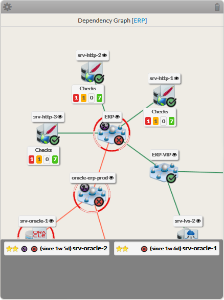
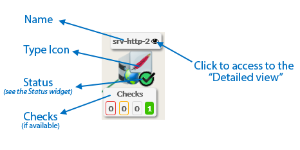
- Each element has 4 components:
...
- Its name.
- Its icon representing its type.
- Its status (icon state => see
...
- the Status & Context
...
- for the list).
- If the elements is a host, available Checks will be displayed in 4 boxes below sorted by their status (Critical, Warning, Unknow, Ok).
- You can access the “Detailed view” of this element by clicking on the eye icon.
...
...
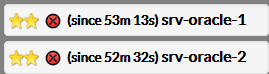
- If, in the dependency graph, some elements are not in “OK” state, they will be listed in at the bottom of the graph.
...
| Panel |
|---|
|
Usage
You can navigate in the tree to see the dependencies.
Shift the tree
|
...
Center the tree on not OK elements displayed in the bottom list
| |
Re-Center on the chosen element
| |
Open the detailed view of a specific node |
- You can access the “Detailed view” of this element by clicking on the eye icon, near to the name of the node.
Configuration
Configuration
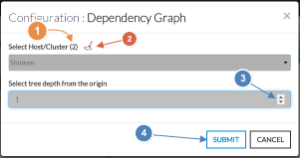
- Select a host or cluster name in the first list.
- The total number of hosts and clusters will be displayed near "Select Host/Cluster" (1).
- If no host selected yet, the list of available hosts will automatically opened.
- You can search (filter) for a host name, typing into the input on top of the list.
- Youcan clean the current selection by clicking on the swipe icon (2).
- Depth of the tree.
- By default, the depth is set to 5, but you can change it as you want (3) between 1 to 10.
- By default, the depth is set to 5, but you can change it as you want (3) between 1 to 10.
- When configured, press the SUBMIT button (4).
...
...
| Panel |
|---|
...
 |