Concepts
Chaque utilisateur à son propre cockpit constitué de tableaux de bord.
Le cockpit peut être personnalisé, l'utilisateur peut organiser ses vues de la façon la plus pratique pour lui.
Voyons comment fonctionne ce cockpit et ses possibilités.
Celui-ci vous aidera à organiser vos vues en fonction de vos besoins de visualisation.
Overview
Each user has its own hive of dashboards' summaries.
The hive can be customized as needed, the user can organize the monitoring overview in the most efficient way.
Let’s study this hive to learn the possibilities of the visual monitoring interface.
The hive will help you to organize visually your overview of elements that need to be monitored.
The hive displays tiles and empty alveolus in which you can create new tiles or move existing tiles.
The hive has no size limit. Each time you add a new tile near the edge, the hive will extend itself by adding 2 columns or rows of empty alveolus.
Tile
Each tile is a summary of a Dashboard.
A dashboard is a visual container of information which will help you to investigate issue sources (see Dashboard chapter for more details).
It contains:
|
When initialy created, a tile will have
- no summary,
- the default title "NEW DASHBOARD(X)", where X is the number of tile in the hive,
- the default status OK.
Editing the display of the tile is done into the dashboard it is linked to.
Edit the hive
Create a new tileClick on an empty alveolus. An empty tile with the default name will then be created. | |
Move a tile / switch 2 tilesDrag a tile on an empty alveolus to move it. Drag a tile on another one to switch both tiles. | |
Delete a tileDrag a tile in the garbage can that appears at the bottom right corner of the screen. | 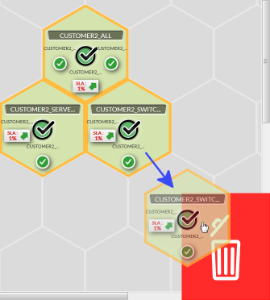 |
Open the Dashboard linked to a tileSimply click on the tile. |
Color Group
You will notice that some tiles have the same border color. You can set this color to tiles group. It is up to you to choose your organization. As an example, you can choose a color to differentiate data centers. This color can be set when editing the Dashboard linked to the tile (see Dashboard chapter).
The image show you the example of the green group. | 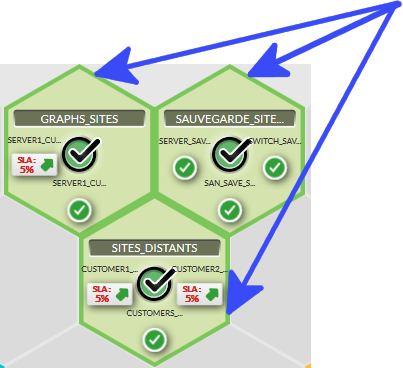 |
Mini map
Cette vue propose des alvéoles dans lesquelles vous pouvez créer des tuiles
Cette vue n'a pas de limite de taille. Elle s’agrandit à chaque fois que vous ajoutez une tuile.
Tuile
Chaque tuile est un résumé de tableaux de bord .
Un tableau de bord contient les informations nécessaires pour investiguer lorsqu'un problème survient (voir Dashboard chapter pour plu de détails).
Il contient:
|
A la création, une tuile aura
- aucun résumé,
- le titre par défaut "NOUVEAU DASHBOARD(X)", où X est le nombre total de tuiles,
- le statut OK par défaut
.
Mode édition
Créer une nouvelle tuileClicker sur une alvéole vide . Une tuile vide avec le nom par défaut sera créée . | |
Déplacer une tuile / échanger 2 tuilesSaisir et déplacer la tuile vers une alvéole vide . Saisir et déplacer une tuile vers une autre pour les échanger | |
Supprimer une tuileSaisir une tuile et la glisser dans la corbeille qui apparaît en bas à droite . | |
Ouvrir un tableau de bord dans une tuileClicker directement sur la tuile. |
Couleur du groupe
Vous remarquerez que certaines tuiles ont la même couleur de bordure . Vous pouvez définir vous même cette couleur pour regrouper des tuiles. Libre à vous de choisir la signification des codes couleur (par exemple un datacenter spécifique). Cette couleur est définie dans le tableau de bord (voir Dashboard chapter).
Sur cette image, exemple d'un groupe de couleur verte . | |
Mini carte
La mini carte est visible en bas à gauche. Elle vous permet de naviguer très facilement dans le cockpit lorsqu'il y a beaucoup de tuiles.
The mini map is located at the bottom left corner of the hive It will help you to navigate faster if your hive is bigger than your computer screen.
You just have to |