Description
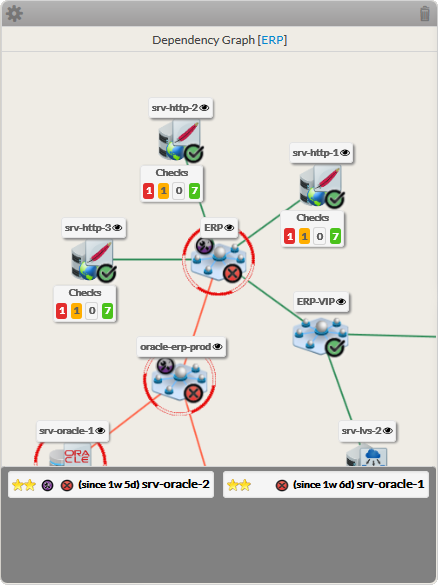
This widget displays the dependency tree of a host or a Ce widget présente l'arbre de dépendance d'un hôte ou d'un cluster.
- Un arbre 2D apparaît depuis l'élément sélectionné (hôte ou check), montrant ses liens de dépendance:
- Définition du cluster (voir
A 2D tree starting from the chosen element (host or check), displays dependency links:
- A Node will be the representation of either a host, a cluster or a check.
- Un nœud représentera soit un hôte, un cluster ou un check.
- Chaque élément a 4 composants Each element has 4 components :
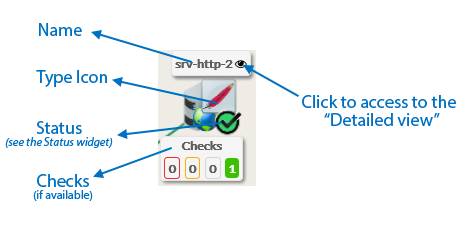
| - Its nameson nom.Its icon
- representing its l'icone représentant son type.
- Its status (icon state => see the son statut (voir Status & Context for the list pour la liste).
- If the elements is a host, available Checks will be displayed in 4 boxes below sorted by their status si l'élément est un hôte, les checks disponibles apparaîtront in 4 boîtes selon leur statut (Critical, Warning, Unknow, Ok).You can access the “Detailed view” of this element by clicking on the eye icon
- Vous pouvez accéder à la vue détail en clickant sur l'icone "œil" .
| | | |
|  |
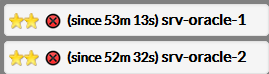
- If, in the dependency graph, some elements are not in “OK” state, they will be listed in at the bottom of the graphSi, dans le graphe de dépendance, certains éléments ne sont pas en état “OK” , ils apparaîtront en bas du graphe.
|  |
Usage
You can navigate in the tree to see the dependencies.
Utilisation
Vous pouvez naviguer à l'intérieur de l'arbre.
- maintenez enfoncé le bouton gauche ou droite de la souris pour déplacer l'arbre.
| |
- Clicker sur le nom de l'élément pour centrer la vue sur lui
|
- Maintain the left or right mouse button pressed to shift the tree in the 4 directions.
| |
- Click on the element name to center on this element .
| |
Center on the chosen element- Pour revenir au départ, appuyer sur le bouton recharger To come back to the monitored element, press on the reload button .
| |
| Open the detailed view of a specific node | |
You can access the “Detailed view” of this element by clicking on the eye icon, near to the name of the node.
Configuration
- Sélectionner un hôte ou un nom de cluster dans la liste.
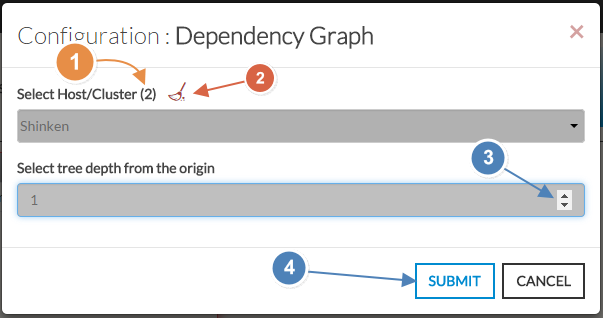
- Le nombre total d'hôtes et de clusters apparaîtra près de "Sélectionner Hôte/Cluster" (1).
- si aucun n'est déjà sélectionné, la liste de tous les hôtes disponibles apparaîtra automatiquement
- Vous pouvez faire un filtre sur un nom ou un type en saisisant directement dans la liste (3).
- Vous pouvez nettoyer la sélection en clickant sur le balai (2)
- Depth of the treeProfondeur de l'arbre.
By default, the depth is set to 5, but you can change it as you want (3) between 1 to 10.
- Part défaut, la profondeur est définie à 5, mais vous pouvez le modifier à volonté (3) entre1 et 10.
- Quand c'est terminé, appuyer sur le bouton soumettre When configured, press the SUBMIT button (4).
| 
|