Onglet générique
- Name
- Cette propriété permet de définir le nom utilisé pour identifier le groupe d'utilisateurs.
- Members (Users)
- Cette propriété est utilisée pour spécifier quels hôtes appartiennent au groupe d'utilisateurs.
- Members (User templates)
- Cette propriété est utilisée pour ajouter les utilisateurs ayant le modèle d'utilisateur spécifié au groupe.
- Enabled
- Permettre que cet élément soit pris en compte lors du passage de Staging en Production.
- Pack
- Cette propriété permet de définir dans quel pack se trouve le groupe d'hôte.
...
Overview
...
The main page of contact groups Configuration is composed of a table, listing all existing contact groups.
This table contains the following informations :
- a CheckBox to select one or more Contact Groups
- Differences since last commit in production
- Name
- Alias
- Members
A tool bar on top of the table, gives administrators the ability to do the following :
- Enable, Disable, Delete or Duplicate selected Contact Groups
- Filter List by Name
...
Like other configuration element pages, an action menu is displayed on the left.
This Menu provides following operations :
- Add en new Contactgroup
- Show contactgroup detected by automatic modules
- Accept differences on selected elements
...
Create a now Contact group
...

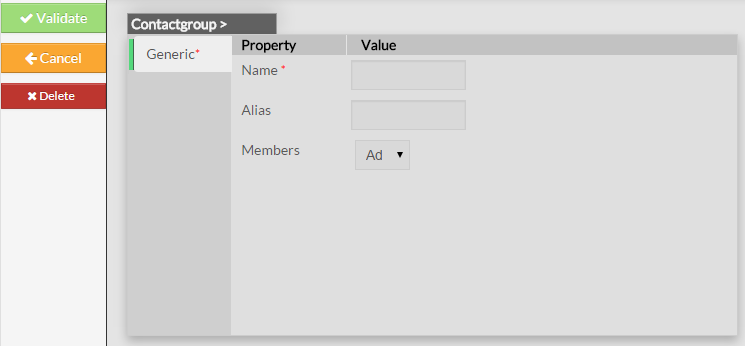
Empty Contact form will be displayed :
This form is composed of one tab, containig the following properties :
- Name
- used to define the name of the contact group
- this field is required
- Alias
- used to define a longer name, or a description to identify the contact group
- Members
- used to include contacts as members of the contact group
- fields is a list of members that can be added using the dropdown list of existing contacts
Like on other forms, the left menu give to Administrators the ability to :
- Validate the new hostgroup
- Cancel the action
- Delete the hostgroup
...
...
Once validated, the new contact group will be saved in the New configuration database,
and will appear in the list.
...
Modify a Contact Group
...
The form displayed is the same form used to create a new Contact group.
All fields are filled using the contact group properties.
...
Add or remove Members
...
Add a member to group
To add one or more members, first edit the group of you choice.
Then in the Contact Group Form, select contacts you want
to add using the drop down list of existing contacts
...
Add a contact to a Contact Group
To include a contact in a contact group, first go to the Contacts Page,
then click on the Contact of your choice.
The Form for the contact displayed gives the ability to add the Contact in one or more Contact Groups.
...
Delete a Contact group
...
From the Form page
First go to the Contact Groups page, from the Main menu,
then click on the contact group name you want to delete.
Once in the page displaying the form, click on the Delete button available on the left menu.
A confirmation popup will be displayed.
...
From the Main page
First go to the Contact Groups page, from the Main menu,
then click on the check box placed on the first column of the table.
Use the Action menu on the top to select Delete, and click to the Launch Button.
A confirmation popup will be displayed.
...
Duplicate a Contact Group
...
Once selected, the contact group can be duplicated
by selecting Duplicate in the select Action of the tool bar.
...
Using the Main page gives Administrators the ability to Duplicate many contact groups at once.
All properties are kept when duplicating operation, as well as Members.
| Info |
|---|
Duplicated Contact Groups are totally detached and independent of the cloned Contact Group. No relation is made in the configuration. |
...