En règle générale, un tableau de bord a pour objectif de regrouper toutes les informations nécessaires à la supervision d'éléments. Il s'agit simplement d'une représentation graphique permettant d'être plus efficace en accédant aux bonnes informations.
Par exemple, vous pouvez dédier un tableau de bord pour superviser un ERP, et contenant toutes les informations liées nécessaires à son bon fonctionnement :
- Statut résumé d'éléments clés (hôtes, base, pare feux, ...)
- La vue dépendance de tous les éléments liés à l'ERP ainsi que toutes leurs relations.
- Si jamais l'ERP tombe, accès direct aux problèmes causes à investiguer en priorité.
- Graphes, SLA, ...
Vous êtes donc libre de définir les éléments que vous désirez superviser.
Concepts
Un tableau de bord est toujours lié à une tuile du portail de gestion.
- Vous pouvez y accéder en cliquant sur la tuile correspondante.
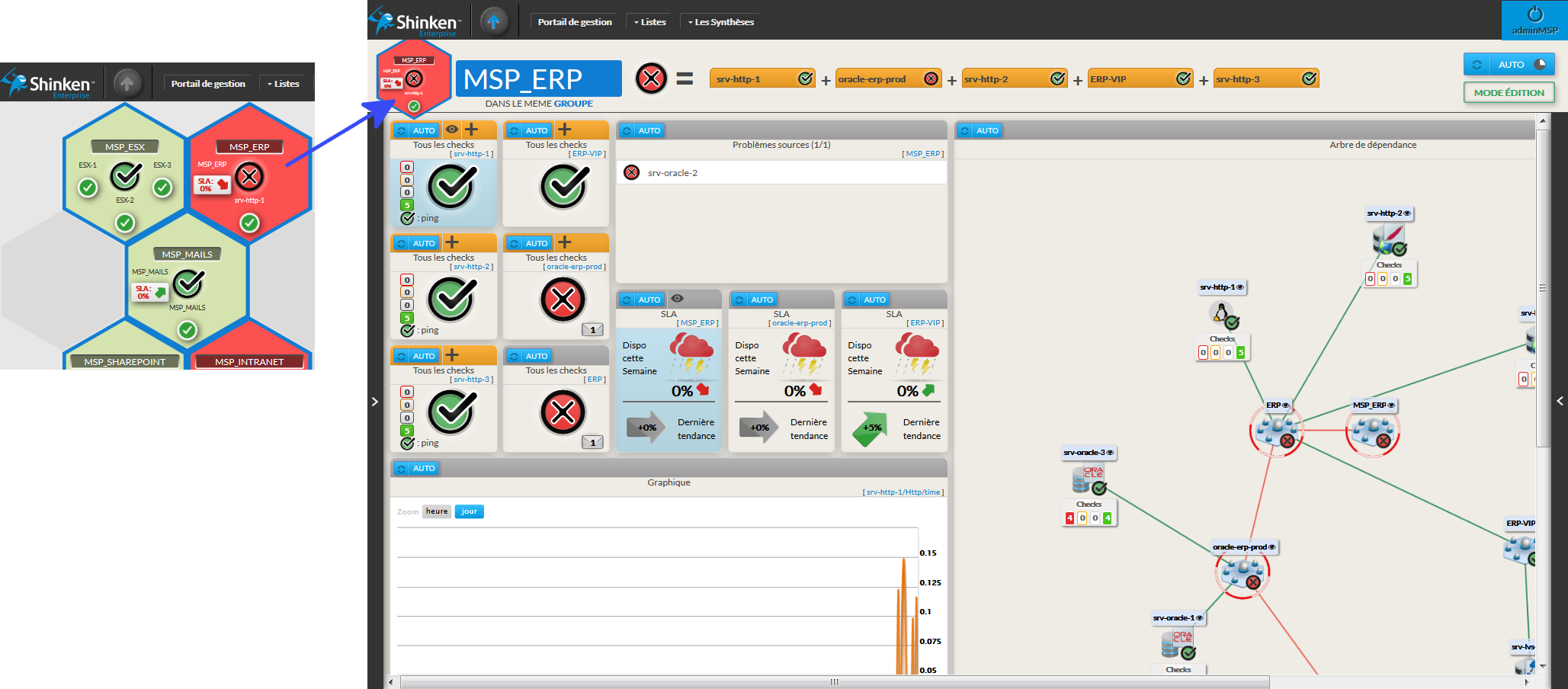
Dans cet exemple, le tableau de bord ERP est constitué de 12 boîtes contenant les informations de l'élément principal que nous supervisions.
- Ces boîtes sont des Widgets (voir Gestion des Widgets pour plus de détails).
Vous pouvez facilement basculer vers un tableau de bord du même groupe (couleur du contour des tuiles identiques).
- Cliquez sur le texte "Dans le même groupe",
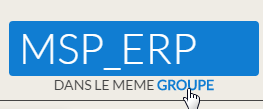
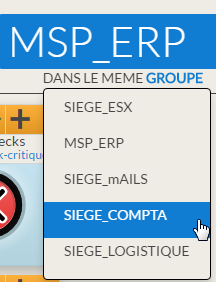
- Une liste déroulante sera affichée, vous n'aurez plus qu'à sélectionner l'élément souhaité.
- Cliquez sur le texte "Dans le même groupe",
Il y a 2 modes de gestion d'un tableau de bord:
- Mode Visualisation,
- Mode Edition ( pour modifier un tableau de bord ).
Quand vous ouvrez un tableau de bord, vous êtes en mode Visualisation par défaut.
Mode visualisation
Le tableau de bord est mis à jour automatiquement toutes les minutes.
Prévisualiser la tuile résumant le tableau de bord
- La tuile présente dans le portail de gestion est affiché en haut à gauche.
- Elle est mise à jour en temps réel après toute modification.
- Son comportement exactement le même que celui décrit dans le chapitre Portail de gestion .
- La tuile présente dans le portail de gestion est affiché en haut à gauche.
| Panel | ||
|---|---|---|
| ||
|
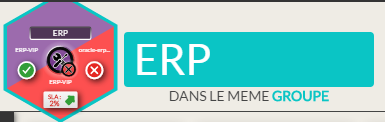
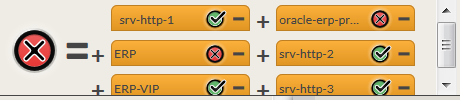
Le calcul est affiché graphiquement:
- Chaque widget servant au calcul du statut et du contexte est affiché à droite de la tuile sous forme d'une vignette contenant:
- son nom
- son statut/contexte
- un bouton "moins" permettant de supprimé la vignette rapidement
- Un clic sur la vignette permet de déplacer le tableau de bord vers cette vignette.
- Le statut résultat sera le pire des états présents dans la liste de widgets.
- Si trop de widgets composent le statut et ne peuvent pas être affiché dans la zone prévu, une barre de défilement sera rajoutée.
- Chaque widget servant au calcul du statut et du contexte est affiché à droite de la tuile sous forme d'une vignette contenant:
| Panel |
|---|
|

| Panel |
|---|
|
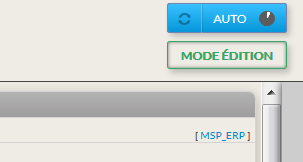
Rafraîchissement automatique
Le rafraîchissement automatique a lieu toutes les 60 secondes .
- Quand il est activé, le bouton est bleu.
- Une horloge est visible juste à côté pour connaitre le temps restant avant le prochain rafraîchissement.
| Panel |
|---|
|
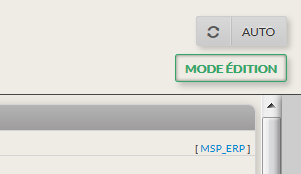
Stopper le rafraîchissement automatique
Il peut être intéressant d’empêcher le rafraîchissement d'un tableau de bord pour avoir analyser les données actuelles:
- Vous pouvez le désactiver en cliquant sur le bouton.
- Le bouton devient alors gris.
| Panel |
|---|
|
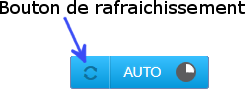
Forcer un rafraîchissement
- Cliquez sur la partie gauche du bouton.
| Panel |
|---|
|
Passer en mode édition
- Cliquez sur le bouton “Mode Edition” en haut à droite.
| Panel |
|---|
|
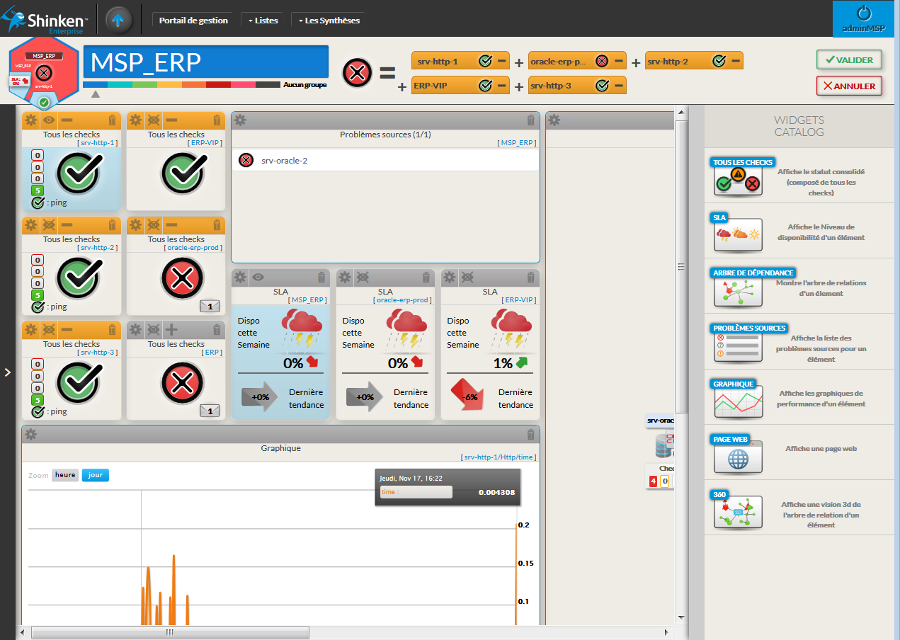
Vous pouvez organiser les tableaux de bord comme vous le souhaitez.
| Info |
|---|
Pendant le mode édition le rafraîchissement automatique est désactivé |
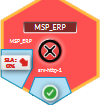
La tuile change en mode édition
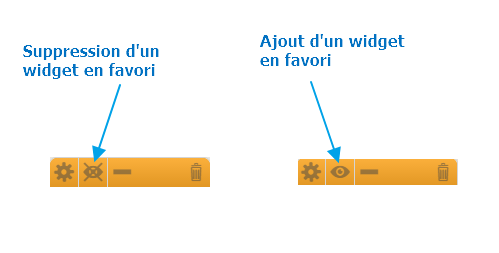
- Cliquez le bouton "oeil" d'un widget pour l'ajouter en favori sur la tuile.
- Pour supprimer un widget de la tuile, il suffit d'aller sur le widget concernés et cliquez sur le bouton "oeil barré".
- Si vous avez déjà défini vos 3 widgets favoris, un message d'erreur apparaîtra si vous essayez d'en rajouter un.
| Panel | ||
|---|---|---|
| ||
|
| Panel | ||
|---|---|---|
| ||
 |
Calcul du statut du tableau de bord
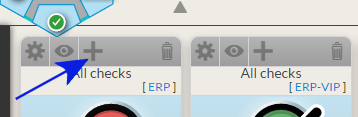
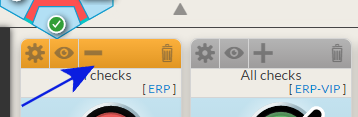
Le Statut d'un tableau de bord sera calculé avec le statut des widgets sélectionnées.
- Vous pouvez rajouter des widgets pour le calcul en appuyant sur l'icône "Plus".
- Vous pouvez retirer des widgets pour le calcul en appuyant sur l'icône "Moins".
| Panel |
|---|
|
| Panel |
|---|
|
Le mode édition permet un certain nombre d'actions sont possibles :
Changer le nom du tableau de bord
- Cliquez sur nom et saisir la nouvelle valeur.
| Panel |
|---|
|

Changer de groupe (couleur sur le portail de gestion)
- Cliquez sur la couleur sélectionnée. Cela va changer automatiquement:
- Le contour de la tuile.
- Le background du nom du tableau de bord.
- Cliquez sur la couleur sélectionnée. Cela va changer automatiquement:
| Panel |
|---|
|

Ajouter un widget
Sélectionnez le type de widget dans la liste latérale des widgets.
Il apparaîtra en bleu.
Vous pouvez vous déplacer de la droite à gauche dans la barre pour faire défiler les widgets disponibles
Cliquez sur le bouton “+ AJOUTER” et il sera ajouté dans le tableau de bord.
En fonction du type de widget,vous aurez soit une boîte vide, soit une valeur par défaut.
Vous devez ensuite configurer ce widget ( très facile : voir Gestion des Widgets ).
| Panel |
|---|
|

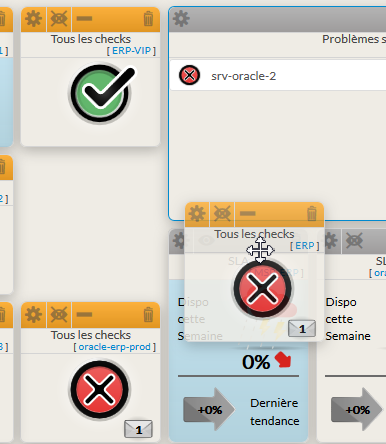
Déplacer un widget
Se positionner dessus, le curseur apparaîtra sous forme de croix.
Saisir le widget et le faire glisser. Lors du déplacement, il sera affiché par dessus les autres widgets
Lorsque que vous relâcherez le widget:
S'il est au-dessus d'autres widgets, ils vont automatiquement se décaler vers le bas pour laisser la place au widget.
| Panel |
|---|
|
Edition et suppression d'un widget
Ces points sont décrit dans le chapitre "Gestion des Widgets"
Redimensionner un widget
- Certains widgets peuvent être redimensionnés:
- Arbre de dépendance,
- Problèmes sources,
- Graphique,
- Page Web,
- 360.
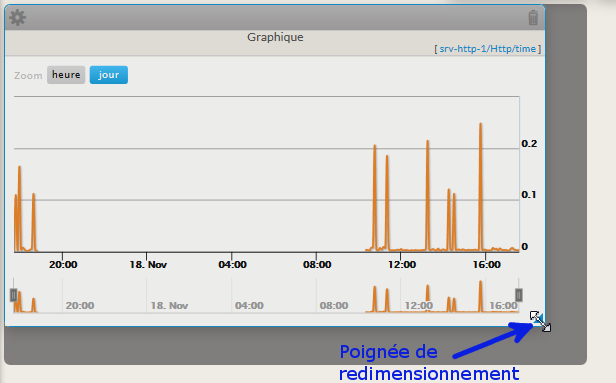
- Une bordure bleue les entoure.
- En déplaçant la souris, un triangle bleu apparaîtra en bas à droite.
- En déplaçant la souris, un triangle bleu apparaîtra en bas à droite.
- Redimensionner le widget en utilisant la souris.
- Une réduction de taille sera limitée à une taille minimum.
- Certains widgets peuvent être redimensionnés:
| Panel |
|---|
|
Sauvegarder / annuler les modifications
Vos modifications ne seront pas prises en compte que si vous les validez.
- Le bouton Validation vous permet de les confirmer ( sauvegarde effectuée ).
- Le bouton Annuler ou le fait de cliquer sur n'importe lien sortant de la page (menu, raccourci vers un autre tableau de bord, ...) permettra de sortir du mode édition sans que les changements soient pris en compte.
| Panel |
|---|
|

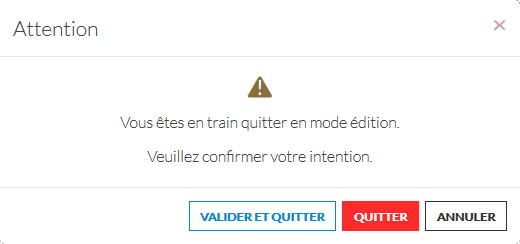
- Si au moins un changement a été fait, une fenêtre de confirmation sera affichée (pour éviter de perdre ses modifications sur un clic maladroit).
| Panel |
|---|
|
Contrôle d'accès
Si l'utilisateur n'a pas les droits sur le portail en cours alors:
- La vue sera accessible en lecture uniquement
- Un cadenas sera affiché sur le bouton Mode edition
- Le bouton d'édition sera inactif

Generally speaking, the aim of a Dashboard is to contain all information that will help you to monitor a bunch of elements, a concept or whatever you decide. It is only a visual container which will help you to be more efficient in your monitoring tasks.
For example, you can dedicate a Dashboard to monitor an ERP, containing all information that may help you to be sure that the ERP of the company is running well:
- Summary status of important elements (like hosts, database,fire wall, ...)
- The complete map of the ERP elements displaying dependance relationship between elements.
- In case the ERP is down, the list of roots problems that need to be investigated first.
- Graphics, SLA, ...
OVERVIEW
A dashboard is always linked to a tile of the hive. You can access to a dashboard by clicking on the tile representing it in the hive.
In our exemple, the ERP dashboard consists in 10 boxes that contain information of the concept we want to monitor.
We call these boxes Widgets (see widgets chapter for more details).
You can easily switch between dashboards of the same color group. Click on the left border of the dashboard. The list of dashboards belonging to the group will appears automatically.
A Dashboard has 2 modes:
- Visualization (view monitoring information)
- Edition (organize the dashboard)
When you open a dashboard, you are in Visualization mode.
Visualization mode
Each widget will be updated every minutes.
Auto Reload
| |
No Reload
| |
Force a Reload
| |
Enter in Edit Mode
|
Edit Mode
...
...
The edit mode includes some specific access:
...
- On the top left corner:
- Change the name of the Dashboard.
- Click on the name, type the new name and click outside of the grey box.
- Change the color (group) of this dashboard.
- Just click on the color you want to set or set it to no group.
- The triangle under the color will show you which one is selected.
- The background color of the title will also change.
- Change the name of the Dashboard.
...
...
- On the top right corner:
- OK: Leave the edit mode and validate all modifications done on the dashboard.
- Cancel: Leave the edit mode, but modifications won’t be taken into consideration.
...
...
Move widgets
- Go over a widget and simply drag it to a new location.
While dragging the widget, the other widgets will move down to make place.
...
Add a widgets
First, in the top bar, click on a widget type.
It will be highlighted in blue.
You can scroll using left and right arrow to select the widget you are looking for.
Clicking on the “+ ADD” button located on the top of the blue area, will add the widget on the Dashboard.
A new widget will always appears on the right of the Dashboard, sticked to the top.
Depending on the widget type, you will have an empty box or the default view.
To be operational, the new widget needs to be configured (a very easy task : see widgets chapter).
...
Edit and Remove widgets are described in the widgets chapter.
...
Resize a widget
- Some widgets are resizable.
- They will be surrounded by a blue border.
- When placing the mouse over, a blue triangle will also be displayed in the bottom right corner.
- To initiate the resize, place the mouse on the border of the widget, click and move the mouse to the new size.
- Each widget as a minimum size.
...