List
In a Dashboard, you can use the following list of widgets:
...
...
...
...
...
...
Overview
Widgets are included in a Dashboard. They have a different behaviour if the Dashboard is in visualization or in edit mode (see Dashboard chapter).
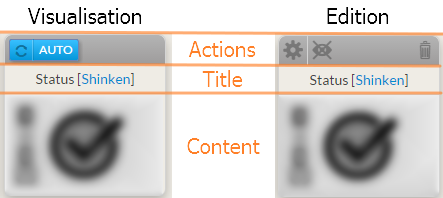
All widgets are composed of 3 parts:
The Action bar
- In Visualization mode, only the refresh button is available.
- In Edit mode, the refresh button is replaced by action button (configuration, delete and set favorite only for status and SLA widgets)
The title section which contains
- the type of widget
- The name of the element use as source data to display the widget content.
The content section is specific to each type of widget
In Visualization mode, the user can click inside the title or content section to open the detailed view of the reference element (see Host Detail Panel chapter)
When a dashboard is in Edit mode, widget can be moved by dragging them.
Configuration
...
...
Each widget needs to be configured in order to display information.
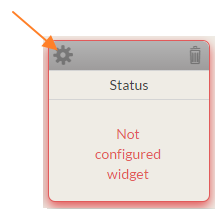
It will be easy to locate un-configured widget:
- They are surrounded by a red shadow.
- "Not Configured Widget" is displayed inside.
Enter in Dashboard Edit mode and click on the wheel icon (in the top left corner of the widget box) to open the configuration pop-up.
Configuration options depends on the widget type and will be detailed in chapters describing the widget behaviour.
...
Delete
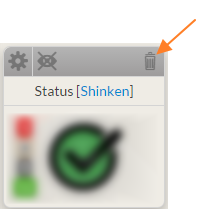
You can remove the widget by clicking on the garbage can icon.
...
Favorite widget
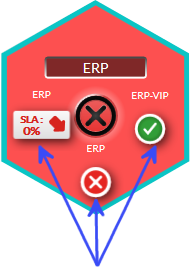
In the hive, the tile status is determined by up to 3 favorite widget (See Hive chapter).
The summary of these 3 widgets is displayed around the status.
You can select up to 3 widgets as favorite.
- In Edit mode
- Click on the eye icon in the widget action bar (in top left corner).
...
Only 2 types of widgets can be set as favorite :
- Status
- SLA
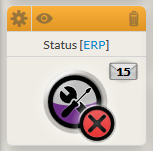
When a widget is set as favorite, the header is orange and the eye icon is displayed.
...
Concepts communs à chaque widget
Les Widgets sont inclus dans un tableau de bord. Ils ont un comportement différent si ils sont en mode visualisation ou en mode édition ( voir Tableaux de bord ).
Chaque widget comprend 3 parties:
La barre d'action
- En mode visualisation mode
- Seul le bouton rafraîchissement est disponible.
- Seul le bouton rafraîchissement est disponible.
- En mode édition:
- Le bouton rafraîchissement est remplacé par le bouton action (configuration, suppression et définition comme favori pour le statut global du tableau de bord : seulement pour les widgets statuts et SLA).
| Panel | ||
|---|---|---|
| ||
|
Le titre de la widget
Cette zone contient:
- Le type de widget
- Le nom de l'élément source fournissant les données du widget.
La section contenu est spécifique à chaque type de widget
- En mode visualisation
- L'utilisateur peut cliquer dans la tuile ou sur la section pour ouvrir la vue détaillée de l'élément de référence. (voir Vue détaillée d'un hôte).
- L'utilisateur peut cliquer dans la tuile ou sur la section pour ouvrir la vue détaillée de l'élément de référence. (voir Vue détaillée d'un hôte).
- En mode édition:
- Le widget peut être déplacé en le saisissant et le faisant glisser.
Configuration
Chaque widget doit être configuré pour faire apparaître les informations correspondantes .
Il est facile de repérer un widget non configuré :
- il est entouré d'un halo rouge.
- "Widget non configuré" apparaît à l'intérieur.
Passer en mode édition puis cliquez sur la roue pour ouvrir la fenêtre de configuration.
Les options de configuration dépendent du type de widget.
| Panel | ||
|---|---|---|
| ||
 |
Vous pouvez supprimer un widget en cliquant sur l'icône corbeille .
| Panel | ||
|---|---|---|
| ||
|
Widget favori
Dans le cockpit, le statut de la tuile est défini par les 3 widgets définis en favoris (voir Portail de gestion).
Le résumé de ces 3 widgets est visible autour du statut principal .
Vous pouvez définir jusqu'à 3 widgets favoris.
- En mode édition
- Cliquez sur l’œil
Seuls 2 types de widgets peuvent être définis comme favoris :
- Statuts
- SLA
Quand un widget est défini comme favori, la couleur de fond du bandeau est orange et l'icône œil est active .
| Panel | ||
|---|---|---|
| ||
|
| Panel | ||
|---|---|---|
| ||
 |
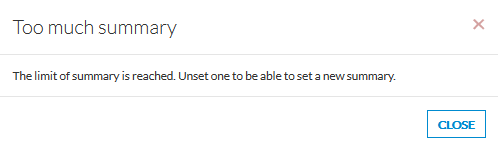
Si vous avez déjà défini vos 3 widgets favoris, un message d'erreur apparaîtra si vous essayez d'en rajouter un.
| Panel | ||
|---|---|---|
| ||
|
...