Description
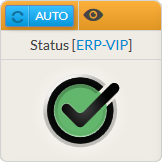
The Status widget provides an overview of a host, a cluster or a check.
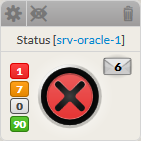
It will contain:
|  | ||||||||
|  |
Usage
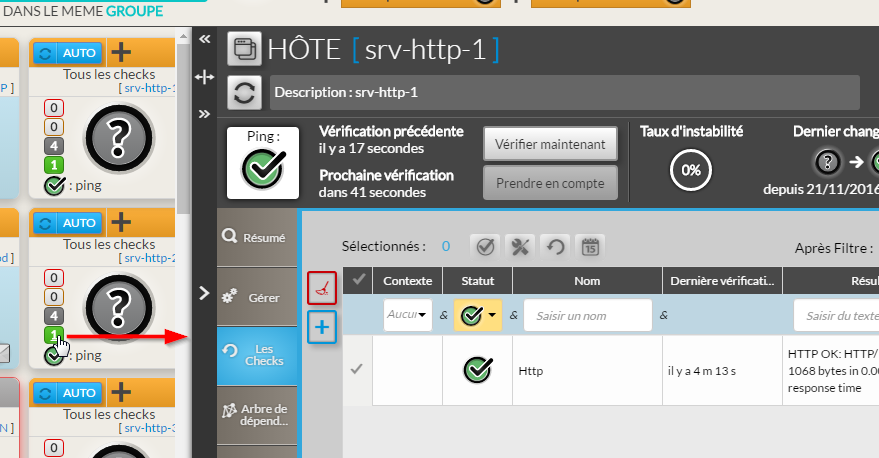
If the status refers to an element, a click on the widget will open the Detailed View Panel providing details on the element (see the Host Detail View chapter).
- For a host, clicking on one of the checks summary box, will directly open the Detail panel on the tab checks panel.
- The list of checks will be filtered to only display checks matching this status.
- To get the full list of checks, simply remove the filter ( See Checks Tab chapter).
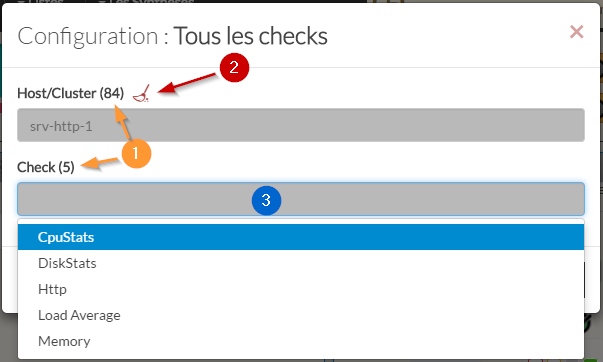
Configuration
...
Les widgets statuts proposent une vue synthétique d'un hôte, d'un cluster ou d'un check.
Il contient:
- Le nom de l'élément,
- Le Statut et son Contexte (voir Statut & Contexte pour plus de détails),
- Les Notifications envoyées (si un élément passe en Attention ou en Critique)
- Les notifications peuvent être configurées dans l'interface d'administration de Shinken Enterprise (voir Logique de notification et Méthodes de notification )
- Si une notification a été envoyée pour cet élément, une enveloppe apparaîtra avec le nombre de notifications.
Le widget fait également apparaître le nombre de checks triés par statut :
Rouge
Checks Critique
Orange
Checks Attention
Gris
Checks Inconnu
Vert
Checks Ok
| Panel |
|---|
|
| Panel |
|---|
|
Utilisation
Si le statut se rapporte à un élément, cliquez sur le widget ouvrira la vue détail proposant des informations sur l'élément sélectionné (voir le chapitre Vue détaillée d'un hôte ).
- Pour un hôte, cliquez sur le total de checks ouvrira le panneau de détail
- La liste des checks sera filtrée pour ne présenter que ceux qui correspondent aux critères du statut .
- Pour accéder à toute la liste des checks, enlevez le filtre ( voir le chapitre Onglet Checks ).
| Panel |
|---|
|
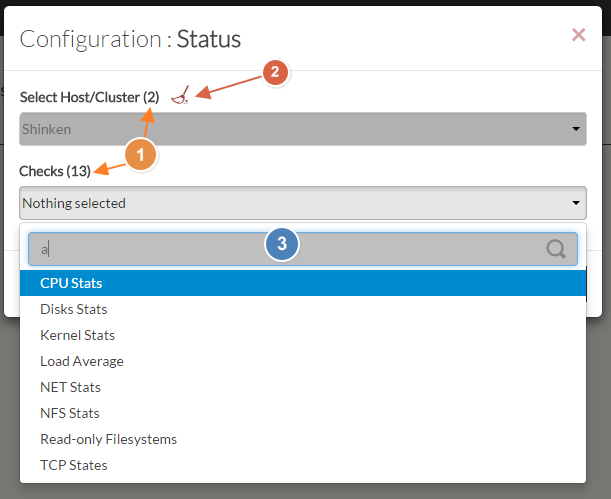
Configuration
| |
| Panel |
|---|
|
| Panel |
|---|
|
...
...