Overview | ||||||||||||
Escalation is an optionnal optional feature used to send different level of notifications, according to specific rules. Escalation can apply on Hosts and Checks. See Notification escalations for more informations. This feature is very useful when you want to send notifications to different level of user, fitting the technical hierarchy, when a problem is not resolved immediatly immediately :
| ||||||||||||
| Escalations are available from the Contacts Menu | 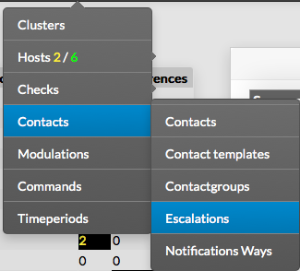 | |||||||||||
The main page of escalations, gives a list of all existing escalations with following details :
| ||||||||||||
 | ||||||||||||
On the top of the table, A tool bar let Administrators the ability to :
| ||||||||||||
Add an escalation | ||||||||||||
| To create a new escalation, use the button "Add new [Escalation]" located in the Action Menu | ||||||||||||
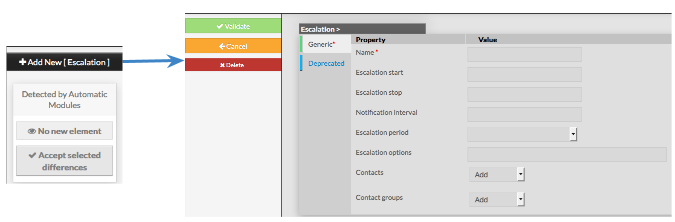 | ||||||||||||
The form displayed will is composed of two tabs :
| ||||||||||||
The left menu give to Administrators the ability to :
| ||||||||||||
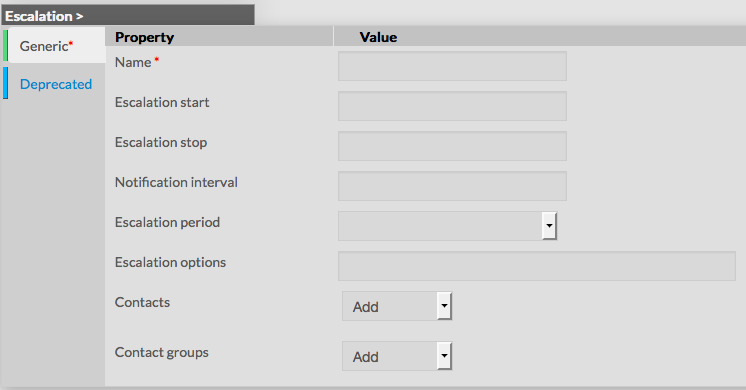
Generic category form contains following options :
|  | |||||||||||
|
| |||||||||||
| Deprecated | ||||||||||||
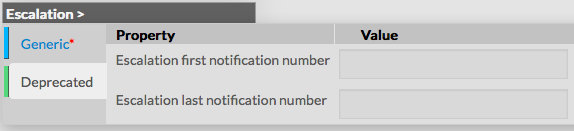
This tab is for compatibility only, it should not be used as those properties will disapear disappear in future versions
|  | |||||||||||
Modify an escalation | ||||||||||||
To modify properties of an escalation, first go on the Escalations page, from the Main menu, and then click on the escalation name you want to modify. | ||||||||||||
 | ||||||||||||
The form displayed is the same as the form used to create a new Escalation. Once changes have been made, configuration of the Escalation must be saved by clicking the Validate button Cancel button revert all changes to precedent configuration. | | |||||||||||
Delete an escalation | ||||||||||||
| To delete an escalation, you can use the form of the escalation, or delete it directly from the list page. | ||||||||||||
From the Form page First go to the Escalations page, from the Main menu, then click on the escalation name you want to delete. Once in the page displaying the form, click on the Delete button available on the left menu. A confirmation popup will be displayed. | 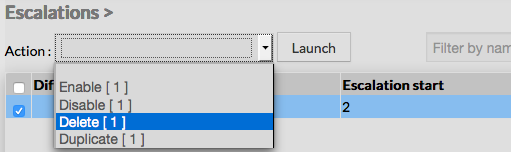 | |||||||||||
From the Main page First go to the Escalations page, from the Main menu, then click on the check box placed on the first column of the table. Use the Action menu on the top to select Delete, and click to the Launch Button. A confirmation popup will be displayed. | 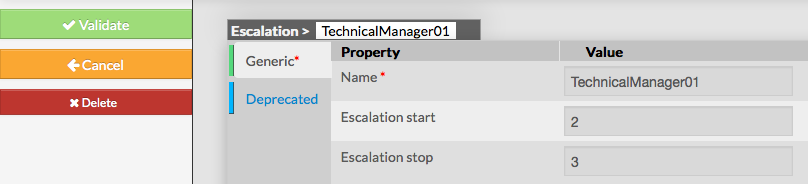 | |||||||||||
| Using the Main page gives Administrators ability to Delete many Escalations at once. | ||||||||||||
Duplicate an escalation | ||||||||||||
| Duplication operation is very useful when similar Escalations must be added. | ||||||||||||
To duplicate an escalation, first go on the Main page listing all escalations, then select a escalation by clicking on the check box placed on the first column. | ||||||||||||
Once selected, the esclationescalation can be duplicated by selecting Duplicate in the select Action of the tool bar. Duplication is executed by clicking the Launch button. | 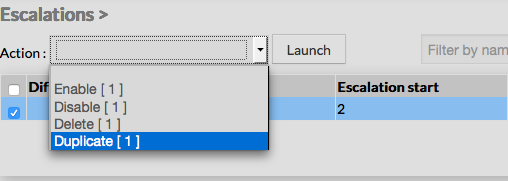 | |||||||||||
| The name of escalation duplicated is suffixed by "(copy)". |  | |||||||||||
Using the Main page gives Administrators ability to Duplicate many Escalations at once.
| totaly
| independant
| ||||||||||
Page History
Overview
Content Tools
Tasks