Description
- The navigation area
- The notification area
- The button "Add to favorites"
- The button "disconnection"
| Panel |
|---|
|


| Panel | ||
|---|---|---|
| ||
|
The navigation area
The "Shinken" logo
A single click on the logo will lead you on you default view Default view.
| Panel |
|---|
|


| Anchor | ||||
|---|---|---|---|---|
|
The button "Default View"
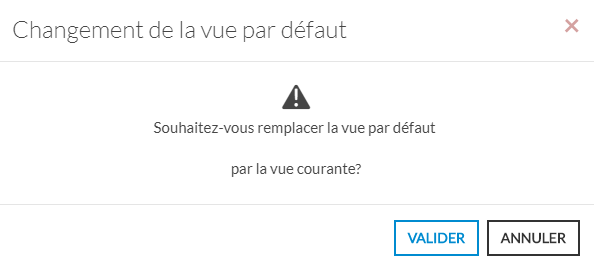
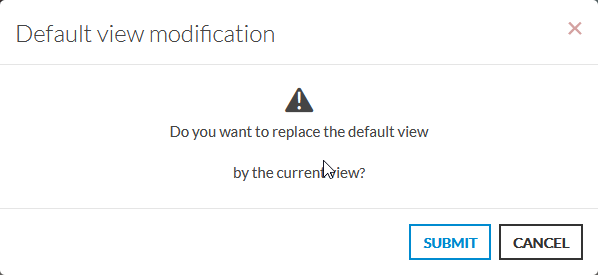
Cliquez sur l'icône pour définir votre vue courante comme vue par défaut.
A pop-up will ask you for confirmation to make the change:
The button is highlighted  when you're on your default view.
| Info |
|---|
It is not possible to set a view in edit mode as the default view. |
| Panel |
|---|
|

The UP button
Click the icon to return to a parent page of the application.
- For example, if you are in the "Dashboard" view, this button will take you to the portal view that contains this dashboard.
| Panel |
|---|
|

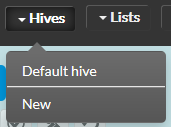
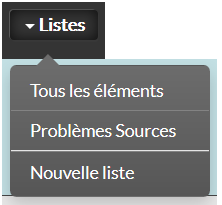
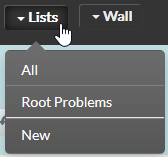
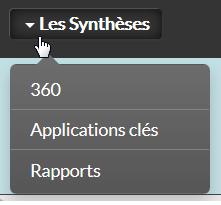
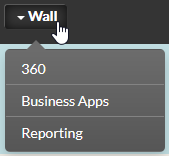
The different types of views (management portal, lists) and overviews are accessible via these menus and submenus.
| Panel |
|---|
|


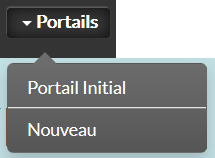
Hives:
- Initial HIves: Takes you to the initial Hive that is presented to you at your first login.
- New: Creates a new Hive called "New HIves" ( cf. Create favorites )
Synthesis:
- 360
- Key Applications
- Reports
Les notifications
Some important messages are presented in this notification area:
- Time difference
- It is important that your computer is on time and at a time very close to Shinken Enterprise servers. Otherwise, you might not correctly interpret time information as in the history of a host.
- It is important that your computer is on time and at a time very close to Shinken Enterprise servers. Otherwise, you might not correctly interpret time information as in the history of a host.
- License expired
- Informs you of the status of the license in case it expires.
- Time difference
The presence of one of these icons indicates that there is a time difference between your computer and the server on which "Shinken" is installed.
In order to have reliable information again, it is necessary to put your computer back on the right date.
Note:
- a click on the small icon will bring up the details of the message (large icon).
- if the computers are synchronized (at +/- 30 sec), this icon will be hidden.
| Panel |
|---|
  ou
|


Licence
expiredissues
The presence one of these icons indicates that your license has expired.issues.
This means that you no longer have access to all the components of the Shinken Solution application. To access them again, you must subscribe to a new license.
Subscribe to a new license:
- Click on the "Contact Us" button.
ou - Contact your "Shinken Entreprise" contact directly.
- Click on the "Contact Us" button.
Note:
- a click on the small icon will bring up the big one with the link
- if your license is up to date, this icon is not visible.
| Panel |
|---|
ou
|



This button appears when you display a page on a view (for example, a business portal or a list).
It allows you to add a favorite ( cf Create a Favorite)
| Panel |
|---|
|


Click on the icon to log out and return to the Authentication page.
| Panel |
|---|
|