UI Visualisation Improvements
HOST DETAIL PANEL

Resize the panel
You can re-size resize the panel to view display more information.
Host/Host template Pages
Drag the size button Resize Button to change the size (making it bigger or smaller).
If the sizing button become Resize Button becomes red, it indicates that you have reached the maximum size.l'aggregation_tree
Refresh button
The detail panel is now linked to the the dashboard refresh of the dashboard.
Each minutesminute, both (Panel + Dashboard) will be refreshed (if the automatic refresh of the dashboard is activated).
But we add also added a refresh button Refresh Button on the detail panel to force an instant refresh.
| Tip | ||||||
|---|---|---|---|---|---|---|
| ||||||
Table of content
|
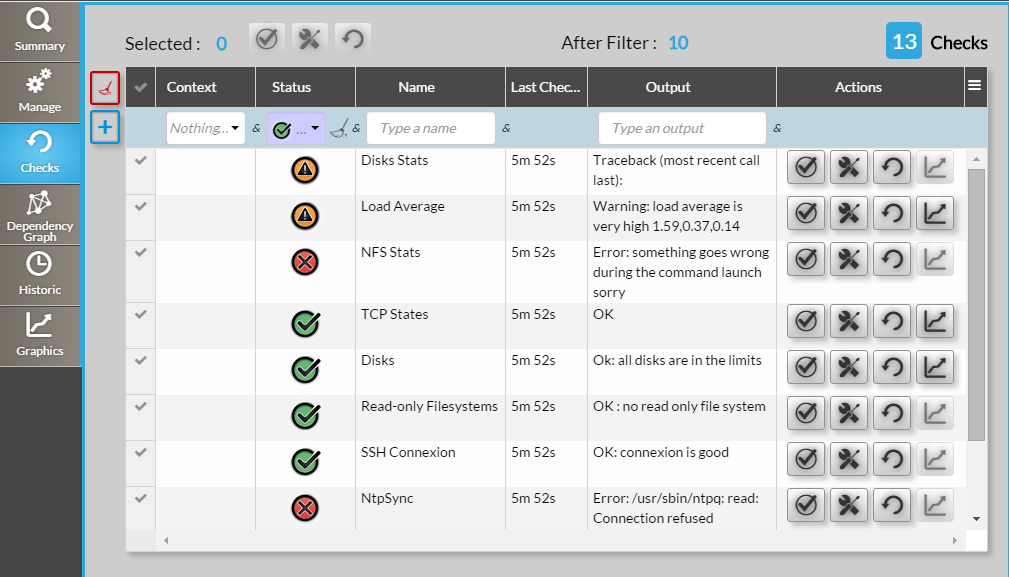
Checks Tabs completely modified
The previous checks tree
has been replaced by a list.
You can:
- Sort it (multi-column sort).
- Filter it.
- Select some or all checks to make mass action (Recheck, set Acknowledge, view graphs...).
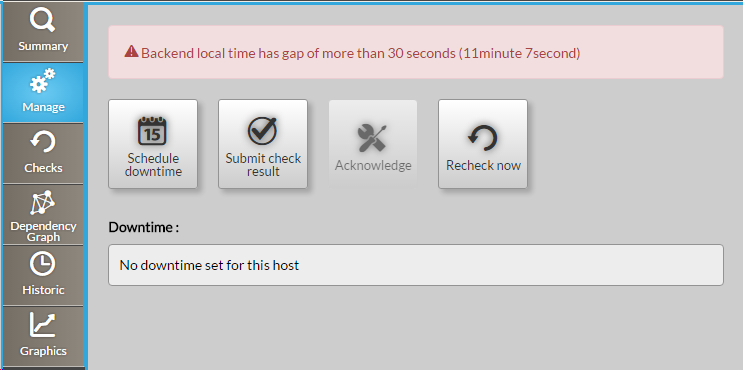
Display of the time difference between user computer and Shinken Enterprise
In the Manage tab
,
- A warning box will be displayed if there is a difference of more than 30 secondes between your web
- browser and the backend server.
- Especially for setting a downtime, it is important to know that such difference
- exists. We would advise you to set the real time either on your computer or on the backend server.
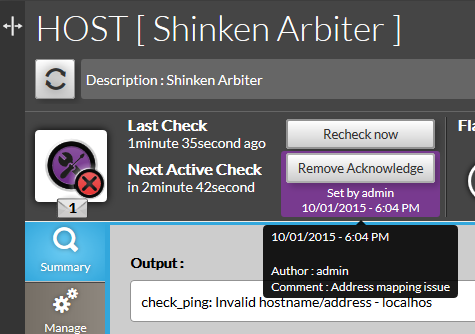
Additional information on an Acknowledge
Under the Remove Acknowledge button,
additional information are displayed:
- The name of the user
- who set the acknowledge.
- When the acknowledge has been set
- when you put the mouse over this area, a hover black box will display the full detail of the acknowledge.
 Tags
Tags
becomes host template
In all UI, "tags" has been renamed "host templates"
.
DASHBOARD
Direct connection between widget and Host Detail View tabs.
- In Status widget
- configured on a host:
- Clicking on a box displaying the number of
- checks in a status, will directly open the detail view on the
- Checks Tab.
- The
- checks list will be directly filtered on this
- status type
- . Of course, you can remove this filter.
- . Of course, you can remove this filter.
- In Graphics widget
- :
- Clicking on the title will open the detail view on
- the Graphics tabs
- .
- The graphics tabs
- will
- automatically select the metric
- configured in the widget and display the graph.
- configured in the widget and display the graph.
- In Dependency Graph widget
- :
- Clicking on the title will open the detail view on the "Dependency Graph" tab.
- Clicking on the title will open the detail view on the "Dependency Graph" tab.
- In SLA widget
- :
- Clicking on the title or inside the widget will open the detail view on the "Historic" tab.
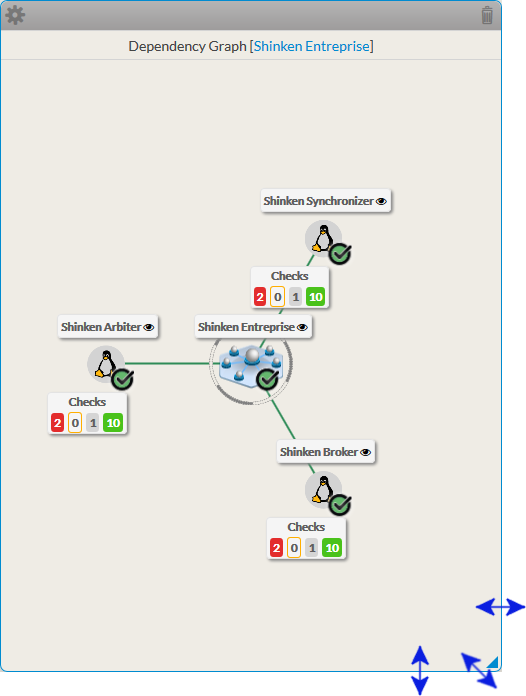
Rezisable Widget (Dependency graph, Graphics and Web page).
- To resize widget, enter in edit mode
- Rezisable widgets are
- surrounded by a blue border.
- Place your mouse
- on the border of the widget. The cursor will change.
- Drag the border to the expected size
- .
- Each widget has an minimum size.
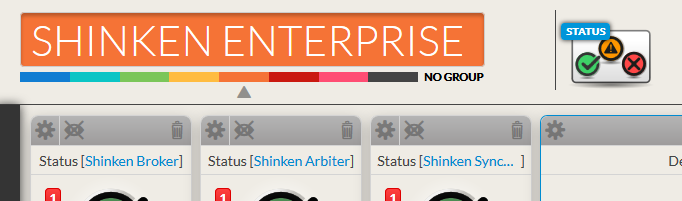
The background color of the Dashboard Title is now
the same as the Dashboard Group
In edit mode, Widgets order has been changed
It has been sorted by usage frequency:

- Status
- SLA
- Dependency Graph
- Root Problems
- Graphs
- WebPage
- 360
Configuration UI Improvements
MENU
To improve the efficiency of
the Configuration UI
, the menu bar will
provide more
dynamic information.
Menu APPLY => To be applied [ Validated: X])
Now the menu entry "apply" is changed into "To be applied [ Validated: X ]".
- X indicates the number of new elements or modifications that can be applied to the production database.
- The "to be applied" is automaticaly
- refreshed
- every 30 secondes to inform you of any update on the configuration by your co-workers.
- or after any modification you validate in the Configuration UI.
- If there are no modifications
- , the entry menu is darken and not clickable.

2 entries have been removed, Sources and discovery pages content
are now directly accessible in the home page.
No need
to have them in the menu anymore.
The "Elements" menu
displays the number of new/change automatically detected by sources modules
Once configured, sources modules will gather potentially additional information on existing
hosts or discover new
hosts.
- On the Elements menu, the total number of new/changed elements are displayed.
- When you enter in sub-menu, number of new/change will be displayed by element's type.
- These numbers are automatically refreshed when you reload a page.

| Info |
|---|
In next release, this menu will also be refreshed every 30 secondes |
Home page
The configuration home page now offers a summary of your current Stagging configuration. It also
shows new/changed elements that were detected by the automatic modules,
so you can validate them.
- The home page is automatically refreshed every 30 seconds.
- Elements summary table is added (number of elements, automatically detected new and modified elements)
- Element's Type name are now hyperlinks.
- Clicking on it will
- display the list page of this element's type.
- display the list page of this element's type.
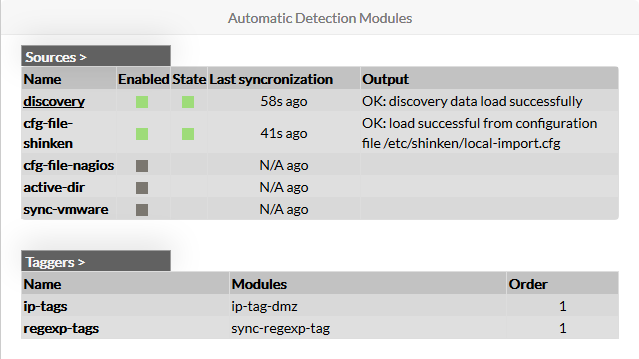 It displays the list of Automatic Detection Modules.
- The fact that a Source is enabled is now differentiated from its status (running well or not, for example):
- 2 columns (Enabled and State) are now present.
A source
- The fact that a Source is enabled is now differentiated from its status (running well or not, for example):
can be Enabled or not in its configuration file (cf module description in the chapter Automatic+Detection+modules).
- State column is filled if the source is enabled.
- Buttons (Add host, Show hosts, Show sources) on the home page were useless and have been removed.
Elements Page
Global Layout modification
Huge improvements in the Elements page:
They are now more clear and dynamic.
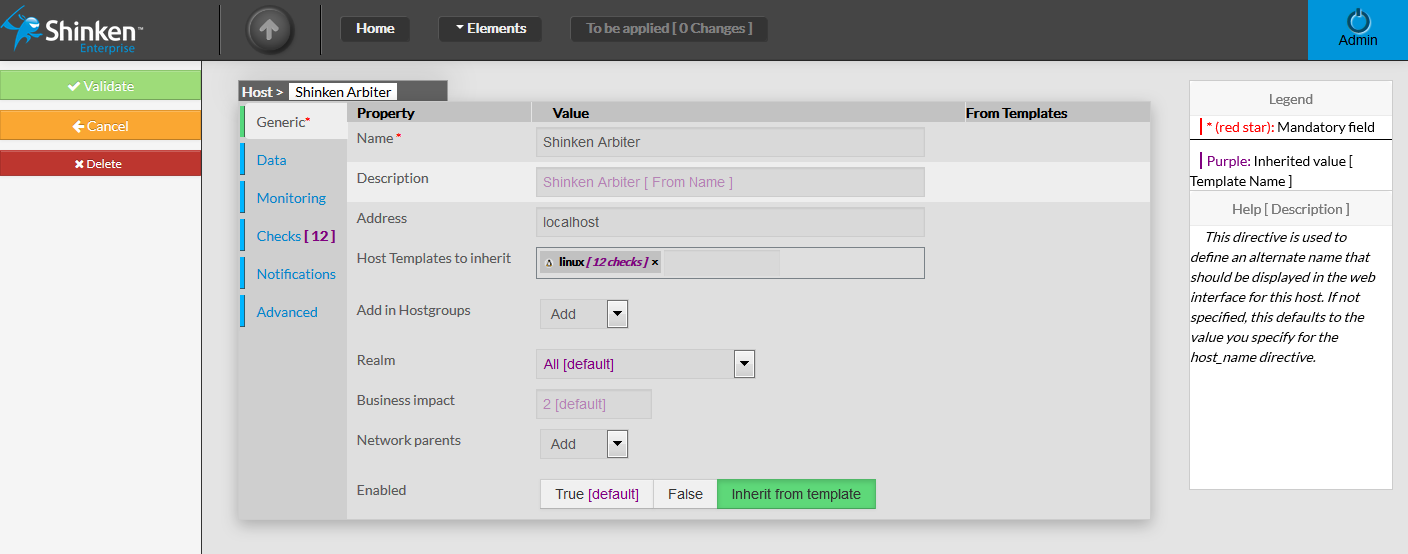
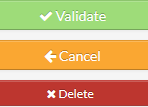
- The Cancel button has been added (to clearly indicate to the user how to leave the page without taking into account modification done in the element)
 Configuration is now far more natural: If a property value is not set in the element, default or template inherited values of element's fields are now displayed
- .
They are colored in purple.
- Mandatory fields are
- pointed out by a red star near to the label.
- The type and the name of the element are always displayed on the top of the page.

 For elements that can have templates to inherit from (hosts, checks, contacts):
- Template values will be shown on the right of the value property.
- Inherited Template values will be used only if the property is not set in the element (in the example, Business impact is set to 2, so the inherited value 1 from Shinken Host is displayed but not applied)
- Adding/removing a template will automatically recompute all the inherited property with the value.
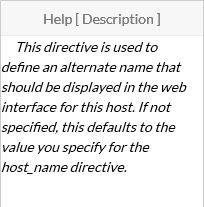
A help
window for each property field is displayed on the right of the screen.
Hovering the property will automatically fill the help area if help text is available for the property.
Improvement too, on List pages displaying all elements of a type
:
- Automatic changes proposal are now easier to see. Buttons design changed by separating;
- the button to add a new elements and the button to see/validate differences from the automatic detection modules.
- for both button, text and color buttons will change if Automatic Modules detected updates.
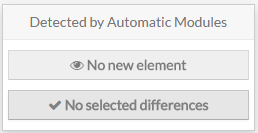 Buttons are gray and inactive:
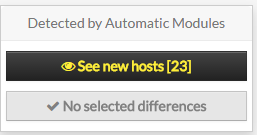 Button "No New element"
- has been replaced by "see new hosts [ X ]" and
- is now yellow
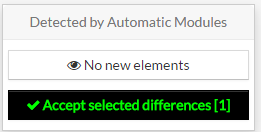 Button "No selected differences"
- is now yellow
- has been replaced by "See proposed differences (X elements)" and
- is now green:
 Massive actions are now available on elements.
- All elements can now be selected (only the elements with automatic changes proposal were selectable before)
- massive actions can now be launched:
- Enable: allow the element to be send in the monitoring production environment.
- Disable: do not send this element to the production environment.
- Delete: delete this element from the Staging database.
- Duplicate: create a clone of the element with all its property, and the "(copy)" suffix at the end of its name.

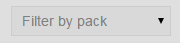
- New filters are also available:
- All pages now have a filter by name option.
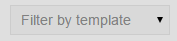 Depending
- All pages now have a filter by name option.
- on the type of the element, more filter are available.
- Host: filter by template
- Checks: filter by template and filter by pack
- Contacts: filter by template
- on the type of the element, more filter are available.
Clusters/Cluster Pages
Now the clusters have their own list and edition page. They are separated from the hosts page.
They can have a name, a definition rule and the same notification options
as the hosts.
| Tip |
|---|
Note: A cluster can't be named with a name already used by a cluster or by a host. |
Host/Host template Pages
The host page inherit from the global layout modification (default and template display, ...) and have also special improvements:
 In the generic tab, when you link a template to your host, the numbers of checks linked to a template are shown aside the template name.
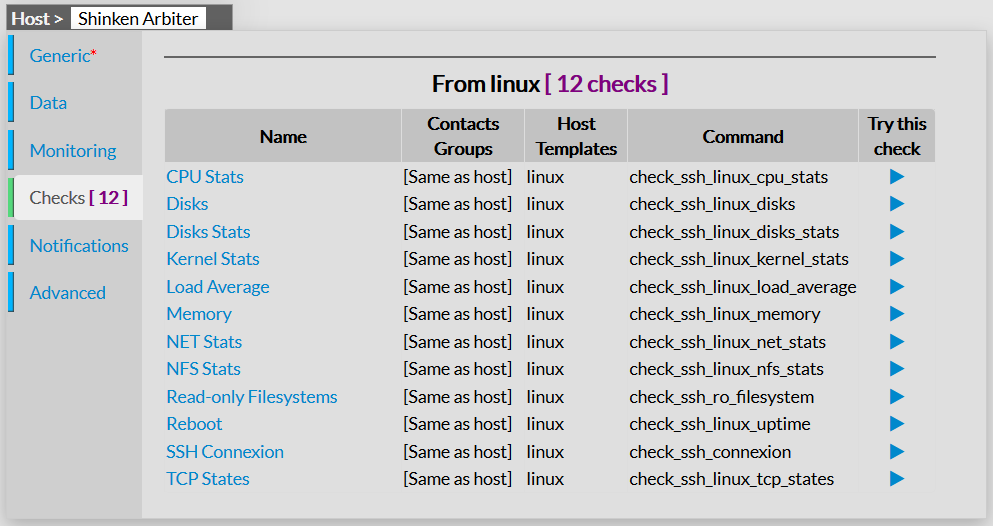
- Checks
- linked to your templates are also displayed in a specific
- "Checks [ X ]" tab
- where X is the total
- number of checks this host will inherit.
- you can see the checks name, their contact groups, the check command
- You can also click on "try this check" button to launch a check on this host.
- You will see
- :
- the command (definition and expanded command line),
- the data used to launch the check command,
- :
- the return from the plugin execution
- the return from the plugin execution
| Tip |
|---|
Note: For "Try this check", checks are launched on the Synchronizers, not on Pollers, so make sure that all plugins are as well configured as on Pollers. |
- a new field "Checks to exclude" is avail
 able in the advanced tab.
It's a comma separated list of Check names
- you do not want to be present in this specific host.
Check/Check template Pages
The check page inherit from the global layout modification (default and template display, ...) and have also special improvements:
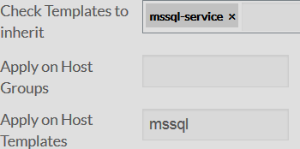
- Properties to link checks to hosts, hostgroups and host templates are now with explicit labels.
- Check Templates to inherit
- Apply on Host Groups
- Apply on Host Templates
 The "Duplicate for each host data" parameter was added to the "Monitoring" tab.
 The "Definition order" parameter was added to the "Advanced" tab.
To be applied Page
The "To be applied" page did have several improvements.
The focus is to facilitate and allow the user to easily see the main differences between its staging database and the production database:
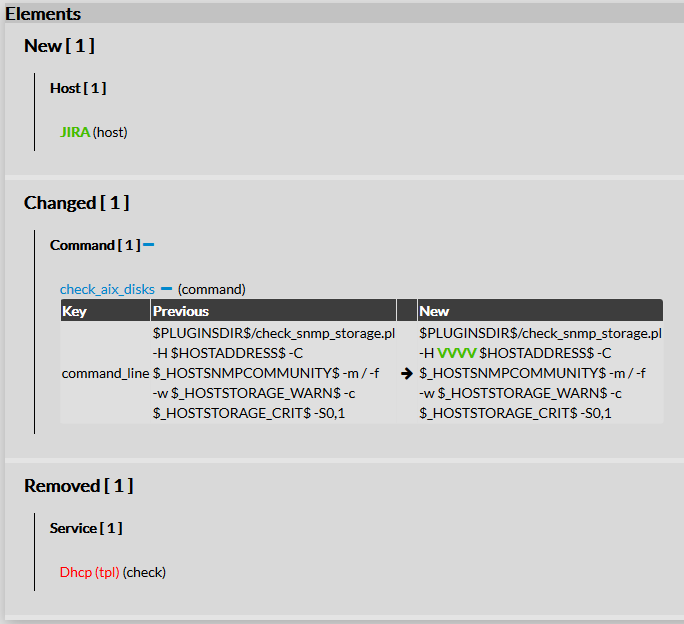
- Modifications to apply to the production environment are listed:
- The new, changed and removed elements are automatically displayed on the page right panel.
- For new element, or changed elements, clicking on the name will directly open the element page.
- On the changed elements:
- The full list of changed property are displayed per element
- you can unfold all diff tables of your elements if you want, or unfold it one element by one element

- You can filter
- the modifications list
- by using the two filters
- located in the left panel:
- Filter by Status (new, changed, removed)
- Filter by Type (host, checks, command, ....). Only the type with elements will be display on this filter.
- Both status and type filter can be applied, to only see "new hosts" filter for example
|
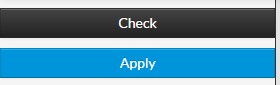
- Only two buttons are now available on the left:
- Check: check the current staging database
- Apply:
- will check the current staging database,
- erase the production database with the staging database,
- Reload your monitoring production daemons.