Versions Compared
Key
- This line was added.
- This line was removed.
- Formatting was changed.
Description
...
This widget 360
...
provides a 3D view of a host dependency tree.
...
This
...
widget can be very usefull for complex dependency tree:
...
A complex dependency tree is difficult to see in the Dependency Graph Widget.
...
The Widget 360 provides a clear overview of the tree
...
.
Each tree node contains the following information of the host: |
...
|
...
|
...
|
...
|
...
|
...
example: an Apache host will have the feather icon) |
...
From the chosen host, it displays
...
the 3D
...
dependency tree up to 10 jumps (dependency links between elements defined in
...
the Configuration UI)
| Panel |
|---|
|
| Warning | |
|---|---|
|
...
| |
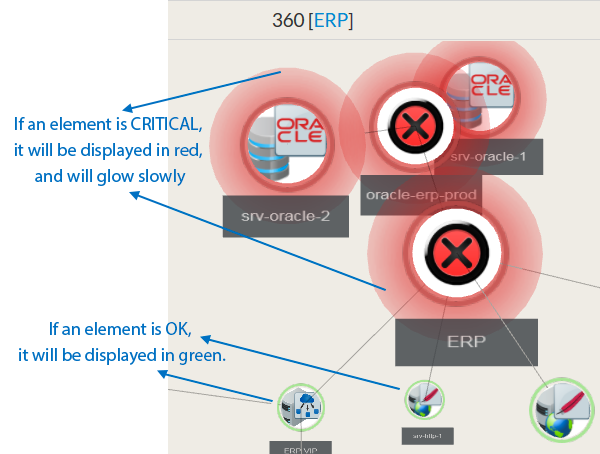
The 360 widget displays only hosts |
...
. But if a check on the host |
...
has a Critical or a Warning state, the |
...
host will also be displayed in the same state. |
Usage
...
Center an element in the view:
...
- Double click on
...
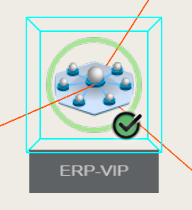
- an element, a blue wired box will surround, indicating it's now selected.
Center an element in the view:
- The view will pan and update zoom level accordingly.
Orbit around the selected element
...
:
- While keeping left mouse button pressed, move the mouse to orbit around the selected element.
- to change the orbiting center, center the view on an other element.
Pan View:
While keeping the right mouse button pressed, move mouse to pan view.
| Panel |
|---|
|
...
Configuration
- Select a host or cluster name in the first list.
- The total number of hosts and clusters will be displayed near "Select Host/Cluster" (1).
- If no host selected yet, the list of available hosts will automatically opened.
- You can search (filter) for a host name, typing into the input on top of the list.
- Youcan clean the current selection by clicking on the swipe icon (2).
- When configured, press the SUBMIT button (3).
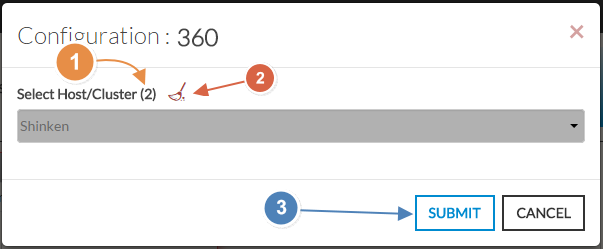
Image Added
...