Overview
...
...
...
tab if the backend server has a gap Having a difference between your computer and the server will prevent you to schedule |
| Panel |
|---|
|
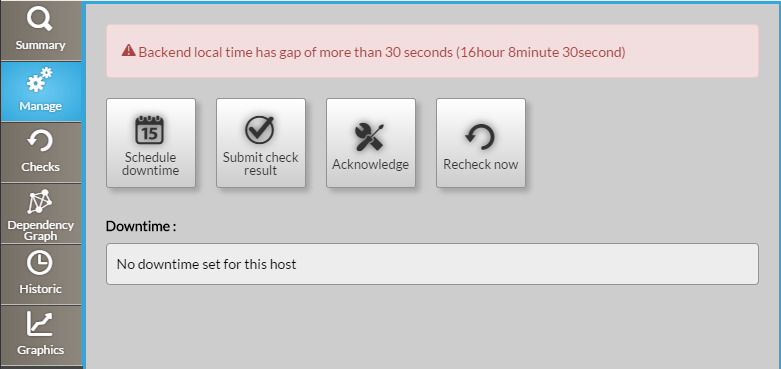
Action buttons
...
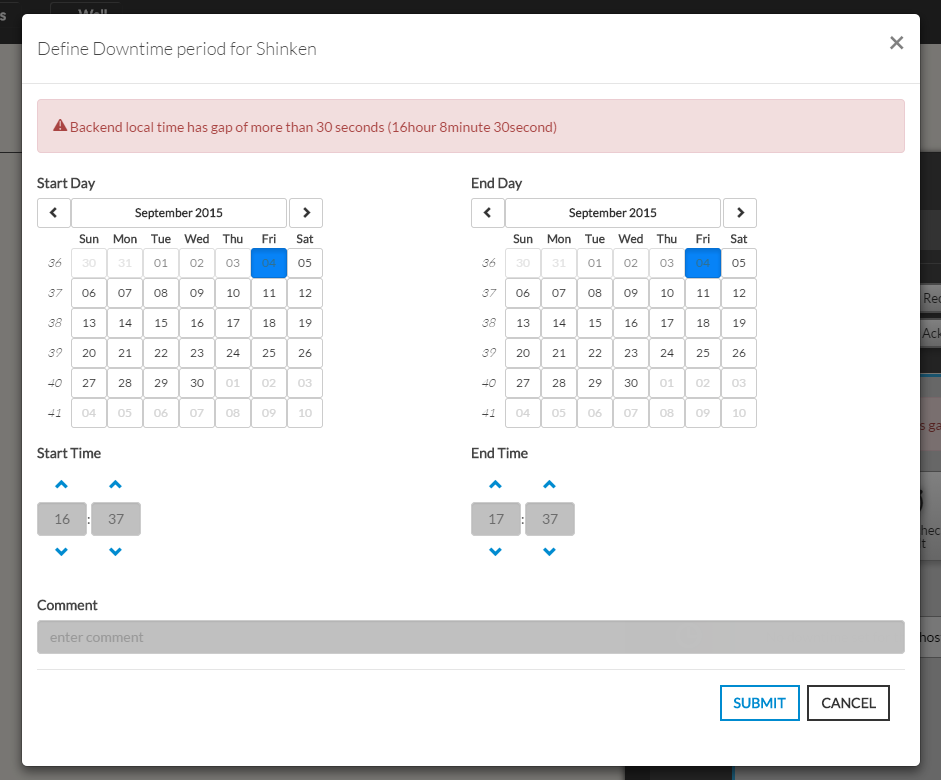
Schedule Downtime button

It
...
...
...
...
...
...
...
...
| Panel |
|---|
|
...
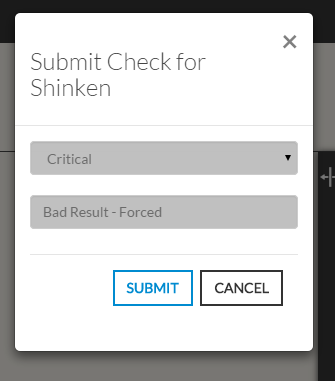
Submit check result button

- This button opens a modal form to force the status of the element
Note: On submit, the element status will be updated with your selection
...
...
...
The new "forced" status will only be valid until the next check.
| Panel |
|---|
|
Acknowledge
...
...
...
- taken
into account by a user.- A text describing the reason is required to submit the acknowledge.
- The context of the Element will change to Acknowledge ( See Status & Context )
| Panel |
|---|
Remove Acknowledge
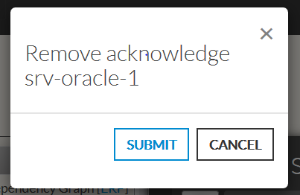
- This button opens a modal form to remove the current Acknowledge context
set on the element.
| Panel |
|---|
|
...
...
Downtimes scheduled
Downtime
...
...
.
| Panel |
|---|
 |
...
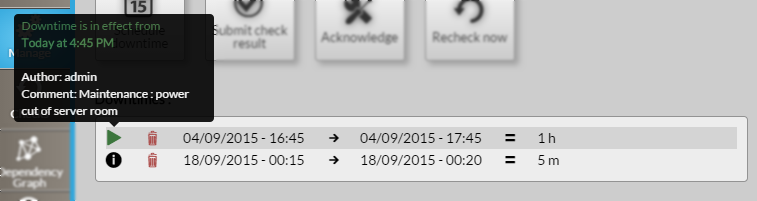
- Start Date/Time → End Date/Time = Duration
- The first icon
 , on hover, shows the author of the downtime and
- The first icon
...
...
...
...
Delete a downtime :
- This icon is replaced by
 icon (like shown in this picture, in green).
- This icon is replaced by
...
- It will be specified in a tooltip.
- The context of the element is set to downtime (see Status & Context)

- To delete a downtime, you just have to click on bin icon
 in the
- To delete a downtime, you just have to click on bin icon
...
- downtime row.
| Panel |
|---|
|