Versions Compared

Key

  • This line was added.
  • This line was removed.
  • Formatting was changed.

Overview

Escalation is an

...

optional feature used to send different level of notifications, according to specific rules.

Escalation can apply on Hosts and Checks.

See Notification escalations for more informations.

This feature is very useful when you want to send notifications to different level of user,

fitting the technical hierarchy, when a problem is not resolved

...

level of notification , level of notification
image
compatibilty
image
image
level making the escalation level last notification for which reccuring
  • Escalation options 
  • Contacts
  • Contact groups
  •  

    immediately :

    Time (minutes)Notification
    0Operational support
    10
    60Support Manager
    20
    120Technical Manager
     
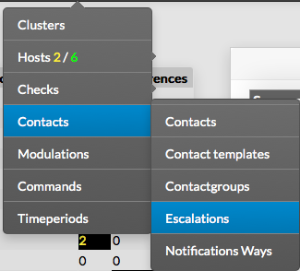
    Escalations are available from the Contacts Menu
    image
    Image Added

    The main page of escalations, gives a list of all existing escalations with following details :

    • a CheckBox used to select on or more escalations
    • differences since last commit
    • name of the escalation
    • Escalation Start,
    • in minutes, when the escalation is effective
    • Escalation End
    • , in minutes, when the escalation stops
    • Contacts
    • Contact Groups
    • Status
     
    Image Added

    On the top of the table, A tool bar let Administrators the ability to :

    • Enable, Disable, Delete or Duplicate selected escalations
    • Filter List by Name
     
     
    image
     

    Add an escalation

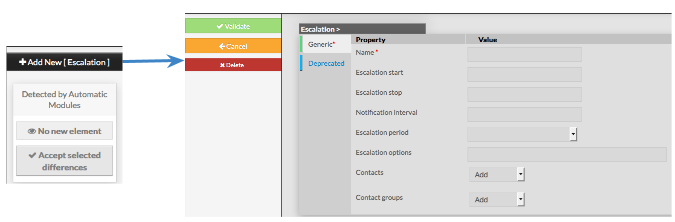
    To create a new escalation, use the button "Add new [Escalation]" located in the Action Menu
    image
     
    Image Added

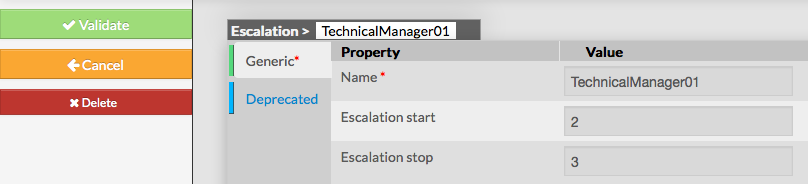
    The form displayed will is composed of two tabs :

    • Generic, containing all necessary options 
    • Deprecated, used for
    • compatibility only, should not be filled
     

    The left menu give to Administrators the ability to :

    • Validate the new escalation
    • Cancel the action
    • Delete the escalation
     

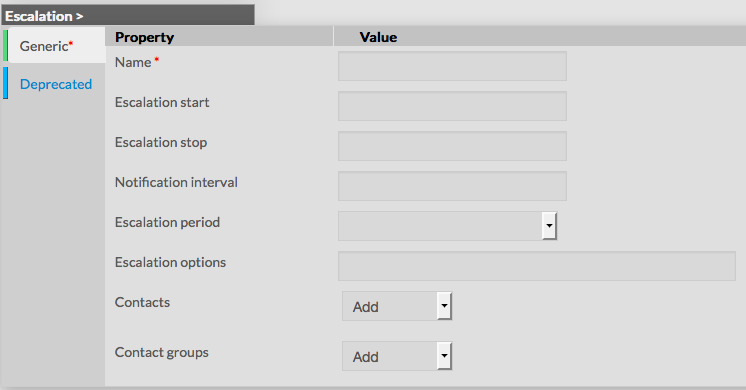
    Generic category form contains following options :

    • Name
      • the name of the escalation
      • this field is required
    • Escalation start
      • the start
      • interval,
      • represents the minimum duration of time before this escalation is effective
      • value must be an integer, representing a number of minutes
    • Escalation stop
      • the stop
      • interval, represents the
      • maximum duration of time after which notifications for this escalation is effective
      • value must be an integer, higher than Escalation start, representing a number of minutes
    • Notification interval
      • this value tells the
      • recurring period to which escalation will be sent out
      • value must be an integer
      • if no value is filled, meaning 0, only one notification will be sent
    Image Added
    • Escalation period
        • this value is used to set on which period notifications should be sent
        • the value must be selected from the dropdown, listing all existing timeperiods
      • Escalation options
        • list of flags, used to determine what state should generate an escalation
        • field is a list of comma separated values, valid values are :
          • r : send an escalation on RECOVERY state
          • d : send an escalation on a DOWN state
          • u : send a escalation on UNREACHABLE or UNKNOWN state
          • w : send an escalation on a WARNING state
          • c : send an escalation on a CRITICAL state
        • note : if value is empty, escalation will be sent for any state of host or check
      • Contacts
        • list of contacts that should be notified when escalation is effective
        • values is a list of contact, available from the dropdown list
      • Contact groups
        • list of contactgroups that should be notified when escalation is effective
        • values is a list of contact groups, available from the dropdown list
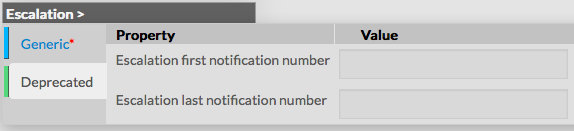
      Deprecated 

      This tab is for compatibility only, it should not be used as those properties will disappear in future versions

      • Escalation first notification number : replaced by Escalation start
      • Escalation last notification number : replaced by Escalation stop
      Image Added
        

      Modify an escalation

      To modify properties of an escalation, first go on the Escalations page, from the Main menu,

      and then click on the escalation name you want to modify.

       
      Image Added

      The form displayed is the same as the form used to create a new Escalation.
      All fields are filled with Escalation properties.

      Once changes have been made, configuration of the Escalation must be saved by clicking the Validate button
      available on the left menu.

      Cancel button revert all changes to precedent configuration.


      Delete an escalation

      To delete an escalation, you can use the form of the escalation, or delete it directly from the list page. 

      From the Form page

      First go to the Escalations page, from the Main menu, then click on the escalation name you want to delete.

      Once in the page displaying the form, click on the Delete button available on the left menu.

      A confirmation popup will be displayed.

      Image Added

      From the Main page

      First go to the Escalations page, from the Main menu,

      then click on the check box placed on the first column of the table.

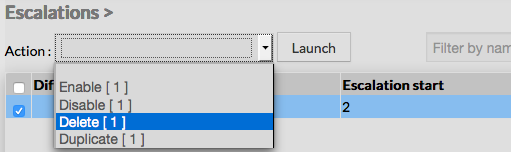
      Use the Action menu on the top to select Delete, and click to the Launch Button.

      A confirmation popup will be displayed.

      Image Added
      Using the Main page gives Administrators ability to Delete many Escalations at once. 
        

      Duplicate an escalation

      Duplication operation is very useful when similar Escalations must be added. 

      To duplicate an escalation, first go on the Main page listing all escalations,

      then select a escalation by clicking on the check box placed on the first column.


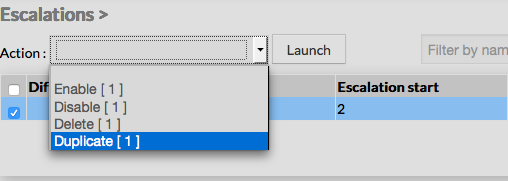
      Once selected, the escalation can be duplicated by selecting Duplicate in the select Action of the tool bar.

      Duplication is executed by clicking the Launch button.

      Image Added
      The name of escalation duplicated is suffixed by "(copy)".Image Added

      Using the Main page gives Administrators ability to Duplicate many Escalations at once.


      Info

      Duplicated Escalations are totally detached and independent of the cloned Escalation.

      No relation is made in the configuration.