| Shinken Enterprise allows you to detect network checks and physical type of your servers located in your IT. | |
Edit and add new network scan list | |
| The network scan can be setup directly | |
...
| in the Administration Interface. | |
| First click on the discovery source in the home page. | 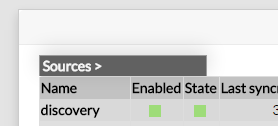 |
| Then click on the "See nework scan list" button: | 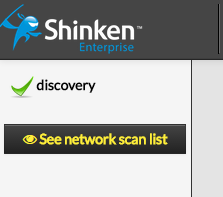 |
You can list the current network scan in |
...
By default you will have two samples.
...
the Discovery menu. You can enable new scan with |
...
the Add new scan |
...
button. |  |
| And you will see the configuration of a new scan: | 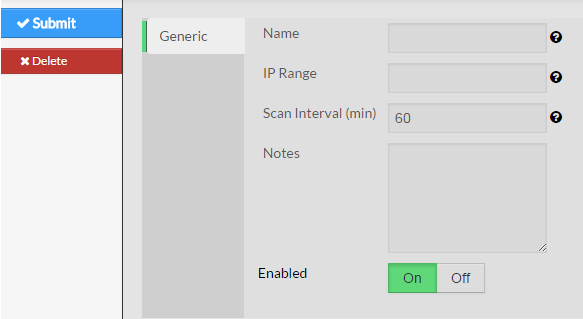 |
You must set up the following parameters: |
...
|
...
|
...
Adding a new scan will automatically enable it and your new hosts or your new tags will appears in a few minutes. | |||||||||||||||||||||||||||||||||||||||
Add new port to host template rule | |||||||||||||||||||||||||||||||||||||||
| Without rules, the raw data that is being generated by the discovery scripts is useless. The rules are defined in the /etc/shinken/discovery_rules.cfg file. | |||||||||||||||||||||||||||||||||||||||
Here is an example of how to set the ftp host template for anything that is detected by nmap with the TCP/21 port open: There are three main parts for a rule:
|
| ||||||||||||||||||||||||||||||||||||||
Here is the list of the default port to Host templates rules: | |||||||||||||||||||||||||||||||||||||||
| |||||||||||||||||||||||||||||||||||||||
Security: nmap command parameters | |||||||||||||||||||||||||||||||||||||||
Here are the the parameters used by the nmap command used by this module:
| |||||||||||||||||||||||||||||||||||||||