Versions Compared

Key

  • This line was added.
  • This line was removed.
  • Formatting was changed.

Description

This widget 360 provides a 3D view of a host dependency tree. 

This widget can be very usefull for complex dependency tree:

Some situations are
  • A complex dependency tree is difficult to see in the Dependency Graph Widget.

It can also provide
  •  

  • The Widget 360 provides a clear overview of the tree

while you will need 

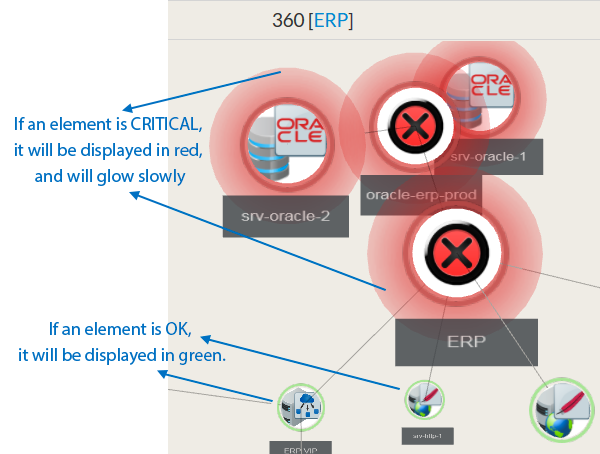
Each tree node contains the following information of the host:

  • Its name
  • Its status
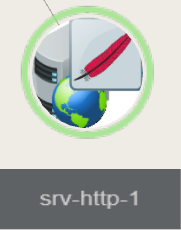
  • An icon of the host's type. The icon is based on tags detected during the configuration phase.


Image Modified


(example: an Apache host will have the feather icon)

Image Removed


From the chosen host, it displays the 3D dependency tree up to 10 jumps (dependency links between elements defined in

the Configuration

)

Panel

Image Added

Warning
titleNOTE

The 360 widget displays only hosts.

But if a check on the host has a Critical or a Warning state, the host  will also be displayed in the same state.


Usage

Center an element in the view:

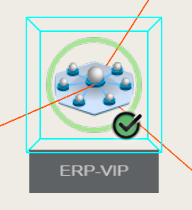
  • Double click on an element, a blue wired box will surround, indicating it's now selected.
  • The view will pan and update zoom level accordingly.
Image Removed

Orbit around the selected element:

  • While keeping left mouse button pressed, move the mouse to orbit around the selected element.
  • to change the orbiting center, center the view on an other element.

Pan View:

While keeping the right mouse button pressed, move mouse to pan view.

 
Configuration
Panel

Image Added

Configuration

  1. Select a host or cluster name in the first list.
    • The total number of hosts and clusters will be displayed near "Select Host/Cluster" (1).
    • If no host selected yet, the list of available hosts will automatically opened.
    • You can search (filter) for a host name, typing into the input on top of the list.
    • Youcan clean the current selection by clicking on the swipe icon (2).

  2. When configured, press the SUBMIT button (3).
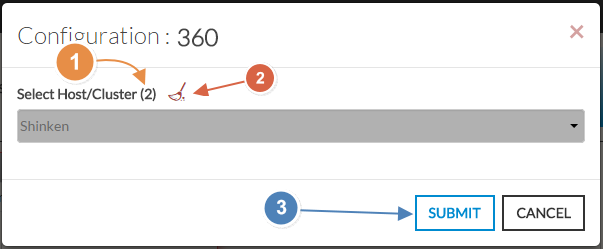
Image Added