Concept | |
Data Modulation aims is to provide ability to change Data values |
...
, with time period based criteria. This feature is very useful when you need to perform checks with different arguments |
...
depending on period the check is executed. For example, a use case of this feature is |
...
to set higher threshold |
...
by night, |
...
to ignore decreased performance during backup operations.
Let's take this example to see how it can be performed. Load of some servers becomes higher when backup is running, so we'd like to set higher threshold during the night : | ||
This configuration will change threshold of Check Load during night. To make it working, Host or Check concerned by this modulation must have similar DATA (with different value). In this example, if we decide to apply this modulation to linux hosts, following DATA should be set on host :
| ||
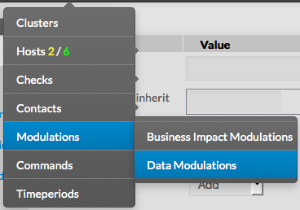
Data Modulations can be accessed by the Main Menu :
| ||
Create a Data Modulation | ||
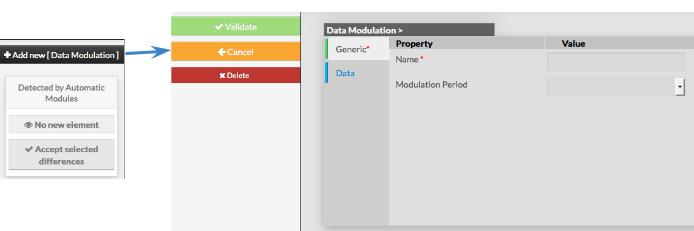
To create a new Data Modulation, use the button "Add new [Data Modulation]" imageData Modulation form will be displayed. Data Modulation is composed of two categories :
| ||
 | ||
Generic forms is used to set the following :
Note: Once validated, the new Data Modulation can be used on any Host or Check, | 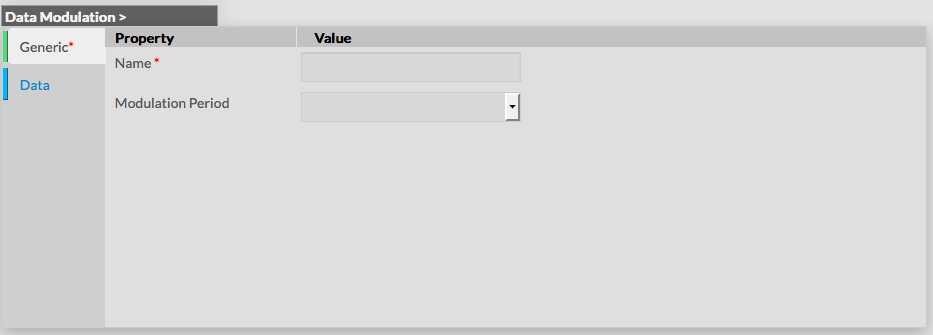 | |
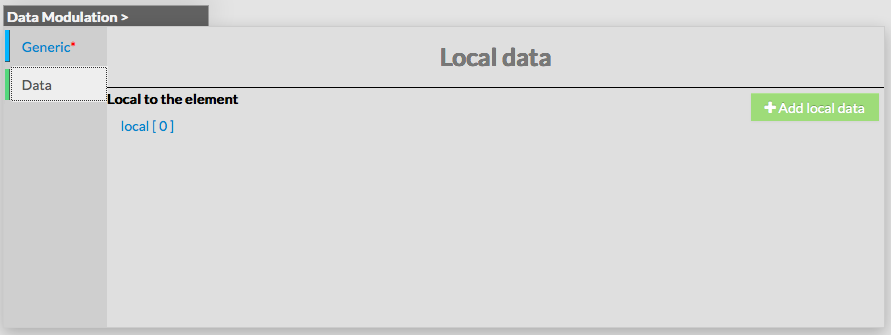
Data forms is used to set Key / Value pairs, that will be modified during defined period. As Data on Hosts or Checks, Data Modulation must be made of Keys and Values :
|  | |
Modify a Data Modulation | ||
To modify a modulation, first go on the Data Modulations page, by using the Main menu. Then click on the modulation name you want to modify. |  image | |
| The form displayed is the same as the form used to create a new Data Modulation. Once changes have been made, configuration of the modulation must be saved Cancel button revert all changes to previous configuration. | 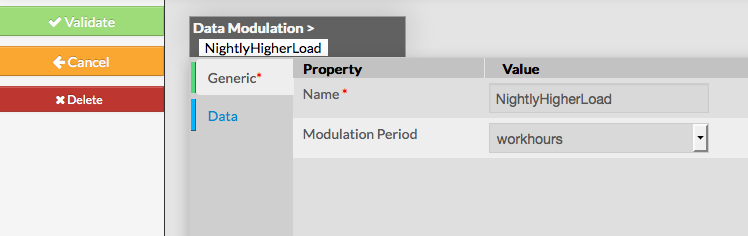 | |
| ||

...
| |||
Delete a Data Modulation | |||
| To delete a modulation, you can use the form of the modulation, or delete it directly from the list page. | |||
From the Form page First go to the Data Modulations page, from the Main menu, then click on the modulation name you want to delete. Once in the page displaying the form, click on the Delete button available on the left menu. A confirmation popup will be displayed. | 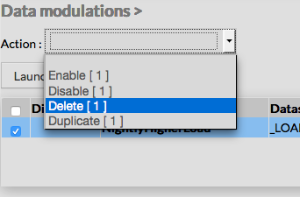 | ||
From the Main page First go to the Data Modulations page, from the Main menu, then click on the check box placed on the first column of the table. Use the Action menu on the top to select Delete, and click to the Launch Button. A confirmation popup will be displayed. | 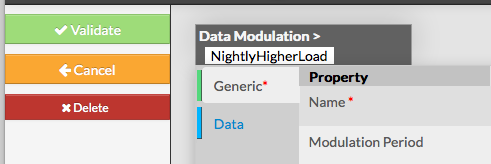 image | ||
| |||
...
| |||
Duplicate a Data Modulation | |||
| Duplication operation is very useful when similar Modulations must be added. | |||
To duplicate a modulation, first go on the Main page listing all Data Modulations. Then select a modulation by clicking on the check box placed on the first column. | |||
Once selected, the modulation can be duplicated by selecting Duplicate Duplication is executed by clicking the Launch button.
| 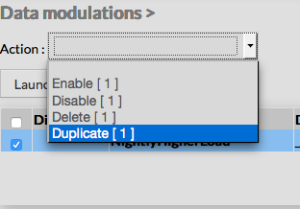 | ||
The name of duplicated modulation is suffixed by "(copy)". Using the Main page gives Administrators ability to Duplicate many modulations at once.
| |||