Versions Compared

Key

  • This line was added.
  • This line was removed.
  • Formatting was changed.

Description

The

...

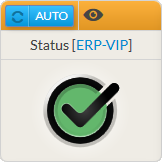
Status widget provides an overview of a host, a cluster or a check.

...


It will contain:

  • The name of the element
  • The

...


  • Here are the possible states:
 

Ok                     => no problem.


Warning             => the element is running but in a degraded mode.


Critical               => not running.


Unknown            => no information is available.

  • Here are the possible contexts:
 

FLAPPING              => its state changed often (by default, checks are made every five minutes, so its means that the X last checks results were different)


DOWNTIME           => the element has been flagged by a Shinken user as “under maintenance”


ACKNOWLEDGED   => the problem has been taken into consideration by a Shinken user


PARTIAL ACKNOWLEDGED       => the problem has been taken into consideration by a Shinken user

...

  • Status and its Context (see Monitoring logic for more details)
  • Notifications sent (in case an element becomes WARNING or CRITICAL)
    • Notifications can be configured in Shinken

...

    • Administration UI (see Notifications and Notifications Way chapters)
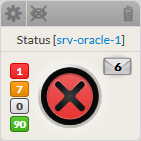
    • If some notification has been sent for this element, an envelope will be displayed with the number of

...

    • notifications on the right

...

    • .


  • The widget also shows the

...

  • number of checks

...

  • sorted by status:

Red

Critical checks

Orange

Warning checks

Grey

Unknown checks

Green

Ok checks

Panel

Image Added

Panel

Image Added

Usage


...

If the status

...

refers to an element, a click

...

on the widget will open the

...

Detailed View Panel providing details on the element (see the Host Detail View chapter).

  • For a host, clicking on one of the checks summary box, will directly open the Detail panel on the tab checks panel.
  • The list of checks will be filtered to only display checks matching this status.
  • To get the full list of checks, simply remove the filter ( See Checks Tab chapter).
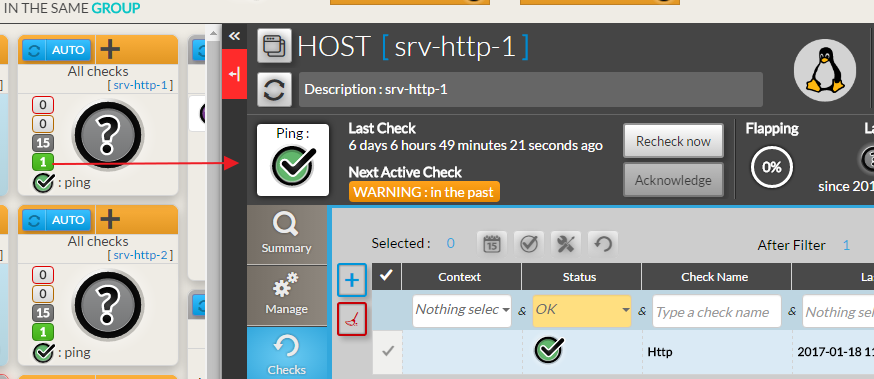
Image Added

Configuration

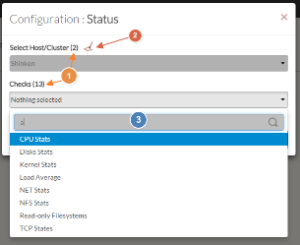
  1. Select a host or cluster name in the first list

...

  1. .
    • The total number of

...

    • hosts and clusters will be displayed near

...

    • "Select Host/Cluster" (1).

...

    • If no host selected yet, the list of available hosts

...

    • will automatically opened.
    • You can search (filter) for a host name, typing into the input on top of the list (3).
    • Youcan clean the current selection by clicking on the swipe icon (2).

  1. Once your element is selected, if you want to monitor a specific check, you just have to

...

  1. select check name inside

...

  1. the second

...

  1. list.
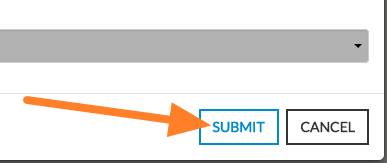
  2. When configured, press the SUBMIT button.
Panel
Image Added
Panel

Image Added