Overview
...
...
...
|
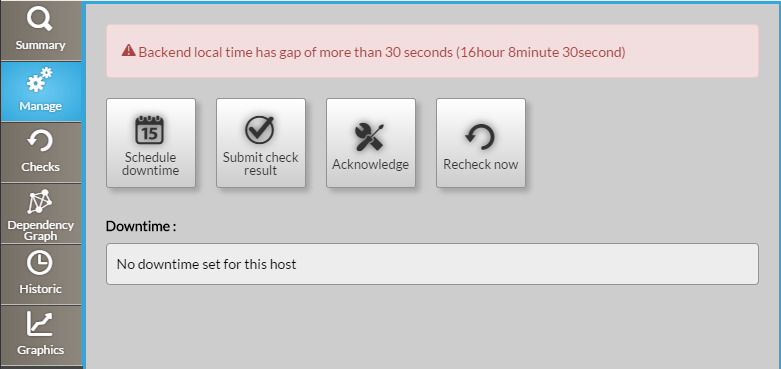
Action buttons
Schedule downtime
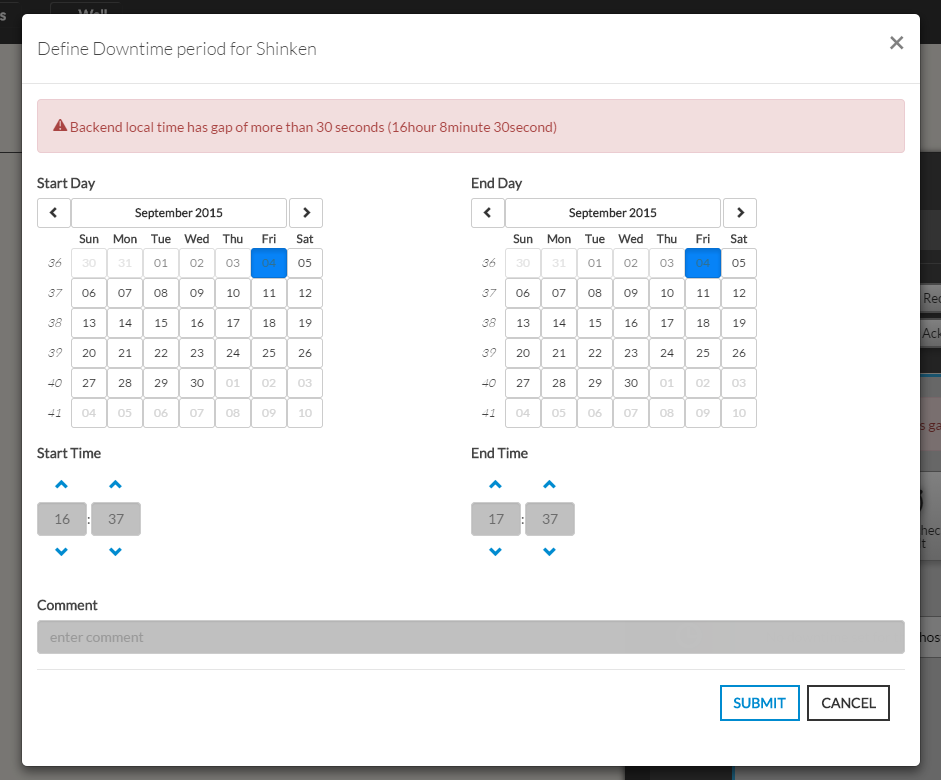
This button opens a modal form to define a downtime period for the host :
...
Schedule Downtime button

It opens a pop-up with two calendars and two
...
...
...
...
...
...
...
A comment can be written to precise to other users the reason of the downtime.
Even if not mandatory, we advise you to add a comment as it will be
very usefull for anybody looking at the list of planned downtime.
The purpose of the downtime will be displayed in the list of downtime.
| Panel |
|---|
|
Submit check result button

...
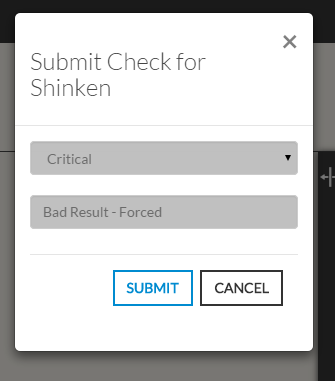
You have to select a status and give an output.
...
...
...
the Summary tab.
The new "forced" status will only be valid until the next check.
| Panel |
|---|
|
...

Acknowledge
- This button opens a modal form to acknowledge the current status of the host.
- The acknowledgement informs that the issue (Critical, Warning, Unknown) has been taken
into account by a user.- A text describing the reason is required to submit the acknowledge.
- The context of the Element will change to Acknowledge ( See Status & Context )
| Panel |
|---|
Remove Acknowledge
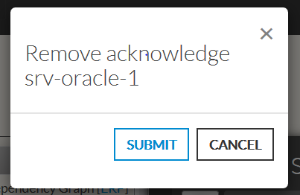
- This button opens a modal form to remove the current Acknowledge context
set on the element.
| Panel |
|---|
|
Downtimes scheduled
If there is no downtime defined for the host
the list of downtime is empty (like the first image in 'overview').
| Panel |
|---|
 |
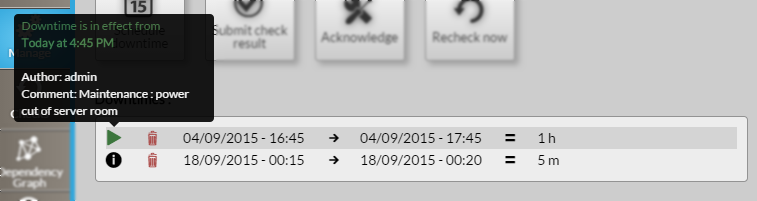
Otherwise scheduled downtimes are listed:
- Each downtime line indicates Start Date/Time → End Date/Time = Duration
- The first icon
 , on hover, shows the author of the downtime and his comment (like explained in "Action Buttons : Schedule downtime").
 - If a downtime is in progress:
- This icon is replaced by
 icon (like shown in this picture, in green).
 - It will be specified in a tooltip.
- The context of the element is set to downtime (see Status & Context)
- This icon is replaced by
- To delete a downtime, you just have to click on bin icon
 in the downtime row.
- The first icon
| Panel |
|---|
 |
...