Overview
This document describes how you can import hosts and users from Active Directory.
There are some steps you’ll need to follow in order to be able to import hosts and users :
- Enable the Active Directory source,
- Configure the Active Directory module,
- Configure the connection to Active Directory,
- Configure the import rules,
- Configure the mapping rules (optional).
What is already available in the Shinken Installation
To make your life a bit easier, a few configuration tasks have already been done for you:
- Installation of the Active Directory import module,
- Availability of configuration templates an example of pre configured active directory source ready to be customized.
| Panel | ||
|---|---|---|
| ||
|
Every time you have to customize Shinken, you have to do it in the /etc/shinken-user folder.
An example of active-directory source configuration is already available in this folder. You should keep them unmodified and create your source in copying them.
Creation of your own configuration files
To create your own import source, do the following :
| language | bash |
|---|
- /_configuration ).
- /_configuration ).
Tip title Advice The first time, we advise you to only update Configuration files.
Then, you will have to decide if you want to have 1 or more Active Directory sources ( if you have a big Active Directory, it might be interesting to have many sources pointing of specific entries for performance gain).
Source definitions:
Let's consider that the folder in which you will have your new Active Directory source is : /etc/shinken-user/source-data/source-data-MY-active-directory/
inside it, the folder _configuration contain all configuration file to customize the source behavior.
Your import source configuration files are now ready to be modified according to your Active Directory Infrastructure.
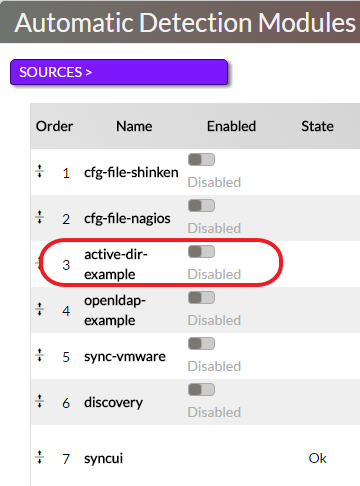
Enable the activ-dir-import
sourceEdit theSource:
In the Automatic Detection Modules panel, clic on the button to enable the module. | 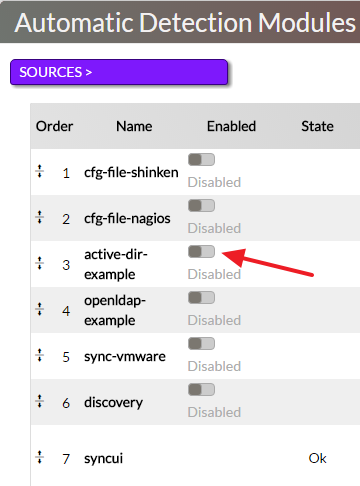 |
You can find the following parameters in the source file /etc/shinken/sources/
activactive-dir-
importhosts.cfg
:
| Property | Example | Description |
|---|---|---|
| source_name | active-dir-example |
| Name of |
| the source displayed in the UI configuration home page. Must be unique. | |
| order | 2 |
| Order in the merge algorithm of this source data. Look in the Synchronizer page for more information about |
| merging order. | |
| import_interval | 5 |
The source will be run automatically everyimport_inverval |
minutes. |
| |||||
| modules | active-dir-example | Module definition used by Shinken to parse OpenLDAP data. | |||
| enabled | 0 | Activate or Disable the source. This property is also edited automaticaly when you use theEnabled button. | |||
| description | This source is about loading hosts from active directories |
Configure the Active Directory
moduleModule
Modify if necessary,
Editthe file /etc/shinken/modules/activ-dir-import.cfg
| Property | Value | Description |
|---|---|---|
| module_name | active-dir-example | Module's name.Must be unique. |
| module_type | ldap-import | Type of module. Don't change it as it refers to the shinken composant. |
| connection_configuration_file | /etc/shinken-user/source-data/source-data-active-directory-sample/_configuration/active-directory-connection.json |
| Connection information. | |
| mapping_configuration_file | /etc/shinken-user/source-data/source-data-active-directory-sample/_configuration/active-directory- |
| mapping.json |
Mapping rules | |
| rules_configuration_file | /etc/shinken-user/source-data/source-data-active-directory-sample/_configuration/active-directory- |
| rules.json |
Connection configuration
Rules configuration You can choose what kind of host and user will be retrieved and define criteria to set automatically templateattachment. | ||
Connection configuration
This file is used to make the connection This file is used to make the connexion to your Active Directory server.
 | Edit the file /etc/shinken-user/source-data/source-data-active-directory-sample/_configuration/active-directory-connection.json |
| Property | Default | Description |
|---|---|---|
| url | ldap://YOUR-DC-FQDN/ | URL of your Active Directory server. |
| ldap_protocol | 3 | Version of LDAP protocol (by default set to 3 if not set) |
| base | dc=YOUR,dc=DOMAIN,dc=com | Base OU for your objects discovery. |
| hosts_base | OU=DataCenter Servers,dc=YOUR,dc=DOMAIN,dc=com | Base OU for the hosts discovery. |
| hostgroups_base | OU=computers,dc=shinkendom,dc=local | Base OU for host groups discovery. |
| contacts_base | dc=YOUR,dc=DOMAIN,dc=com | Base OU for the contacts discovery. |
| username | SHINKEN@YOURDOMAIN.com | Username used to connect to the |
| server. | ||
| password | PASSWORD | Password used |
| to connect to the |
| server. |
Example
| Code Block | ||||
|---|---|---|---|---|
| ||||
{
  "url": "ldap://vm-w2k8r2.shinkendom.local/",
  "base": "dc=shinkendom,dc=local",
  "hosts_base": "OU=serveurs,dc=shinkendom,dc=local",
  "hostgroups_base": "OU=serveurs,dc=shinkendom,dc=local",
  "contacts_base": " OU=utilisateurs,DC=shinkendom,DC=local",
  "username": "administrateur@shinkendom.local",
  "password": "P@ssword1"
}
|
| Tip | ||
|---|---|---|
| ||
The account used to request LDAP only need read-only access. You should create a user account with read-only access dedicated to the Active Directory import module. |
Mapping rules configuration
This file is used to apply host template, contact template and tags to the hosts and contacts while the import.allow you to do the mapping between Active Directory and Shinken properties.
| Warning |
|---|
Unless you know what you're doing here, you should keep this file unmodified. |
You can find some customization in the HOW TO section.
File /etc/shinkenEdit the file /etc/shinken-user/source-data/source-data-active-directory/_configuration/active-directory-rulesmapping.json
| Code Block | ||
|---|---|---|
| ||
# IMPORTANT: Do not edit this file.
# To have your own mapping, copy it under the /etc/shinken-users/source-data/YOU_SOURCE_FOLDER/_configuration/ directory and edit your copy instead.
# Note: comments should be with a # starting the line, NOT after a value
{
# first hosts propertyes (computer object in Active Directory)
   "host.name": "name",
   "host.dNSHostName": "dNSHostName",
   "host.operatingSystem": "operatingSystem",
   "host.operatingSystemServicePack":"operatingSystemServicePack",
   "host.distinguishedName": "distinguishedName",
   "host.filter": "(objectClass=computer)",

# Now contact properties
    "contact.name": "name",
    "contact.categoryFilter":"Person",
    "contact.mail": "mail",
    "contact.member":"member",
    "contact.telephoneNumber":"telephoneNumber",
    "contact.mobile":"mobile",
# Co: for country
    "contact.co":"co",
# l: for city
    "contact.l":"l",
    "contact;company":"company",
    "contact.filter":"(&(objectCategory=person)(objectClass=user))",
# By default hostgroup are not requested. Setup a filter to enabled it
    "hostgroup.filter":""
}
|
Import rules configuration
This file is used to apply host template, contact template and tags to the hosts and contacts while the import.
| Edit the file /etc/shinken-user/source-data/source-data-active-directory-sample/_configuration/active-directory-rules.json |
| Tip | ||
|---|---|---|
| ||
A host template called windows is already available in Shinken that checks : Cpu, Disks, EventLogApplication, EventLogSystem, Memory, Network Interface, Reboot, Services, Swap. As a good start, you can configure the property hosts_tag in this way :
|
The mandatories properties to modify are in green.
| Tip | ||
|---|---|---|
| ||
A host template called windows is already available in Shinken checking : Cpu, Disks, EventLogApplication, EventLogSystem, Memory, Network Interface, Reboot, Services, Swap. As a good start, you can configure the property hosts_tag in this way :
|
The mandatories properties to modify are in green.
| Property | Default | Description |
|---|---|---|
| hosts_tag | your-host-template | The host template "your-host-template" will be applied to any host discovered in Active Directory during the import. |
| contacts_tag | generic-contact | The contact template "generic-contact" will be applied to any contact discovered in Active Directory during the import |
| contacts_group_filter |
| CN=Domain Admins,CN=Users,DC=YOUR,dc=DOMAIN,dc=com |
| Tip | ||
|---|---|---|
| ||
See below about the tag functionnality. |
Example :
| language | js |
|---|---|
| title | /etc/shinken-user/source-data/source-data-active-directory/_configuration/active-directory-rules.json |
| | CN=OTHERGROUPS,OU=Groups,OU=Users Groups,DC=YOUR,dc=DOMAIN,dc=com | Organizational Unit or User group to import You can define many group by separing filter by | | ||
| hosts_tag_citrix | OU=Terminal Servers,OU=DataCenter Servers,DC=YOUR,dc=DOMAIN,dc=com |
| |
| hosts_tag_database | OU=Database Servers,OU=DataCenter Servers,DC=YOUR,dc=DOMAIN,dc=com | host template database applied | |
| hosts_tag_exchange | OU=Email Collaboration Servers,OU=DataCenter Servers,DC=YOUR,dc=DOMAIN,dc=com | host template exchange applied | |
| hosts_tag_fileprint | OU=Files Print Servers,OU=DataCenter Servers,DC=YOUR,dc=DOMAIN,dc=com | host template fileprint applied | |
| hosts_match_operatingSystem_windows | windows | Host template windows will be applied for hosts matching "windows" in the property operatingSystem. | |
| hosts_match_operatingSystem_windows2008 | windows*.*2008(?!.*.(?:r2)) | Host template windows2008 applied for hosts matching "windows*.*2008(?!.*.(?:r2))" in the property operatingSystem | |
| hosts_match_operatingSystem_windows2008r2 | windows*.*2008*.*r2 | host template windows 2008r2 | |
| hosts_match_operatingSystem_windows2003 | windows*.*2003 | host template windows2003 | |
| hosts_match_operatingSystem_windows2012 | windows*.*2012(?!.*.(?:r2)) |
| host template windows2012 | |
| hosts_match_operatingSystem_ |
| windows2012r2 | windows*.* |
| 2012*.*r2 |
| host template windows2012r2 | |
| hosts_match_operatingSystem_ |
| windows2000 | windows*.* |
| 2000 | host template windows 2000 |
| hosts_match_operatingSystem_ |
| windowsxp | windows*.* |
| xp | host template windows xp | |
| hosts_match_operatingSystem_enterprise | Enterprise | host template Enterprise |
| hosts_match_ |
| operatingSystemServicePack_sp1 | Service Pack 1 | host template Service Pack 1 |
| hosts_match_operatingSystemServicePack_sp2 | Service Pack 2 | host template Service Pack 2 |
| hosts_match_operatingSystemServicePack_ |
| sp3 | Service Pack 3 | host template Service Pack 3 |
| AddFirst_template_(domain-admins)_to_contact_matching_[memberOf] | CN=Domain Admins,CN=Users,DC=YOUR,dc=DOMAIN,dc=com | Add the "domain-admins" contact template to every contacts matching the value "CN=Domain Admins,CN=Users,DC=YOUR,dc=DOMAIN,dc=com" in its attribute "memberOf" first in list (before the contacts_tag template). |
| AddLast_template_(users)_to_contact_matching_[memberOf] | CN=Users,DC=YOUR,dc=DOMAIN,dc=com | Add the "users" contact template to every contacts matching the value "CN=Users,DC=YOUR,dc=DOMAIN,dc=com" in its attribute "memberOf" last in list (after the contacts_tag template). |
| Force_template_(specific)_to_contact_matching_[memberOf] | CN=SpecificUsers,DC=YOUR,dc=DOMAIN,dc=com | Add the "specific" contact template to every contacts matching the value "CN=SpecificUsers,DC=YOUR,dc=DOMAIN,dc=com" in its atribute "memberOf" all alone (the contacts_tag template will not be applied). |
| Tip | ||
|---|---|---|
| ||
See below about the tag functionnality. |
Example :
| Code Block | ||||
|---|---|---|---|---|
| ||||
{
  "hosts_tag": "windows",
  "contacts_tag": "generic-contact",
  "contacts_group_filter": "CN=paris_shinken_users,OU=utilisateurs,DC=shinkendom,DC=local | CN=bordeaux_shinken_users,OU=utilisateurs,DC=shinkendom,DC=local",
  "hosts_tag_citrix": "OU=citrix,OU=serveurs,dc=shinken,dc=local",
  "hosts_tag_database": "OU=database,OU=serveurs,dc=shinken,dc=local",
  "hosts_tag_exchange": "OU=exchange,OU=serveurs,dc=shinken,dc=local",
  "hosts_tag_fileprint": "OU=fileprint,OU=serveurs,dc=shinken,dc=local",
  "hosts_tag_windows": "OU=infra,OU=serveurs,dc=shinken,dc=local",
  "hosts_match_operatingSystem_windows": "windows",
  "hosts_match_operatingSystem_windows2008": "windows*.*2008(?!.*.(?:r2))",
  "hosts_match_operatingSystem_windows2008r2": "windows*.*2008*.*r2",
  "hosts_match_operatingSystem_windows2003": "windows*.*2003",
  "hosts_match_operatingSystem_windows2012": "windows*.*2012(?!.*.(?:r2))",
  "hosts_match_operatingSystem_windows2012r2": "windows*.*2012*.*r2",
  "hosts_match_operatingSystem_windows2000": "windows*.*2000",
  "hosts_match_operatingSystem_windowsxp": "windows*.*xp",
  "hosts_match_operatingSystem_enterprise": "Enterprise",
  "hosts_match_operatingSystemServicePack_sp1": "Service Pack 1",
  "hosts_match_operatingSystemServicePack_sp2": "Service Pack 2",
  "hosts_match_operatingSystemServicePack_sp3": "Service Pack 3",
  "AddFirst_template_(domain-admins)_to_contact_matching_[memberOf]": "CN=Domain Admins,CN=Users,DC=YOUR,dc=DOMAIN,dc=com",
  "AddLast_template_(users)_to_contact_matching_[memberOf]": "CN=Users,DC=YOUR,dc=DOMAIN,dc=com",
  "Force_template_(specific)_to_contact_matching_[memberOf]": "CN=SpecificUsers,DC=YOUR,dc=DOMAIN,dc=com"}
|
| Tip |
|---|
If you want to import all objects of an OU instead of groups, set no contacts_group_filter. All objects inside contacts_base (file active-directory-connection.json) filtered via contact.filter (file active-directory-mapping.json) will be imported. |
Import the objects
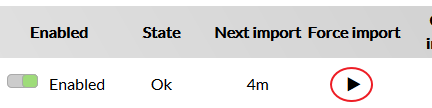
Go to the UI Configuration home page, if your configuration is ok you should have an ouput "OK: Import clean."
Now do a "Force import" in clicking on 
In the "Elements >" panel you will see new elements appearing (Hosts and Contacts).

The next step will be to import those new objects.
HOW TO
Import computers with a specific name
| Edit the file /etc/shinken-user/source-data/source-data-active-directory-sample/_configuration/active-directory-mapping.json |
| Code Block | ||
|---|---|---|
| ||
# IMPORTANT: Do not edit this file.
# To have your own mapping, copy it under the /etc/shinken-users/source-data/YOU_SOURCE_FOLDER/_configuration/ directory and edit your copy instead.
# Note: comments should be with a # starting the line, NOT after a value
{
# first hosts propertyes (computer object in Active Directory)
   "host.name": "name",
   "host.dNSHostName": "dNSHostName",
   "host.operatingSystem": "operatingSystem",
   "host.operatingSystemServicePack":"operatingSystemServicePack",
   "host.distinguishedName": "distinguishedName",
   "host.filter": "(objectClass=computer)",

# Now contact properties
    "contact.name": "name",
	"contact.categoryFilter":"Person",
	"contact.member":"member",
    "contact.telephoneNumber":"telephoneNumber",
    "contact.mobile":"mobile",
# Co: for country
    "contact.co":"co",
# l: for city
    "contact.l":"l",
    "contact;company":"company",
    "contact.filter":"(&(objectCategory=person)(objectClass=user))",
# By default hostgroup are not requested. Setup a filter to enabled it
    "hostgroup.filter":""
}
|
Modify the host.filter
| Code Block |
|---|
"host.filter": "(&(objectClass=computer)(sAMAccountName=*SERVER_NAME*))",
|
Change SERVER_NAME by the server name pattern you want to import.
Import users of multiple groups
With the Active Directory source, it's possible to import users that are in different groups.
| Edit the file /etc/shinken-user/source-data/source-data-active-directory-sample/_configuration/active-directory-rules.json |
In contact_group_filters, add the Distinguished Name (DN) to the different user groups separated by a pipe.
| Code Block | ||
|---|---|---|
| ||
"contacts_group_filter": "CN=shinken_admins,OU=utilisateurs,DC=shinkendom,DC=local | CN=shinken_users,OU=utilisateurs,DC=shinkendom,DC=local",
|
Tag hosts to add more properties before import
This source also includes other parameters that will allow you to automatically “tag” your servers based on your active directory information:
- hosts_tag: each loaded hosts will have at least this tag
Tagging hosts based on their OU (Organization Unit) is possible. This is done with the hosts_tag_* parameters.
For example, if you want to add the exchange tag to all the servers which are below
the OU=Email Collaboration Servers,OU=DataCenter Servers,DC=YOUR,dc=DOMAIN,dc=com OU,
you can set this parameter:
hosts_tag_exchange OU=Email Collaboration Servers,OU=DataCenter Servers,DC=YOUR,dc=DOMAIN,dc=com
Setting up ldap object matching with the hosts_match_* parameters is also possible.
For example, if you want to add the enterprise tag to all the ldap object that match the string Enterprise in their operatingSystemproperty,
you only need to setup :
hosts_match_operatingSystem_enterprise Enterprise
Creation of your own sources
Having multiple sources can help you if you have a huge directory and want to have the control on what to import at any time. As an example, you have an OU containing Paris users and another OU containing Bordeaux users. At a given time, you want to import only Bordeaux users. If you create two sources, you can activate just the Bordeaux source and import its objects.
| Tip |
|---|
Every time you have to customize Shinken Sources, you have to do it in the /etc/shinken-user folder. |
You will have to do the following to create your own source :
- Create a module
- Create a source
- Configure the source-data
- Configure the Synchronizer daemon to take the new module in consideration
Create a module
| Code Block | ||
|---|---|---|
| ||
cd /etc/shinken/modules/
cp activ-dir-import.cfg activ-dir-import-Bordeaux.cfg |
| Edit the file activ-dir-import-Bordeaux.cfg Delete the 4 lines beginning from # Shinken Enterprise to # End of Shinken Enterprise part
|
Modify
| Code Block |
|---|
module_name active-dir-example |
With
| Code Block |
|---|
module_name active-dir-Bordeaux |
Modify the following lines to point to the new source data (see below for the source data configuration)
| Code Block |
|---|
connection_configuration_file
rules_configuration_file
mapping_configuration_file |
Example :
| Code Block |
|---|
    # Configuration file for your Active Directory connection (server, user, password, ...)
connection_configuration_file |
Mapping rules configuration
This file allow you to do the mapping between Active Directory and Shinken properties.
Unless you know what you're doing here, you should keep this file unmodified.
You can find some customization in the How to section.
File /etc/shinken-user/source-data/source-data-active-directory/_configuration/active-directory-mapping.json
| Code Block | ||
|---|---|---|
| ||
# IMPORTANT: Do not edit this file.
# To have your own mapping, copy it under the /etc/shinken-users directory and edit your copy instead.
# Note: comments should be with a # starting the line, NOT after a value
{
# first hosts propertyes (computer object in Active Directory)
   "host.name": "name",
   "host.dNSHostName": "dNSHostName",
   "host.operatingSystem": "operatingSystem",
   "host.operatingSystemServicePack":"operatingSystemServicePack",
   "host.distinguishedName": "distinguishedName",
   "host.filter": "(objectClass=computer)",

# Now contact properties
    "contact.name": "name",
    "contact.telephoneNumber":"telephoneNumber",
    "contact.mobile":"mobile",
# Co: for country
    "contact.co":"co",
# l: for city
    "contact.l":"l",
    "contact;company":"company",
    "contact.filter":"(&(objectCategory=person)(objectClass=user))",
# By default hostgroup are not requested. Setup a filter to enabled it
    "hostgroup.filter":""
}
|
Import the objects
Go in the Administration website, if your configuration is ok you should have an ouput "OK: Import clean."

Now do a "Force import" in clicking on
In the "Elements >" panel you will see new elements appearing (Hosts and Contacts).
The next step will be to import those new objects.
How to
Import host with specific names
Edit the file /etc/shinken-user/source-data/source-data-active-directory/_configuration/active-directory-mapping.json
| Code Block | ||
|---|---|---|
| title | /etc/shinken-user/source-data/source-data-active-directory-Bordeaux/_configuration/active-directory- | mappingconnection.json |
# IMPORTANT: Do not edit this file.
# To have your own mapping, copy it under the /etc/shinken-users directory and edit your copy instead.
# Note: comments should be with a # starting the line, NOT after a value
{
# first hosts propertyes (computer object in Active Directory)
   "host.name": "name",
   "host.dNSHostName": "dNSHostName",
   "host.operatingSystem": "operatingSystem",
   "host.operatingSystemServicePack":"operatingSystemServicePack",
   "host.distinguishedName": "distinguishedName",
   "host.filter": "(objectClass=computer)",

# Now contact properties
    "contact.name": "name",
    "contact.telephoneNumber":"telephoneNumber",
    "contact.mobile":"mobile",
# Co: for country
    "contact.co":"co",
# l: for city
    "contact.l":"l",
    "contact;company":"company",
    "contact.filter":"(&(objectCategory=person)(objectClass=user))",
# By default hostgroup are not requested. Setup a filter to enabled it
    "hostgroup.filter":""
}
|
Modify the host.filter
| Code Block |
|---|
"host.filter": "(&(objectClass=computer)(sAMAccountName=*SERVER_NAME*))",
|
Change SERVER_NAME by the server name pattern you want to import.
Import users of multiple groups
Edit the file /etc/shinken-user/source-data/source-data-active-directory/_configuration/active-directory-rules.json
| Code Block | ||
|---|---|---|
| ||
"contacts_filters": "CN=shinken_admins,OU=utilisateurs,DC=shinkendom,DC=local | CN=shinken_users,OU=utilisateurs,DC=shinkendom,DC=local",
|
In contact_filters, add the LDAP path to the different user groups separated by a pipe.
Tag hosts and users to add more properties before import
    # Configuration file for your import rules (like OU=>template rules)
    rules_configuration_file       /etc/shinken-user/source-data/source-data-active-directory-Bordeaux/_configuration/active-directory-rules.json

	# Configuration file for your ldap fields mapping (like for openldap users)
    mapping_configuration_file     /etc/shinken-user/source-data/source-data-active-directory-Bordeaux/_configuration/active-directory-mapping.json
|
Create a source
| Code Block | ||
|---|---|---|
| ||
cd /etc/shinken/sources/
cp active-dir-hosts.cfg active-dir-hosts-Bordeaux.cfg |
| Edit the file activ-dir-import-Bordeaux.cfg Delete the 4 lines beginning from # Shinken Enterprise to # End of Shinken Enterprise part |
Modify
| Code Block |
|---|
    source_name			active-dir-example
modules active-dir-example |
With
| Code Block |
|---|
    source_name			active-dir-Bordeaux
modules active-dir-Bordeaux |
Configure the source data
To create your own import source, do the following :
| Code Block | ||
|---|---|---|
| ||
cd /etc/shinken-user/source-data
cp -r source-data-active-directory-sample source-data-active-directory-Bordeaux |
| Tip | ||
|---|---|---|
| ||
Let's consider that the folder in which you will have your new Active Directory source is : /etc/shinken-user/source-data/source-data-active-directory-Bordeaux/ |
See above on how to configure the source data
Configure the Synchronizer Daemon
| Edit the file /etc/shinken/synchronizers/synchronizer-master.cfg At the end of the "sources" lien, add you new source. |
Example :
| Code Block |
|---|
sources syncui,cfg-file-shinken,active-dir-example,sync-vmware,cfg-file-nagios,discovery,openldap-example,active-dir-Bordeaux
|
you can see your now source :

Apply contact templates to specific contact groups
During the import process a contact template is applied on every contacts thanks to the "contacts_tag" property found in the active-directory-rules.json.
However, you have the possibility to apply contact templates to specific contact groups with the following properties (file active-directory-rules.json):
| Property | Value | Description |
|---|---|---|
| AddFirst_template_(domain-admins)_to_contact_matching_[memberOf] | CN=Domain Admins,CN=Users,DC=YOUR,dc=DOMAIN,dc=com | Add the "domain-admins" contact template to every contacts matching the value "CN=Domain Admins,CN=Users,DC=YOUR,dc=DOMAIN,dc=com" in its attribute "memberOf" first in list (before the contacts_tag template). |
| AddLast_template_(users)_to_contact_matching_[memberOf] | CN=Users,DC=YOUR,dc=DOMAIN,dc=com | Add the "users" contact template to every contacts matching the value "CN=Users,DC=YOUR,dc=DOMAIN,dc=com" in its attribute "memberOf" last in list (after the contacts_tag template). |
| Force_template_(specific)_to_contact_matching_[memberOf] | CN=SpecificUsers,DC=YOUR,dc=DOMAIN,dc=com | Add the "specific" contact template to every contacts matching the value "CN=SpecificUsers,DC=YOUR,dc=DOMAIN,dc=com" in its atribute "memberOf" all alone (the contacts_tag template will not be applied). |
If you want to customize your Active Directory by adding a new property, for example called countryCode and to apply a template to it, you can do it like :
| Code Block |
|---|
"AddFirst_template_(domain-admins)_to_contact_matching_[countryCode]" : "33" |
| Tip | ||
|---|---|---|
| ||
Keep in mind that the group in which you want to apply specific contact templates must be part of the "contacts_group_filter" filter. For example, let's consider you want to apply the contact templates to the groups listed in the table above. You have to set "contacts_group_filter" like this : "contacts_tag" : " |
This source also includes other parameters that will allow you to automatically “tag” your servers based on your active directory information:
- hosts_tag: each loaded hosts will have at least this tag
- contacts_tag: each loaded contacts will have at least this tag
Contacts to load can be easily filtered with the contacts_filters parameter.
Tagging hosts based on their OU (Organization Unit) is possible. This is done with the hosts_tag_* parameters.
For example, if you want to add the exchange tag to all the servers which are below
the OU=Email Collaboration Servers,OU=DataCenter Servers,DC=YOUR,dc=DOMAIN,dc=com OU,
you can set this parameter:
hosts_tag_exchange OU=Email Collaboration Servers,OU=DataCenter Servers,DC=YOUR,dc=DOMAIN,dc=com |
Setting up ldap object matching with the hosts_match_* parameters is also possible.
For example, if you want to add the enterprise tag to all the ldap object that match the string Enterprise in their operatingSystemproperty,
you only need to setup :
hosts_match_operatingSystem_enterprise Enterprise |
This also works with groups.
For example, if you want to add the domain-admins tag to the users that are in theCN=Domain Admins,CN=Users,DC=YOUR,dc=DOMAIN,dc=com |
setup :
contacts_match_memberOf_domain-admins CN=Domain Admins,CN=Users
|CN=User,DC=YOUR,dc=DOMAIN,dc=com|CN=SpecificUsers,DC=YOUR,dc=DOMAIN,dc=com |
source-data-MY-active-directory
" |