Visualization UI
General
Translated in French
The Visualization User Interface is now available in french
:.
Responsive
design| Tip | ||||||
|---|---|---|---|---|---|---|
| ||||||
Table of content
|
DASHBOARD
[Improvement]
The Dashboard status is no more limited to 3 widgets STATUS
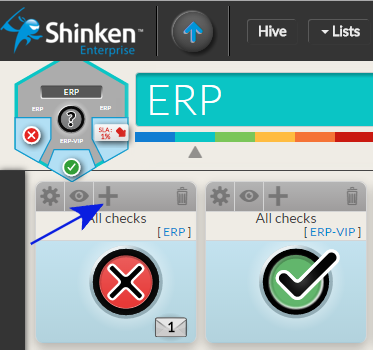
The STATUS of any widget in the dashboard can be added to the computation of the Dashboard status.
- Select any STATUS widget in the Dashboard.
- Click on the PLUS icon located on the widget title bar.
- A summary bar of this widget will be displayed near the status icon.
- The PLUS icon will become a MINUS icon.
- Click on the PLUS icon located on the widget title bar.
- You can remove this STATUS by clicking on the MINUS icon.
- The MINUS icon will be replaced by PLUS icon.
- Select any STATUS widget in the Dashboard.
Summaries displayed in tiles are no more linked to the status of the tile
- You can display a summary (on a Widget SLA or a Status) without taking it into account for the status evaluation.
- Adding a summary is now only to provide additional information on the tile.
- Adding a summary is now only to provide additional information on the tile.
- To add a summary, click on the EYE icon.
- The EYE icon will be replaced by a crossed EYE icon.
- To remove it, click on the crossed EYE icon.
- The crossed EYE icon will be replaced by the EYE icon.
- You can display a summary (on a Widget SLA or a Status) without taking it into account for the status evaluation.
The tile can be seen directly on the dashboard
The tile is located on the top left corner of the dashboard:
- It is exactly the same tile displayed in the hive. It will prevent you to go back and forth between the hive and the dashboard in order to see the status and summary displayed.
- Any change (Dashboard status or adding/removing a summary) will be seen immediately in the tile.
In edit mode, Widgets list is now in a panel on the right
The widget list is in vertical, the user can see more widget without scrolling.
Responsive design
The layout of the Dashboard is adapting to the size of the web browser.
Click on the widget in the status bar of the Dashboard to focus your screen on it
It is useful in 2 cases:
- Click on the widget in the status bar of the Dashboard will help you to locate it, if for example the dashboard is too big to be totally displayed on your screen.
- If the Widget is not totally viewable, it is quicker to click on the title than moving the mouse on slide bar.
The screen focus on the new widget created
User doesn't have to search the added widget by itself
The widget layout has been improved
- Limits of the dashboard is now displayed (a grey background, surrounded by a black Area).
- The size of the dashboard can be increased by dragging a widget on the left or bottom edge.
- Dragging a widget don't immediately change the layout of widget:
- Moving a widget outside the visible part will now generate an automatic scroll of the dashboard. The widget will always be visible.
- A shadow will be displayed, showing the future position
- When you release the dragged widget on the spot of another one, the latter shifts to the bottom.
DETAIL PANEL
[Improvement]
The user that have set the acknowledge is displayed
- Once the acknowledge is set
- A purple area surround the Submit acknowledge button
- Inside this area is displayed:
- The user name that set the acknowledge,
- the time with it has been set.
- A hover show the comment that the user has written.
- Once the acknowledge is set
Tab Historic is updated in real time
- The historic of an host is now updated on every refresh of the detail panel.
A padlock and forbidden message is displayed for unauthorized host
- if a user try to open a an host to which he doesn't have access
- The detail panel will be empty
The text " " will be displayed with a padlock.
- if a user try to open a an host to which he doesn't have access
[Bugs]
Tab Summary: Host template name too long
- In the host template area, if the host template name to long was bigger than the outline of box. The box is now re-sizing itself to the size of the name.
Checks Tab: Setting or removing an acknowledge on a host refresh the checks tab
- When an acknowledge is set on a host, all checks will automatically have the acknowledge context.
- If the tab checks is opened, it be automatically refresh to show the acknowledge context on all checks.
- When an acknowledge is set on a host, all checks will automatically have the acknowledge context.
WIDGETS
[Improvement]
ALL WIDGETS: Instead of hiding not authorized host, Widgets will only show the name of host with a padlock
We changed this behavior to provide more information to Shinken user
- If a user has been able to configure a host but has no more right to see it, it will be easier to discuss with supervision administrator to check if it is not an error.
- A user may need to see a cluster but doesn't have access to host composing. This feature will let him understand why the cluster is down and discuss with the right person.
[Bugs]
Widget Graph
- A check with a name containing a space wasn't displayed.
- If there is no value for a metric during a period, the graphic was not showing this period. Activity period were directly concatenated.
- (For example, if the check has run up to 10:00, then stop 1 hour then restart, it was displaying a continue graphic)
- It will now show a period with metric set to 0
Widget Root Problem
- When we keep mouse over an element in the list of root problems widget and the detail panel is opened, the tooltip describing the host was displayed over detail panel, hiding it.
Il manque le screenshot du bugg d'avant
LISTS
[Improvement]
Overview: a new list
Multi filter
Quick filter
Sorting column
Moving column
Docking column on the right side
Hiding/Showing column
Opening the detail panel
Configuration UI
MENU
To improve the efficiency of the Configuration UI, the menu bar will provide more dynamic information.
| Info |
|---|
In next release, this menu will also be refreshed every 30 secondes |
design
The UI is now adapting itself to any navigator size.
Refreshing your cache is no more necessary to get the last version
The backend is now generating an ID that prevent user to keep static file in cache if not necessary.
HTTPS
The UI can be now protected by an HTTPS access
- The file /etc/shinken/modules/webui.cfg has new parameters.
- to activate the HTTPS:
- http_use_ssl=0
- by default it is set to 0.
- Set it to 1 to activate.
- http_use_ssl=0
- Set certificates by updating the 2 following parameters:
- http_ssl_cert=/etc/shinken/certs/server.cert
- http_ssl_key=/etc/shinken/certs/server.key
- The file /etc/shinken/modules/webui.cfg has new parameters.
| Tip | ||||||
|---|---|---|---|---|---|---|
| ||||||
Table of content
|
Dashboard
[Improvement]
Computing the dashboard status is no more limited to 3 widgets status
The status of any widget can be added to the computation of the Dashboard status.
To produce the aggregate result in the HIVE, the dashboard make a logical & (AND) between selected status.
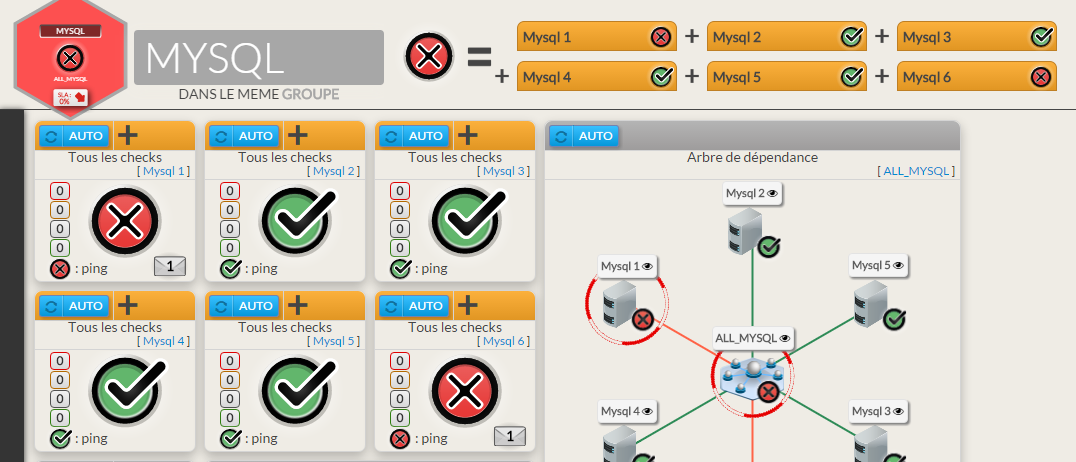
- Select the status of any widget in the Dashboard.
- Click on the PLUS icon located on the widget title bar.
- A summary bar of this widget will be displayed near the status icon.
- Click on the PLUS icon located on the widget title bar.
- The PLUS icon will become a MINUS icon.
- Select the status of any widget in the Dashboard.
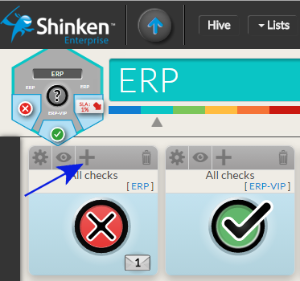
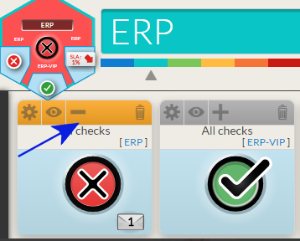
- You can remove this STATUS by clicking on the MINUS icon.
- The MINUS icon will be replaced by PLUS icon.
Summaries displayed in tiles are now independent from the status of the tile
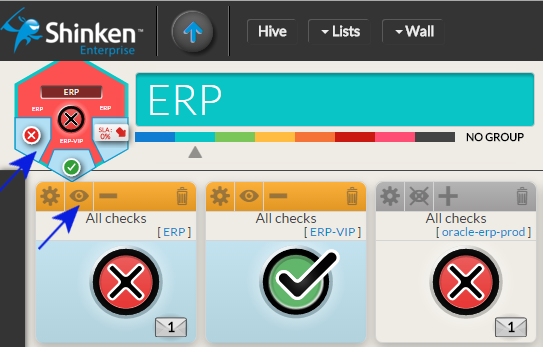
- You can display a summary (on a Widget SLA or a Status) without taking it into account for the status evaluation.
- Now, adding a summary provides only additional information on the tile.
- Now, adding a summary provides only additional information on the tile.
- To add a summary, click on the EYE icon.
- The EYE icon will be replaced by a crossed EYE icon.
- The EYE icon will be replaced by a crossed EYE icon.
- You can display a summary (on a Widget SLA or a Status) without taking it into account for the status evaluation.
- To remove it, click on the crossed EYE icon.
- The crossed EYE icon will be replaced by the EYE icon.
- To remove it, click on the crossed EYE icon.
The tile is also displayed on the dashboard
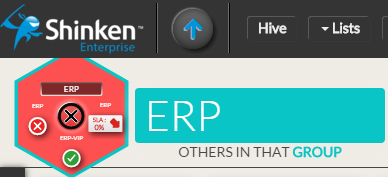
The tile is located on the top left corner of the dashboard:
- It is exactly the same tile displayed in the hive.
- It will prevent you to go back and forth between the hive and the dashboard in order to see the status and summary displayed.
- It will prevent you to go back and forth between the hive and the dashboard in order to see the status and summary displayed.
- Any change (Dashboard status or adding/removing a summary) will be seen immediately in the tile.
- It is exactly the same tile displayed in the hive.
In edit mode, Widgets catalog is now in a panel on the right
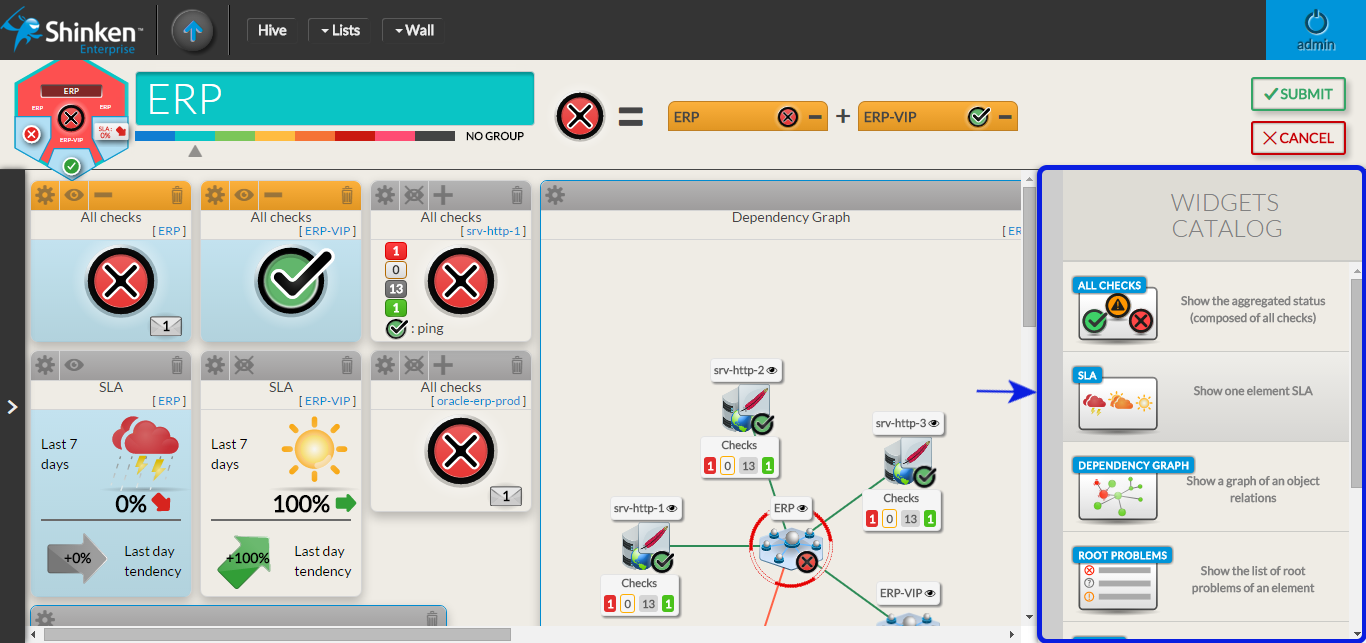
The widgets catalog is vertical, the user can see more widgets without scrolling.
Locate a widget used in the dashboard status by clicking on its name
It is useful in 2 cases:
- Click on the widget in the status bar of the Dashboard will help you to locate it, if for example the dashboard is too big to be totally displayed on your screen (
 )
) - If the Widget is not totally viewable, it is quicker to click on its title than moving the mouse on slide bar.
- Click on the widget in the status bar of the Dashboard will help you to locate it, if for example the dashboard is too big to be totally displayed on your screen (
The dashboard automatically focuses on the new created widget
In case the newly created widget is added on a hidden part of the dashboard, the User doesn't have to search for the added widget.
The widget layout has been improved
- Limits of the dashboard are now displayed (a grey background, surrounded by a black Area).
- The size of the dashboard can be increased by dragging a widget on the left or bottom edge.
- Dragging a widget doesn't change immediately its layout:
- Moving a widget outside the visible part will now generate an automatic scroll of the dashboard. The widget will always be visible.
- While dragging the widget, a shadow is displayed, showing its future position.
- When you release the dragged widget on the spot of another one, the latter shifts to the bottom.
Detail panel
[Improvement]
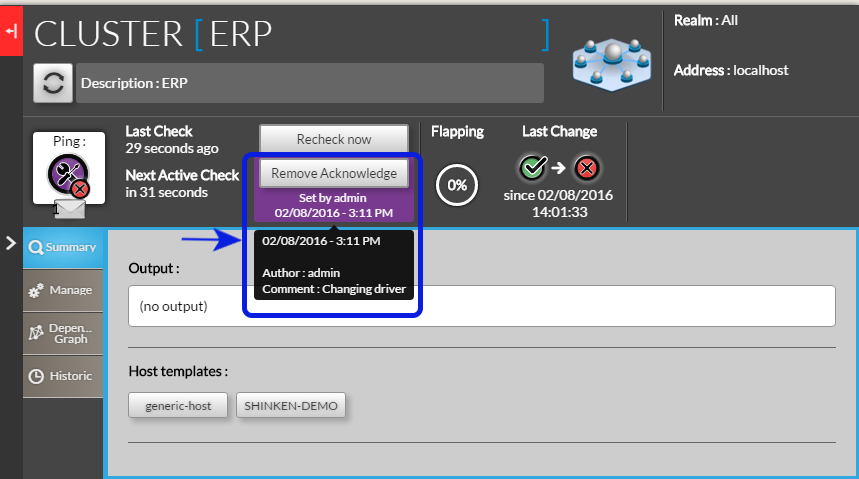 The user that has set the acknowledge is displayed
- Once the acknowledge is set:
- A purple area surrounds the Submit/Remove acknowledge button
- Inside this area is displayed:
- Who (User name) has set the acknowledge.
- When (Time) it has been set.
- A hover shows the comment written by the user.
- Once the acknowledge is set:
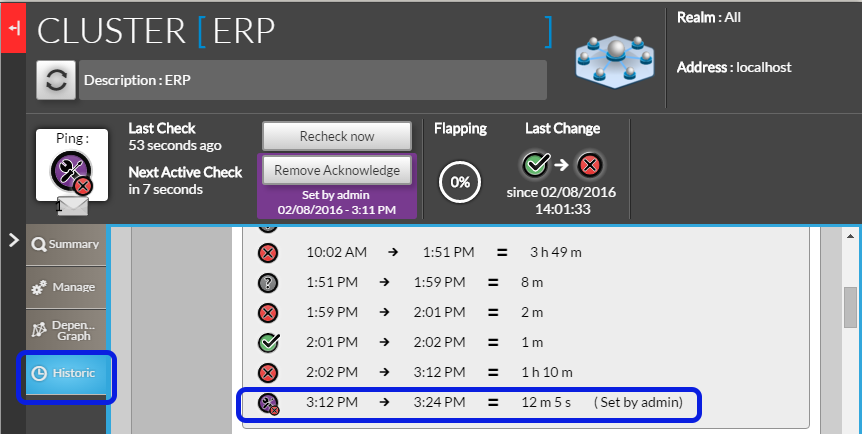
Tab Historic is updated in real time
- The historic of a host is now updated on every refresh of the detail panel.
- The name of the user that sets the acknowledge is displayed on the historic.
- a hover box will also display the comment wriitten by the user.
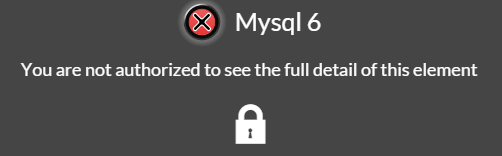
A padlock and a forbidden message are displayed for unauthorized host
- if a user tries to open a host he doesn't have access to:
The details panel will be empty
The text "You are not authorized to see the full details of this element" will be displayed with a padlock.
This screen will allow users to discuss with Shinken Administrators the reason of this unauthorized access.
Tab Graph re-developed
The graph has been re-developed for a better user experience
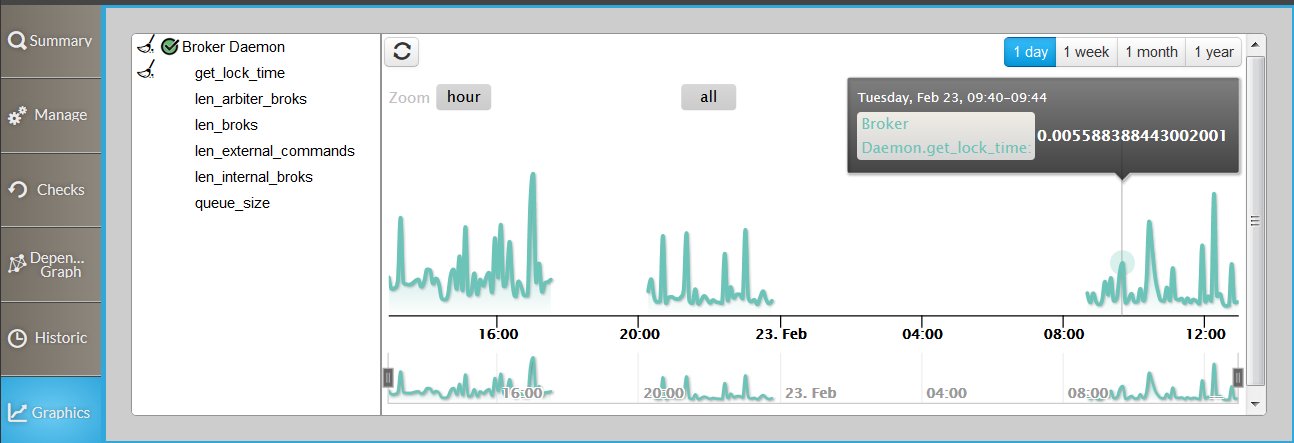
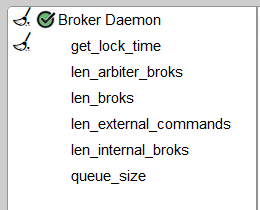
- The list of checks having metrics for this host are listed on the left.
- click on a check name to expand the list of metrics available:
- a brush will appear near the check name.
- click on the brush to close the check.
- click on a check name to expand the list of metrics available:
- The list of checks having metrics for this host are listed on the left.
- click on a metric to display the associated curve.
- A brush will appear near to the check name.
- Click on the brush to remove the curve.
- Checks without metrics will be in grey.
- Many curves can be displayed.
- click on a metric to display the associated curve.
- 2 types of graphs can be seen:
- The whole graphic ( surrounded in green in the image )
- The graph on the zoomed period ( surrounded in blue )
- by default the zoomed graph has the same period as the whole graphic


- The user can change:
- the period of the whole graph:
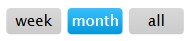
- click on period available to set the size of the whole graph
- 1 day, 1 week, 1 month or 1 year
- The selected range will be in blue
- click on period available to set the size of the whole graph
- the period of the whole graph:
- the size of the zoomed period:
- by default the zoomed period has the same size as the whole graph
- click on zoom buttons to reduce the zoom.
- proposed zoom depends of the selected period.
- the size of the zoomed period:
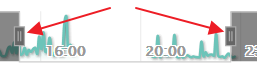
- Use the range selector button to zoom in and out
- drag them to reduce or increase the period.
- Use the range selector button to zoom in and out
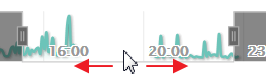 click inside the zoom period to shift the period without changing the length of the period.
- The graph is not updated in real time
- Use the refresh button (
 ) to re-draw the graphics
- Use the refresh button (
[Bugs]
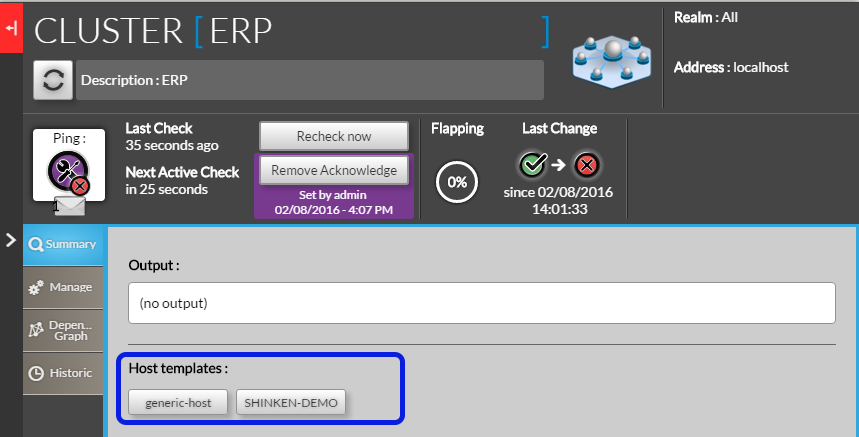
Tab Summary: Host template name too long
- In the host template area, if the host template name is longer than the outline of the box, this latter is now automatically re-sized.
Check Tab: Setting or removing an acknowledge on a host refreshes the checks tab
- When an acknowledge is set on a host, all checks will automatically have the acknowledge context.
- If the check tab is opened, it will be automatically refresh to show the acknowledge context on all checks.
- When an acknowledge is set on a host, all checks will automatically have the acknowledge context.
Widgets
[Improvement]
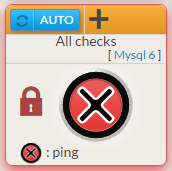
ALL WIDGETS: Instead of hiding non-authorized host, widgets will display the name of the host adding a padlock
We changed this behavior to provide more information to Shinken user
- If a user has been able to configure a host but has no more right to see it, it will be easier to discuss with supervision administrator to understand why.
A user may need to see a cluster but doesn't have access to the host composing. This feature will let him understand why the cluster is down and discuss with the right person.
ALL WIDGETS: Widget name and host are displayed on 2 lines
We changed the layout to provide more space for host names.
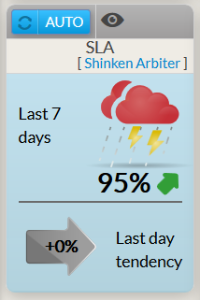
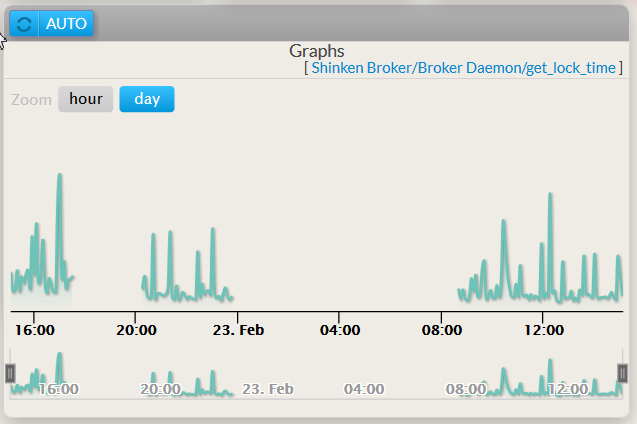
Widget Graph:
The widget graph is using the same engine as the graphic tab in the detail panel:
- Only 1 metrics curve can be displayed
- All previous features has been kept:
- display warning, critical limits
- set minimum and maximum for the graph
[Bugs]
Graph Widget
- A check with a name containing a space wasn't displayed.
- If there is no value for a metric during a period, the graphic was not showing this period. Activity period were directly concatenated.
- (For example, if the check has run up to 10:00, then stop 1 hour then restart, it was displaying a continue graphic)
- It will now show a period with metric set to 0
Root Problem widget
- When the mouse was over an element in the list of root problem widget and the detail panel is opened, the tooltip describing the host was displayed over detail panel, hiding it.
Widget
Lists
[Improvement]
Overview: new design and behavior
The behavior of list has been improved to get a better user experience.
- On the previous list:
- By default, filtering fields in the column were basic selector or string filter.
- Advance filtering was possible, but wasn't user friendly:
- it was difficult to see the link between the complex filter defined and the result in the list.
- it was difficult to see the link between the complex filter defined and the result in the list.
- So the new list has been designed with the following objectives:
- integrating the advanced filtering directly in the list
- more flexibility on the layout of the list
- all modifications done on the list will be saved. User will have the same layout and filter on the next load of the list.
- On the previous list:
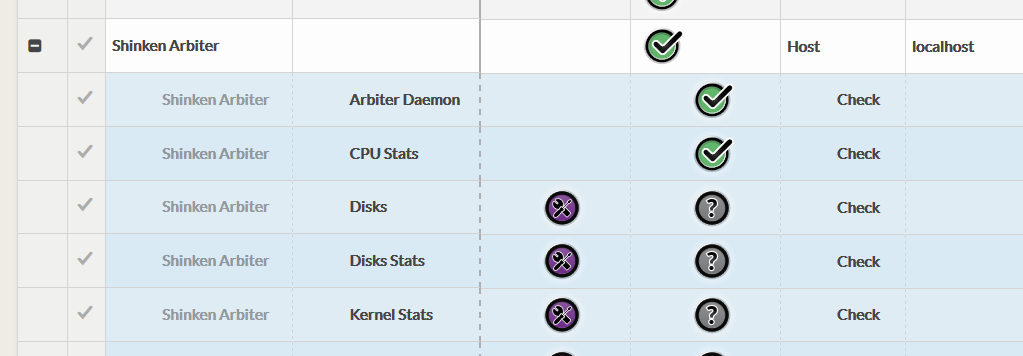
Cluster and Host plus checks as host children
Elements are displayed as a 2 level tree:
- Host and Cluster are at the first level
- Checks are at the second level just under the host they are linked to.
The user can show or collapse checks of a host using the plus on minus icon locate in the first column
Hiding/Showing column
We kept this feature from the previous list:
- Each column can be removed or added depending of the user need
- You can make it in two different ways:
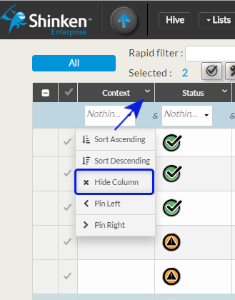
- In a column, open the column menu and click on the entry "hide the column".
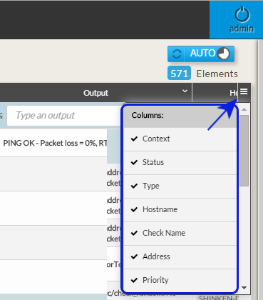
- In the right side of your screen, open the column selector menu and choose which column to display or to hide.
Moving column
The user can choose the column order displayed:
- Click on the header of the column and maintain pressed.
- A copy of the header will appear.
- Drag it to the location you expect.
- Release the mouse.
Docking column on the left side
A column can always be seen:
- If the number of column is too big to be displayed because of the navigator width, it can be useful to always see the host name for example.
- Adding a column;
- open the column menu.
- click on the entry "pin on the left".
- the column will be transferred to the left and always be visible.
- Removing the column:
- open the column menu.
click on the entry "Unpin".
- the column will be removed from the left container and will come back to it previous location in the list.
Sorting column

A column can be sorted:
- In ascending or descending natural order
- click on the column header to sort a column
- on the right of the column name:
- Ascending will show this icon (
 )
) - Descending will show this icon (
 )
)
- Ascending will show this icon (
- click again to change the order type or remove the sorting.
- In ascending or descending natural order
Many columns can be sorted:
- The first column will be sorted, then all identical values of the first column will be sorted in the second column
- To activate the multi-column sorting
- Click on the first column ( the icon
 will be displayed on the left of the column name
 - then on the second column, while maintaining the shift key pressed (the icon
 will be displayed on the left of the column name )
 - You can select as many column as you need.
- Clicking while maintaining the shift key on a column already sorted will change the ascending or descending order.
- Click on the first column ( the icon
Filtering
Each list can be filtered
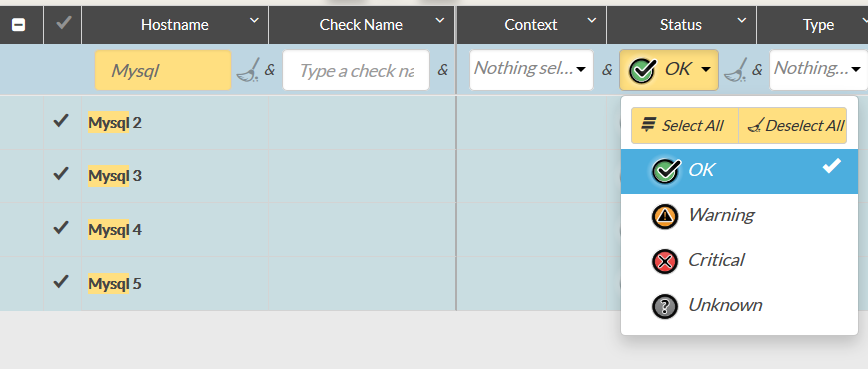
- Below column name, you can activate a filter for the column
- Type a text in input box
- Or Select a possible value in drop down menu
- You can remove a filter:
- by using the brush icon (
 ).
). - Or undoing the action done to set the filter:
- Erase the text typed.
- Unselect values.
- by using the brush icon (
- Below column name, you can activate a filter for the column
Multi-filter
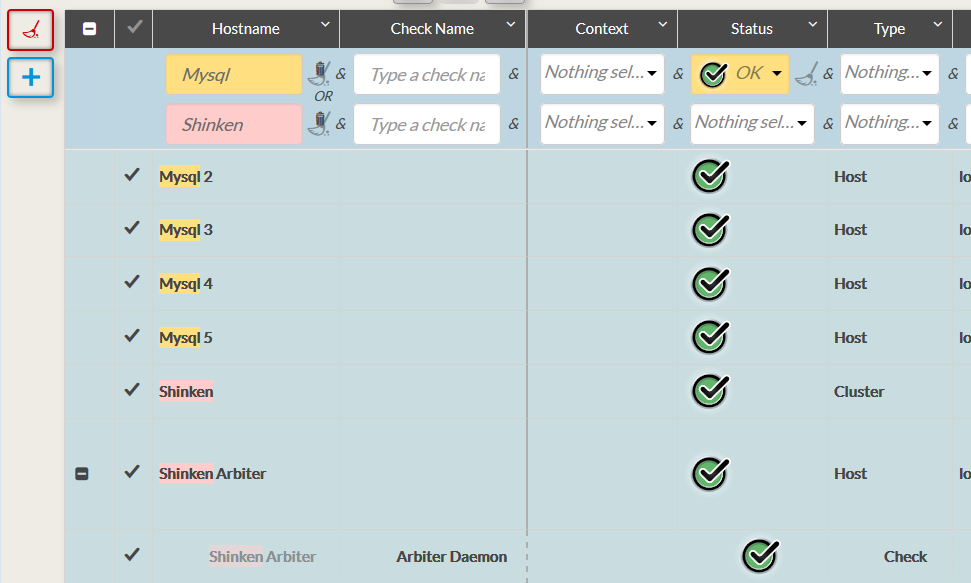
You can set many filtering line to extend elements displayed in the list:
- In our previous example, we were filtering only mysql element. It can be usefull to have mysql and shinken host gathered in the same list.
- In our previous example, we were filtering only mysql element. It can be usefull to have mysql and shinken host gathered in the same list.
When you set the first filter, the following button (
 ) appears on left side of the list
 - Clicking on it will add a new filtering line, below the header
- You can set has many filters as you want, but performance will depend of your web browser.
Elements linked to a filter will be highlighted with the corresponding color.
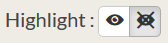
Info Highlight may be resource consuming. You can deactivate it by clicking on the crossed eye button at the top of the screen.
- Clicking on the button (
 ) will remove all filters.
Quick filter
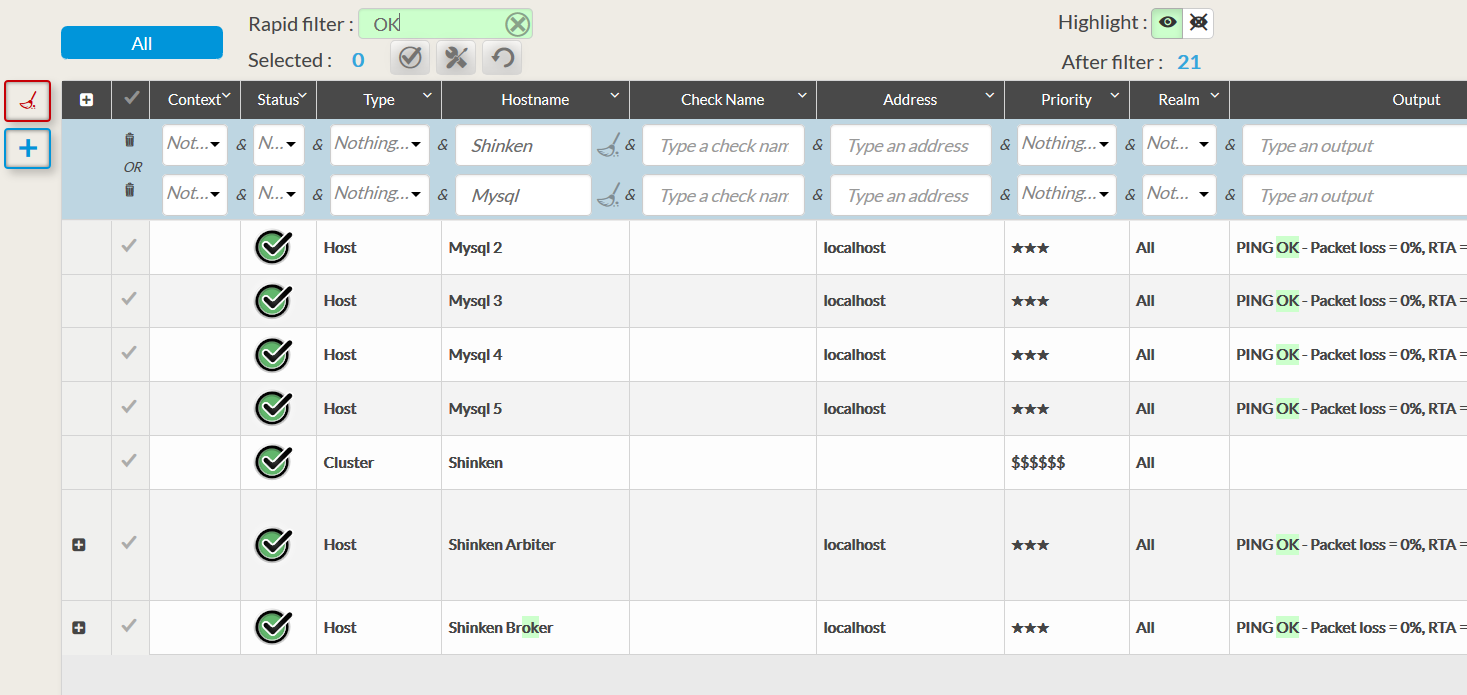
Each list can be quickly filtered by typing a text in the input field
- if you have defined a list with a multi-filter, the quick filter capacity is interesting.
- You don't have
- to remove filter to search a specific host
- or add other filter line to remove it then for sure.
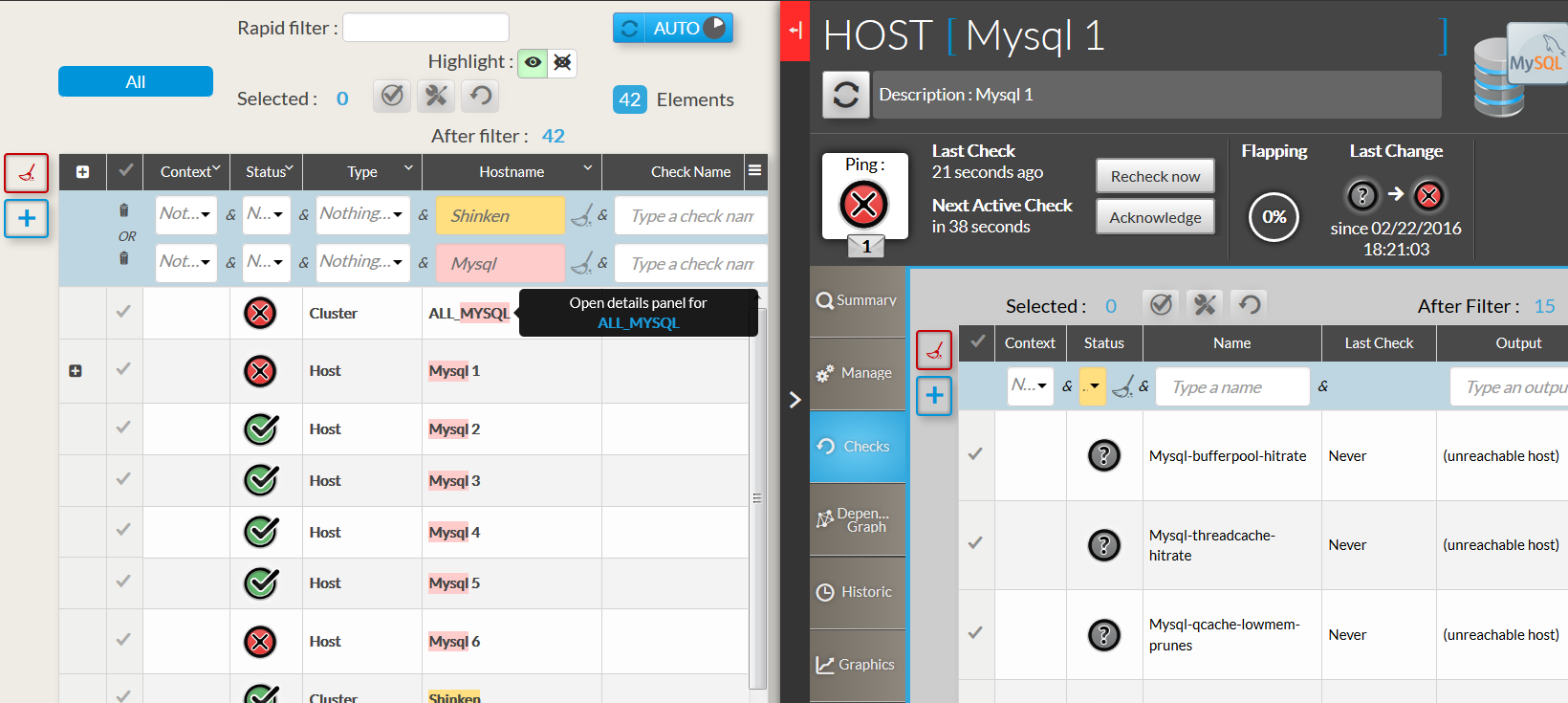
Opening the detail panel in the list
The detail panel can be opened inside list pages:
- Just click on the Host name and it will open the detail panel of this host.
Configuration UI
General
Refreshing your cache is no more necessary to get the last version
The backend is now generating an ID preventing the user to keep static file in cache if not necessary.
HTTPS
The UI can be now protected by an HTTPS access
- The file /etc/shinken/synchronizer.cfg has new parameters.
- to activate the HTTPS:
- http_use_ssl=0
- by default it is set to 0.
- Set it to 1 to activate.
- http_use_ssl=0
- Set certificates by updating the 2 following parameters
- http_ssl_cert=/etc/shinken/certs/server.cert
- http_ssl_key=/etc/shinken/certs/server.key
- The file /etc/shinken/synchronizer.cfg has new parameters.
Restyle of the Login Page
The login page has changed to have the same style as the Visualisation UI login.
Menu
- The menu is updated dynamically:
- In the home page, the menu element is updated every 2 seconds.
- On other pages, it is updated every 30 seconds.
- It is now responsive, adapting itself to any navigator size.
Home Page
[Improvement]
We have changed the look of the page and have improved SOURCES behavior.
- The home page is now responsive.
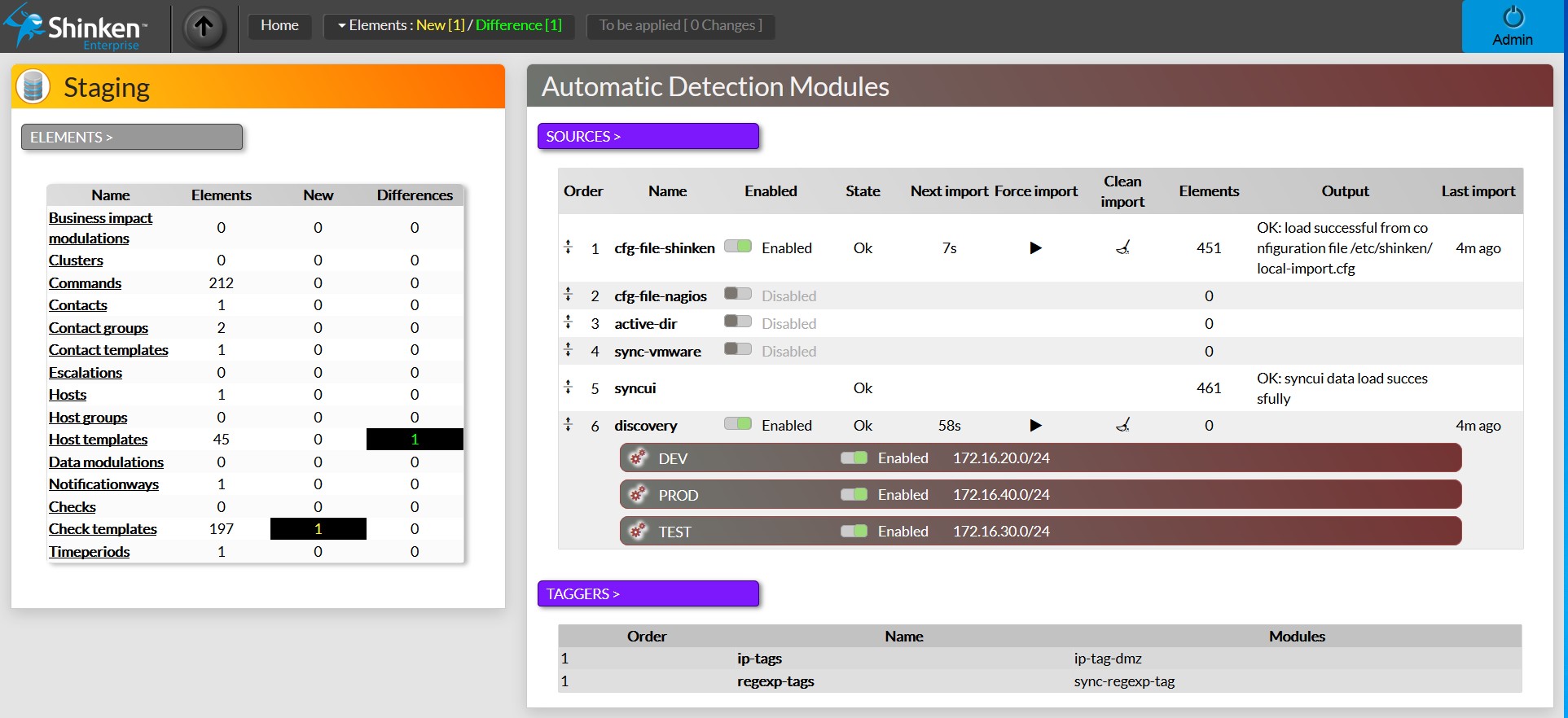
SOURCE Syncui Added

The UI Configuration is displayed as a special source module to be able to choose its priority during Automatic Detection Module merge.
- We added this features because previously the UI was the most important source. So the merge of sources was not showing element's properties that have been modified also via the UI
SOURCES BEHAVIOR
It can be directly modified in the home page (in the previous version, a restart of the Synchronizer was necessary).
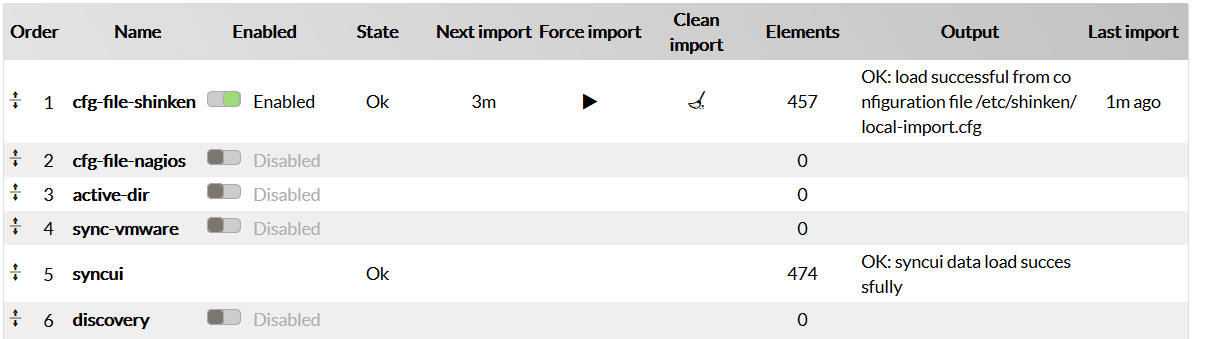
The user can:
- ENABLE / DISABLE a source:
- Enabling the source will run the source and show if any, all differences and new elements.
- Disabling the source will clean the display to remove all differences and new elements of this source in the menu and the staging table.
- FORCE the import:
- The user can manually run the source to detect differences and new elements (no more need to restart the Synchronizer or to wait for the next automatic import).
- Press the play icon (
 ) :
) :- "Import in progress" will be first displayed in the column state.
- Then "Computing difference" will indicate that the import is finished and that the merge with all other sources is on-going.
- When finished, the "OK" will be displayed.
- CLEAN the last import result:
- cleaning the result can be interesting to remove the import result without disabling the source.
- Press the brush icon (
 ):
):- The element column will be set to 0.
- The element column will be set to 0.
- CHANGING PRIORITY ORDER
- Each active source will import data and then all data discovered will be merged together.
- If 2 SOURCES need to update the same information, the one with the highest priority level will win (level 1 is higher priority than level 2).
In the screen example, if for a host the description is set in the "cfg-file-shinken" source and the "cfg-file-nagios" source , then it will always be the "cfg-file-shinken" that will win (order 1).
- The column Order has been added to show this merging priority of each source
- If 2 SOURCES need to update the same information, the one with the highest priority level will win (level 1 is higher priority than level 2).
- Changing the priority Order is easy:
- Move the mouse over one of the Source.
- The mouse cursor will change to the shifting icon (
 ).
). - Drag the table line containing this source to the order you want.
- All sources order below the new position will change of order (increased by one).
- Each active source will import data and then all data discovered will be merged together.
- ENABLE / DISABLE a source:
SOURCES DISCOVERY ENHANCEMENT
The discovery line displays range defined for the source.
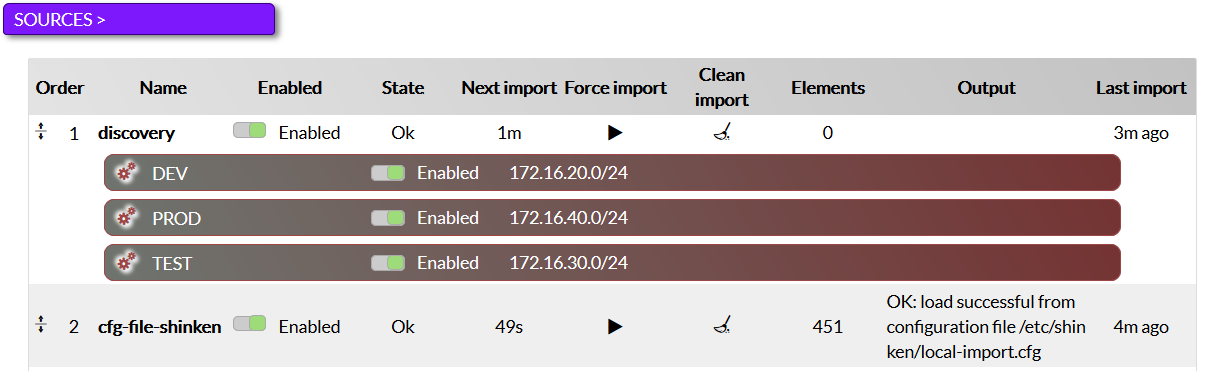
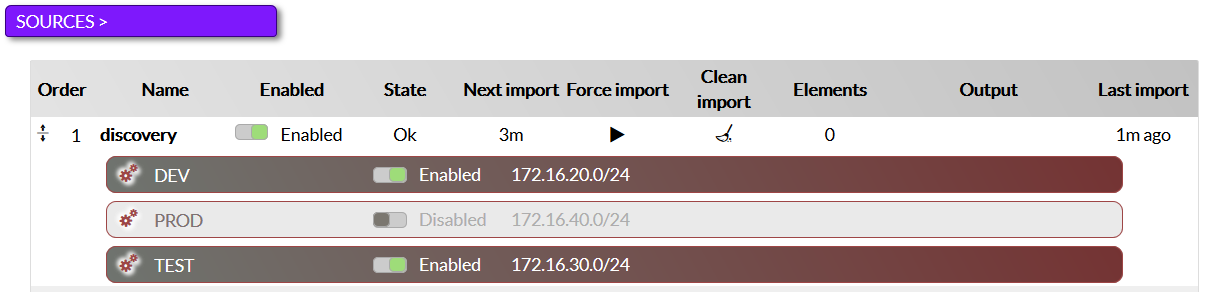
- Each range can be enabled or disabled in the range line:
- Enabled: the line is brown and the button is green
- Disabled: the line and button are light gray.
- Each range can be enabled or disabled in the range line:
SOURCES Discovery Improved
- Port range can be set on each scan range
- Optional parameter can be also provided to nmap.
[Bugs]
SOURCES DISCOVERY
- Range name can now contain any character ( like /, :, -, ... )
Elements List
[Improvement]
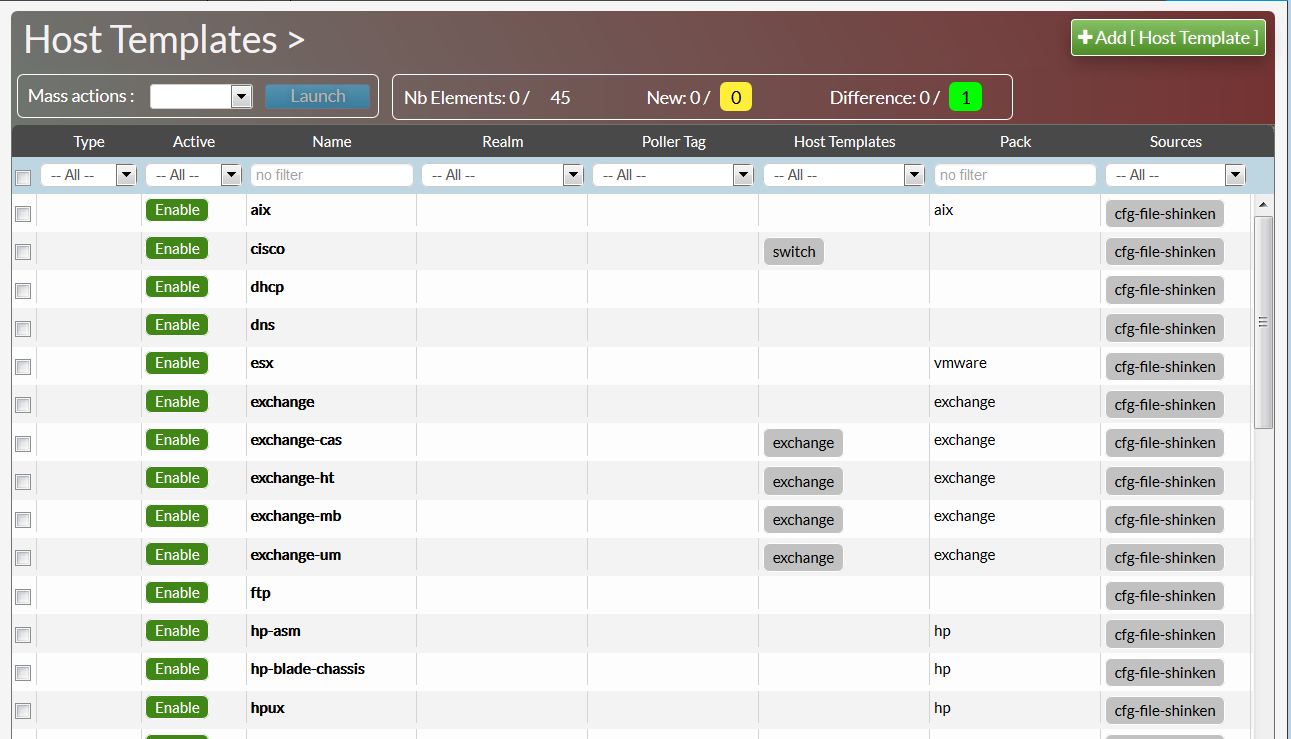
- The look and feel of the page has been completely changed.
- The count of element is displayed (selected/max number).
- mass action include now importing new elements and differences.
- Each column can filtered.
Filtering the list
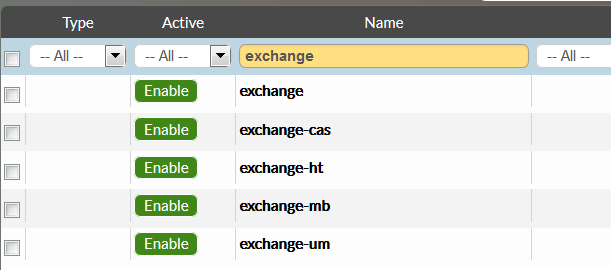
- There are 2 types of filters (depending on the column type):
- Typing a text and press enter
- the corresponding result will contain typed text, wherever the typed text is located (beginning, middle or end).
- Typing a text and press enter
- Selecting a value in the proposed list
- Selecting a value in the proposed list
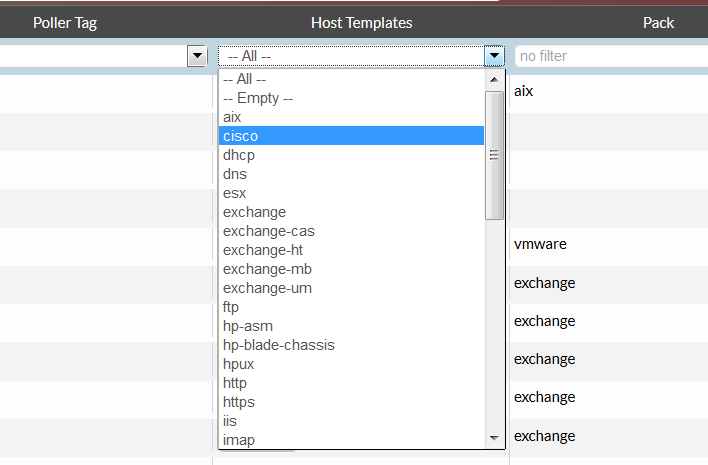
- Setting a filter in many column will display lines that are matching all filters
- Removing a filter:
- for a typed text, delete it, and press enter.
- for a selected element of a filtering list, set the filter to "-- All -- ".
- Removing a filter:
Mass Actions
- 2 mass actions has been added:
- Enable ( enable an element)
- Disable (disable an element)
- Delete
- Duplicate
- Import
- Difference
- 2 mass actions has been added:

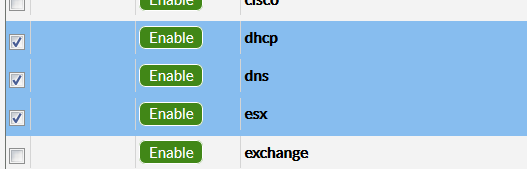
- To run a mass action, lines must be selected:
- Click on a unselected line to select it
- the line will be highlighted in blue
- Click on a selected line to unselect it
- The blue will disappear.
- The blue will disappear.
- Click on a unselected line to select it
- if no lines are selected, the launch button will be deactivated.
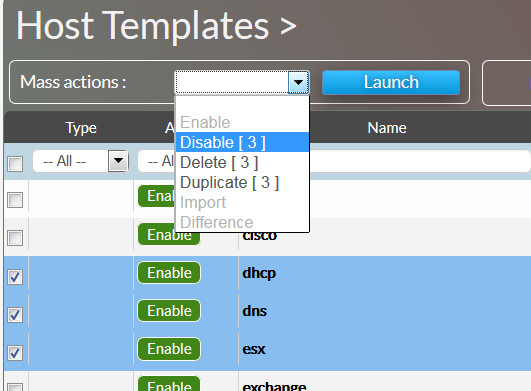
- Only mass actions possible for selected elements will be available.
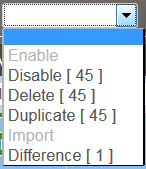
- If among selected elements, some actions can't be applied to the whole list, the exact number of affected elements by action will be displayed inside brackets.
- in the example below, 45 lines are selected but only one contain a difference.
- Only mass actions possible for selected elements will be available.
Elements Count

- 3 type of elements are counted:
- elements displayed in the page (all elements, including new and difference),
- elements that are new (in yellow)
- elements that have differences (in green)
- for each type, it will be displayed:
- the total amount of elements.
- the number of selected elements for this type ( in blue).
- 3 type of elements are counted:
Elements Page
[Improvement]
Colored Template
Template type are now highlighted with color :
- Normal template in Green
- Unactive template in Grey
- Unactive templates are templates already included in other template (MyLinux include the linux template, so linux in in grey and MyLinux in green).
- Checks in double are removed of the unactive template.
- Not existing template in Orange
- New Template (detected via sources, but not already accepted) are in Yellow.

Editing Local Data
- Local data can now be renamed after the creation.
- Click in the column name
- Type the new name
- The change will be taken into account only when the validate button will be clicked.
- Local data can now be renamed after the creation.
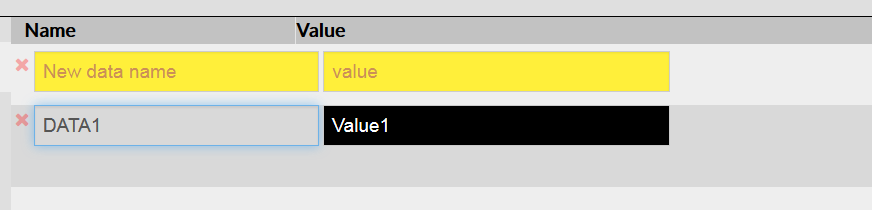
- New local data are displayed in Yellow ( the new color)
- While editing, it helps the user to see which data haven't been saved.
- While editing, it helps the user to see which data haven't been saved.
- New local data are displayed in Yellow ( the new color)
Try this check Improved

- The "Evaluate check" has been added:
- Instead of running the check, the user can click on the gear icon (
 ) to evaluate the check.
- It will display each evaluation step without running the check.
- It is very useful when the command behind the check take some time to be performed.
- Instead of running the check, the user can click on the gear icon (
- Any error encountered by the command itself will now be displayed as a result to help the user to understand errors.
- previously, the check running was endlessly running.
- previously, the check running was endlessly running.
- The "Evaluate check" has been added:
- If a check is not linked to a command, the "(no command)" text will be displayed in red.
- The evaluate and play icon are removed
- If a check is not linked to a command, the "(no command)" text will be displayed in red.

Errors Displayed
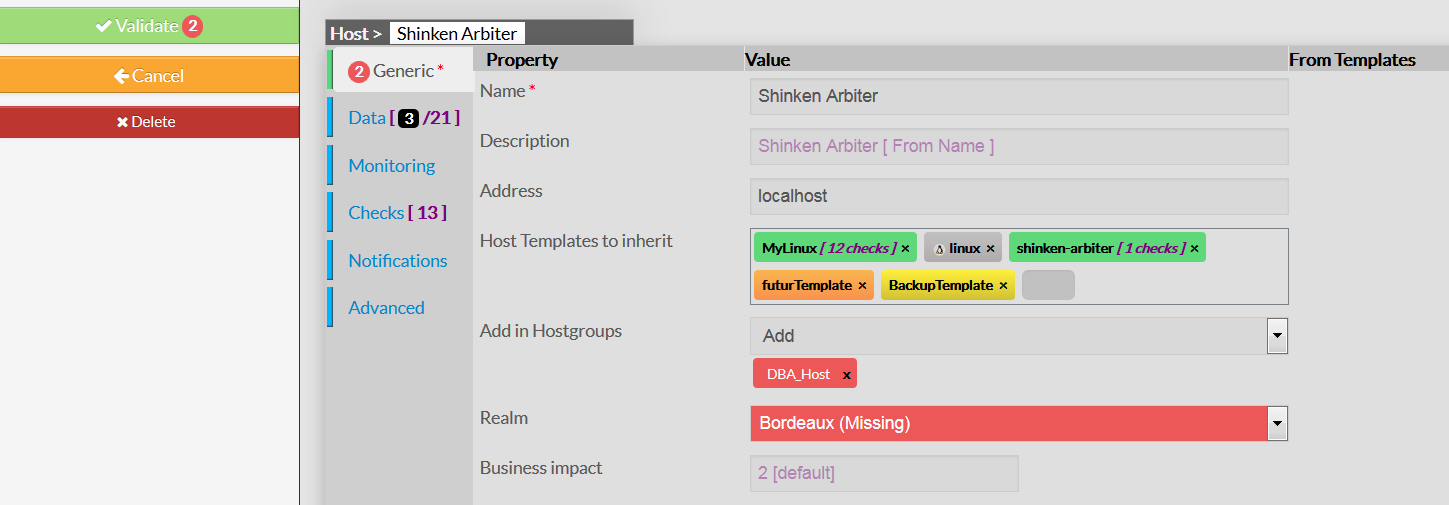
- Error mainly occurs when a host is imported via a source module:
- If the element refers to an undefined value, element or property, the missing or corrupted information is highlighted in red.
- A tab containing errors will have the errors counts on the left of the tab
- the total number of errors in the page will be displayed on the validate button.
- Solving errors that have appeared during an import may take some time to the user. So the page does not block the save of any object even if there are errors inside.
- But the Apply page will not accept to publish elements with errors.
- Error mainly occurs when a host is imported via a source module:
[Bugs]
Host and Host group not displayed
- A host added in a group via the host page was not displayed in the host group page
- it was the same if a host was added in the host group page (The group was not displayed in the host page).
Data including other data weren't resolved
- For example, the data $_HOSTDOMAIN$ containing $_HOSTDOMAINUSERS\$_HOSTDOMAINUSERSHORT$ was not evaluated.
- For example, the data $_HOSTDOMAIN$ containing $_HOSTDOMAINUSERS\$_HOSTDOMAINUSERSHORT$ was not evaluated.
A template containing a space was not displaying its checks
- The space was blocking the checks list retrieval.
All level of inheritance will be present in elements page
- Only 2 levels of inheritance were previously displayed.
- there are no more limits in page that need to handle inheritance (hosts, checks, contacts).
Backend
Clusters
[Bugs]
Cluster with a regular expression
A cluster calling itself was unable to be evaluated and its status was staying in 'UNKNOWN'.
- Now the backend automatically remove the reference to itself and the status can be evaluated.
SLA
[Bugs]
Fix an error on the SLA (%) computation
- the error occured when the day was incomplete (by special check_period or by a poller setup without spares)
UIs Active Directory Authentication
[Improvement]
Active directory authentication also checks the email address
- If the login set by the user cannot match the user name, try to lookup at the contact by the email address.
- Allow the users to login with their emails if the contact name is not the same as the Active directory principal name.
Installation
Mixed installation (US/FR)
[Bugs]
- Allow an update to replace the previous installation whatever the installed language, even if versions are the same.
SSL/HTTPS daemons
[Improvement]
- The pyopenssl package needed by daemons and UIs to open in HTTPS is now installed by default.
Plugin NRPE available
[Bugs]
- The nrpe client plugin (check_nrpe) is now installed by default.
- But no checks or host template are linked to it.
- Using nrpe plugins require a specific configuration per monitored equipments. It is not possible to provide easy to use check using nrpe plugin.
Maintenance Tools
Enabling/Disabling daemon commands
[Bugs]
- When disabling, if the daemon was running, stop it in the same time.
- Daemons in DISABLE state are not displayed in the init.d script start/stop/ commands.
- There was a "Central" daemon type on the previous version of the commands shinken-daemons-[list, enable, disable]. Now this daemon type is removed.
Additional parameters for Backup/Restore commands
[Enhancements]
- There are now parameters to select which part of the data application to backup and/or restore:
- --sla: backup/restore all SLA and history data for your elements
- --user: backup/restore the visualization UI data for your users (hive, list parameters, ...)
- --configuration: backup/restore the whole configuration of your installation (daemons and ui configuration databases)
- --metrology: backup/restore all your metrology data (all metrics)
- --log: backup/restore all your logs
Health check commands
[Enhancements]
- If launched from the central server (arbiter/synchronizer), the shinken-healthcheck executes a "global" check and also looks at distant daemons states.
- if launched from a distant server (not arbiter/synchronizer) then the shinken-healthcheck only look at the local daemons states.
Monitoring Pack
Linux Pack
[Bugs]
Ntp check
The distant ntpq command called was with an absolute path
- Was working on Redhat/Centos but did fail to check a distant debian8 host . Now the distant command is searched on the PATH.
Nfs check
On the first run, the check did return a CRITICAL state
- Now the first run returns an UNKNOWN state.
Windows Pack
[Improvements]
Check_wmi_plus upgraded to 1.60
The check_wmi_plus.pl version is upgraded from 1.49 to 1.60 version in order to fix a problems:
- with the checknetworks command that did not detect all interfaces by default.
- with accents in output (accents were preventing any metrics display).
Home page
The configuration home page now offers a summary of your current Stagging configuration. It also shows new/changed elements that were detected by the automatic modules, so you can validate them.
The home page is automatically refreshed every 30 seconds.Elements summary table is added (number of elements, automatically detected new and modified elements)
- The fact that a Source is enabled is now differentiated from its status (running well or not, for example):
- 2 columns (Enabled and State) are now present.
A source can be Enabled or not in its configuration file (cf module description in the chapter Automatic+Detection+modules).
- State column is filled if the source is enabled.
- Buttons (Add host, Show hosts, Show sources) on the home page were useless and have been removed.
Elements Page
Global Layout modification
Huge improvements in the Elements page:
They are now more clear and dynamic.
They are colored in purple.
The type and the name of the element are always displayed on the top of the page.
Hovering the property will automatically fill the help area if help text is available for the property.
Improvement too, on List pages displaying all elements of a type:
Automatic changes proposal are now easier to see. Buttons design changed by separating;
- New filters are also available:
- All pages now have a filter by name option.
Depending on the type of the element, more filter are available.
- Host: filter by template
- Checks: filter by template and filter by pack
- Contacts: filter by template
- All pages now have a filter by name option.
Clusters/Cluster Pages
Now the clusters have their own list and edition page. They are separated from the hosts page.
They can have a name, a definition rule and the same notification options as the hosts.
| Tip |
|---|
Note: A cluster can't be named with a name already used by a cluster or by a host. |
Host/Host template Pages
The host page inherit from the global layout modification (default and template display, ...) and have also special improvements:
| Tip |
|---|
Note: For "Try this check", checks are launched on the Synchronizers, not on Pollers, so make sure that all plugins are as well configured as on Pollers. |
It's a comma separated list of Check names you do not want to be present in this specific host.
Check/Check template Pages
The check page inherit from the global layout modification (default and template display, ...) and have also special improvements:
To be applied Page
The "To be applied" page did have several improvements. The focus is to facilitate and allow the user to easily see the main differences between its staging database and the production database:
- Modifications to apply to the production environment are listed:
- The new, changed and removed elements are automatically displayed on the page right panel.
- You can filter the modifications list by using the two filters located in the left panel:
- Filter by Status (new, changed, removed)
- Filter by Type (host, checks, command, ....). Only the type with elements will be display on this filter.
- Both status and type filter can be applied, to only see "new hosts" filter for example
|
- Only two buttons are now available on the left:
- Check: check the current staging database
- Apply:
- will check the current staging database,
- erase the production database with the staging database,
- Reload your monitoring production daemons.