Overview
In this view, you can easily see the list of all hosts and services.
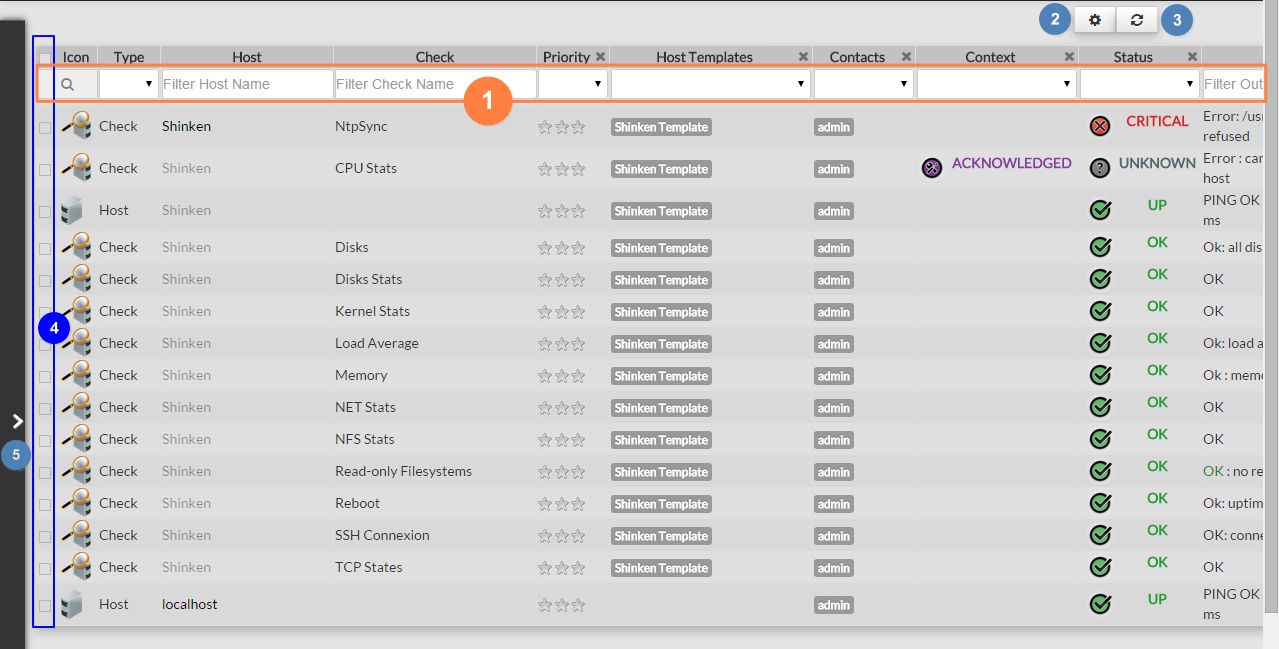
- Quickly filter the list with typed values
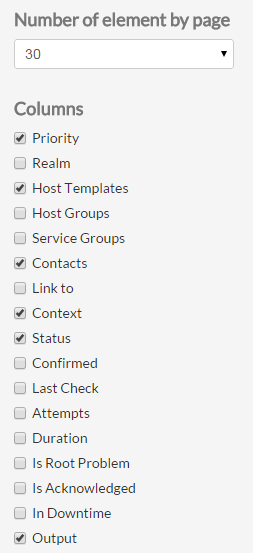
- Choose column data displayed or the number of lines displayed per page.
...
- Refresh of the whole list.
- Select elements.
- Make a complex filter
Quickly filter elements
On the top of the list,
...
fields will allow you to filter
...
this list:
There
...
are 2 kinds of filters:
Text |
...
filter (like Host or Check columns).
|
...
|
...
|
...
|
|
List of values |

...
(like |
...
Priority |
...
or Status columns):
|
...
|
...
|
...
|
|

Select displayed data column
A click on the gearing button 
...
will open the following pop-up.
You can choose which column to display:
| Column | Description |
|---|---|
Priority (Business impact) | The importance of the element defined in the Shinken Enterprise configuration is represented by star (from 0 to 5), this view is sorted by business priority importance. |
| Realm | The Realm(s) to which the element belongs. |
| Host Templates | The Host Template(s) that the element uses. |
| Host Groups | The Host Group(s) to which the element belongs. |
| Service | The Checks name. |
| Contacts | The short names of the Contact(s) that should be notified whenever there are problems (or recoveries) with this element. |
| Link To | The elements linked to the element. |
| Context | Look at Status & Context page. |
| Status | Look at Status & Context page. |
| Confirmed | The current state is a Hard State ( See Hard & Soft Logic ) |
| Last Check | When did the previous check occur. |
| Attempts | Will be useful only if the state type of the element is SOFT. It indicates how many checks can be possibly done before the State type becomes HARD (more into Hard & Soft Logic). |
| Duration | Since when the element is in this state. |
| Is Root Problem | Element is the root cause of a problem. |
| Is Acknowledged | Current element status was acknowledged by someone. |
| In downtime | When the element is currently in downtime. |
| Output | The output string provided by the last plugin checking the element. |
Refresh the list
If you don't make any action, the page will be refreshed every minutes
If you click a button or any element in the interface, a refresh will occur 60 seconds after the last action.
You can force a refresh using this button 
Advanced Filtering
The filter panel can be opened by clicking on the left bar (Overview image : 4). In this menu, you will be able to stack “and/or rules”.
“AND” filters are in a block
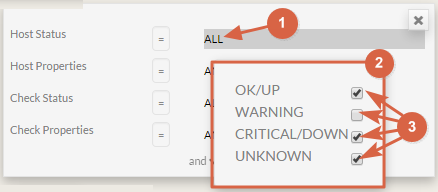
By default, the following filters are defined
| 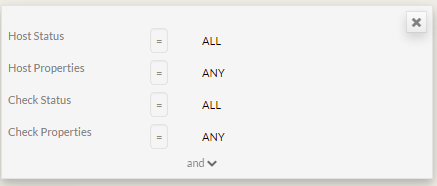 |
You can select host matching status type.
|  |
You can select host properties
|  |
To add other filters:
|  |
ADD a new block to set a “OR” between two “AND” blocks
To add a block, click on the "OR" button.

Validate the filter
Simply click on Filter button.

In the list, you will see only elements matching the defined filter.
Only line matching this selected value will be displayed.
...