Overview
In this view, you can easily see the list of all hosts and services.
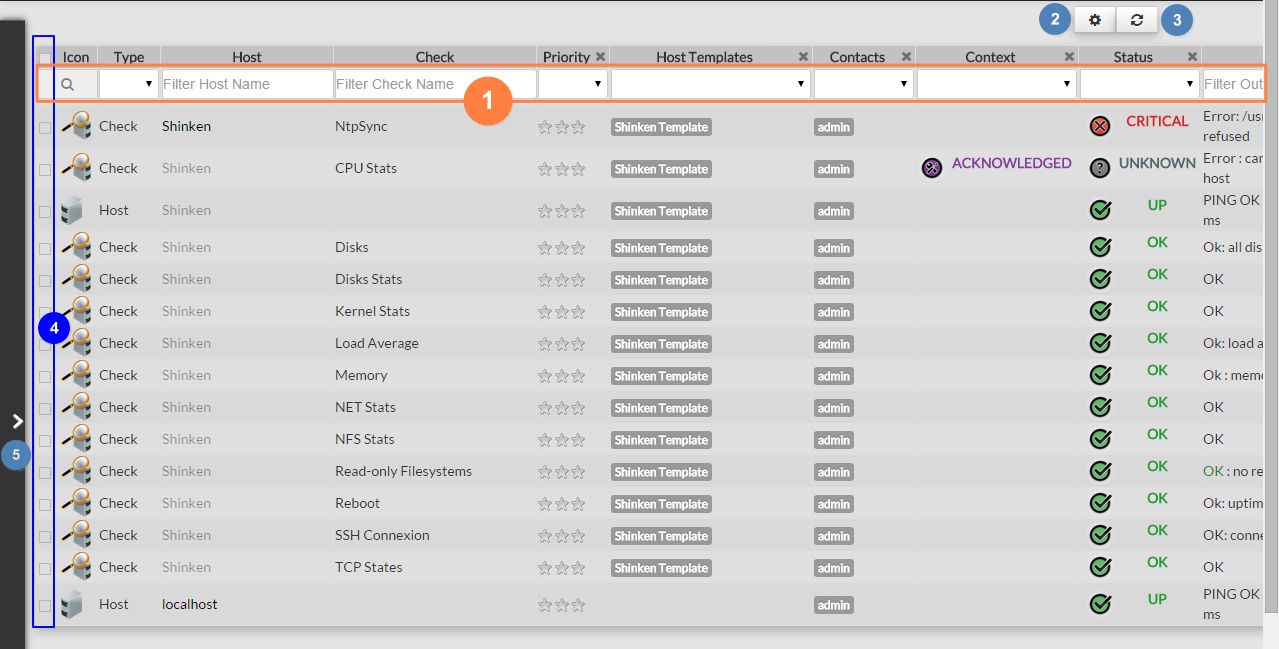
- Quickly filter the list with typed values
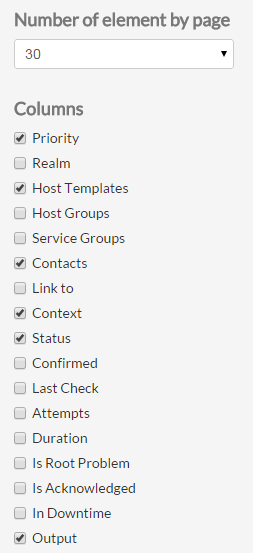
- Choose column data displayed or the number of lines displayed per page.
...
- Refresh of the whole list.
- Select elements.
- Make a complex filter
Quickly filter elements
On the top of the list,
...
fields will allow you to filter
...
this list:
There
...
are 2 kinds of filters:
Text |
...
filter (like Host or Check columns).
|
...
|
...
|
...
|
|
List of values |

...
(like |
...
Priority |
...
or Status columns):
|
...
|
...
|
...

|
|
...
Select displayed data column
...
A click on the gearing
...
button 
...
will open the following pop-up.
...
You can choose which column to display:
...
- UP : no problem on an host
- OK : no problem on an service
- Warning : The service is running but in degraded mode
- DOWN : the host is not running
- Critical : the element is not running
- UNKNOWN : no information is available on the element.
- FLAPPING : the element state is changing (by default, checks are made every five minutes, so its means that the X last checks results were different).
- DOWNTIME : The element has been flagged by a Shinken user as “under maintenance”.
- ACKNOWLEDGED : The problem has been taken into account by a Shinken user.
...
- HARD : the status is validated
- SOFT : the status is not sure. In this type, a check has been done but the result is not 100% sure so the engine will send a new check attempt to be sure of the status.
...
...
...
| (more into Hard & Soft Logic). | |
| Duration | Since when the element is in this state. |
|---|---|
| Is Root Problem | Element is the root cause of a problem. |
| Is Acknowledged | Current element status was acknowledged by someone. |
| In downtime | When the element is currently in downtime. |
| Output | The output string provided by the last plugin checking the element. |
Refresh the list
If you don't make any action, the page will be refreshed every minutes
If you click a button or any element in the interface, a refresh will occur 60 seconds after the last action.
You can force a refresh using this button 
Advanced Filtering
The filter panel can be opened by clicking on the left bar (Overview image : 4). In this menu, you will be able to stack “and/or rules”.
“AND” filters are in a block
By default, the following filters are defined
| 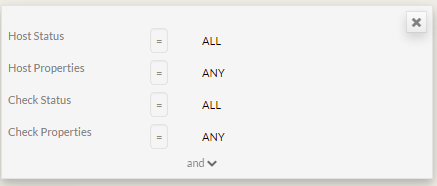 |
You can select host matching status type.
| 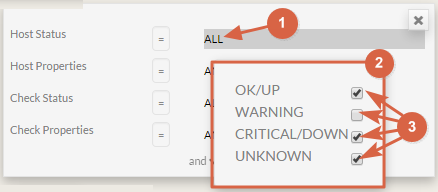 |
You can select host properties
|  |
To add other filters:
|  |
ADD a new block to set a “OR” between two “AND” blocks
To add a block, click on the "OR" button.

Validate the filter
Simply click on Filter button.

In the list, you will see only elements matching the defined filter.
...
...