Abstract
This document describes how you can monitor an MSSQL database server such as:
- Connection time
- The number of connections
- Cache hit
- etc
There are some steps you’ll need to follow in order to monitor a new database machine:
- Understand what is already available (in the Shinken Entreprise installation)
- Setup the MSSQL user account
- Test the connection to the database
- Setup your server host definition
What is already available in the Shinken Installation
To make your life a bit easier, a few configuration tasks have already been done for you:
- Installation of check_mssql_health plugin : /var/lib/shinken/libexec/check_mssql_health
- Several host templates are ready to be used
| We suppose here that the MSSQL server you want to monitor is named srv-win-1 and is a Windows. Please change the configuration and commands according with the real name of your server. |
Setup the MSSQL user account
Create the database user
Look at the labs.consol.de/lang/en/nagios/check_mssql_health/ page about how to configure your user connection.
Test the connection
To see if the connection to the MSSQL server is ok using a domain user, just launch :
 |
|
Manage more than 1 database on the same host
Some checks presents in MSSQL templates provided by Shinken Entreprise use the "Duplicate For Each" functionality.
For each database name listed in the DATA "DATABASES", check will be duplicated. An host, having 2 databases, will then have in double each checks with the datatabase name in the check.
Let's look an example: an host has the following:
|
Each check able to be used on a database base will be indicated with a scope "database".
What is checked with the templates
Public templates
mssql
This is the very basic MSSQL template allowing to know if your MSSQL database server is running and usable.
Every MSSQL templates (except Mssql-connection-method) use it as a parent template.
| Check | Detail | Scope | Check range | Default Warning | Default Critical |
|---|---|---|---|---|---|
| database-free | Free space in database | database | 0 to 100% | 2% | 5% |
| free-list-stalls | Requests per second that had to wait for a free page | server | 0 to n | 4 | 10 |
| page-life-expectancy | Seconds a page is kept in memory before being flushed | server | 0 to n | 300: | 180: |
| total-server-memory | The amount of memory that SQL Server has allocated to it | server | 0 to n | 1000000 | 5000000 |
mssql-full
Contains all MSSQL host templates listed in the Shinken Adminstrators templates.
Using the mssql-full template will require a lot of resources on your poller daemon. We advise to use only needed templates. |
Shinken Administrator templates (can't be seen by other users)
mssql-connection-method
This template describes the method to connect to MSSQL server. Every MSSQL templates use it as a parent template.
mssql-availability
This template gives informations about the database availability.
| Check | Detail | Scope | Check range | Default Warning | Default Critical |
|---|---|---|---|---|---|
| connection | Time to connect to the server | server | 0 to n sec | 1 | 2 |
mssql-backup-age
This template gives informations about the backup age of your databases.
| Check | Detail | Scope | Check range | Default Warning | Default Critical |
|---|---|---|---|---|---|
| database-backup-age | Elapsed time (in hours) since a database was last backed up | database | 0 to n hours | 48 | 72 |
mssql-batch-requests
This template gives informations about the batch requests.
| Check | Detail | Scope | Check range | Default Warning | Default Critical |
|---|---|---|---|---|---|
| batch-requests | Batch requests per second | server | 0 to n | 100 | 200 |
mssql-checkpoint-pages
This template gives informations about the checkpoint pages.
| Check | Detail | Scope | Check range | Default Warning | Default Critical |
|---|---|---|---|---|---|
| checkpoint-pages | Dirty pages flushed to disk per second. (usually by a checkpoint) | server | 0 to n | 100 | 500 |
mssql-compilations
This template gives informations about compilations.
| Check | Detail | Scope | Check range | Default Warning | Default Critical |
|---|---|---|---|---|---|
| sql-initcompilations | Initial compilations per second | server | 0 to n | 100 | 200 |
| sql-recompilations | Re-Compilations per second | server | 0 to n | 1 | 10 |
mssql-full-scans
This template gives informations about the full scans.
| Check | Detail | Scope | Check range | Default Warning | Default Critical |
|---|---|---|---|---|---|
| full-scans | Full table scans per second | server | 0 to n | 100 | 500 |
mssql-latch
This template gives informations about the latches.
| Check | Detail | Scope | Check range | Default Warning | Default Critical |
|---|---|---|---|---|---|
| latches-wait-time | Average time for a latch to wait before the request is met | server | 0 to n | 1 | 5 |
| latches-waits | Number of latch requests that could not be granted immediately | server | 0 to n | 10 | 50 |
mssql-lazy-writes
This template gives informations about the lazy writes.
| Check | Detail | Scope | Check range | Default Warning | Default Critical |
|---|---|---|---|---|---|
| lazy-writes | Lazy writes per second | server | 0 to n | 20 | 40 |
mssql-locks
This template gives informations about locks.
| Check | Detail | Scope | Check range | Default Warning | Default Critical |
|---|---|---|---|---|---|
| locks-deadlock | The number of deadlocks per second | server | 0 to n | 1 | 5 |
| locks-timeouts | The number of locks per second that timed out | server | 0 to n | 1 | 5 |
| locks-waits | The number of locks per second that had to wait | server | 0 to n | 100 | 500 |
mssql-server-performance
This template gives informations about MSSQL server performance.
| Check | Detail | Scope | Check range | Default Warning | Default Critical |
|---|---|---|---|---|---|
| cpu-busy | Cpu busy in percent | server | 0 to n | 80 | 90 |
| io-busy | IO busy in percent | server | 0 to n | 80 | 90 |
| mem-pool-data-buffer-hit-ratio | Data Buffer Cache Hit Ratio | server | 0 to n | 90: | 80: |
mssql-transactions
This template gives informations about databases transactions.
| Check | Detail | Scope | Check range | Default Warning | Default Critical |
|---|---|---|---|---|---|
| transactions | Transactions per second (per database) | database | 0 to n | 10000 | 50000 |
mssql-usage
This template gives informations about the database usage.
| Check | Detail | Scope | Check range | Default Warning | Default Critical |
|---|---|---|---|---|---|
| connected-users | Number of currently connected users | server | 0 to n | 50 | 80 |
How to
Configuration of Mssql-connection-method host template
Click on Hosts then on Hosts Templates in the Elements menu | 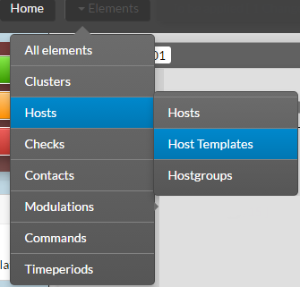 |
In the Name field, type mssql-connection. Then clic on mssql-connection-method | 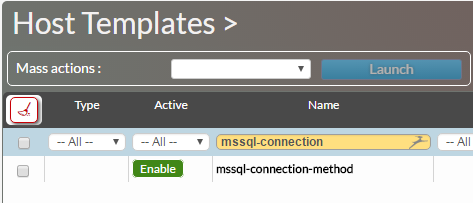 |
| Clic on Data tab | |
You can setup the following DATA :
|
|
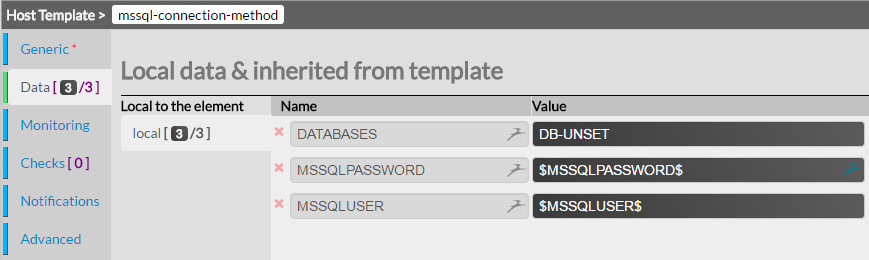
The parameters specifics to each server, such as database name for example, has to be done in the host's data itself.
It's a best practice to use the same database monitoring user on every MSSQL server monitored. Doing so, you can configure the database user/password only once in the host template mssql-connection-method. |
Attach a MSSQL template to you host
| Clic on Hosts in the Elements menu | 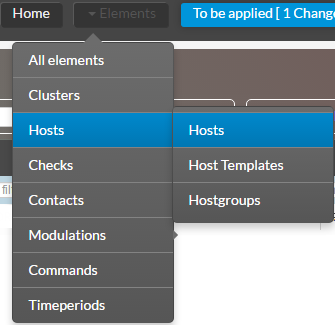 |
Add the chosen Oracle host template to the Host Templates to inherit field. For example the Oracle host template. |  |
Click on the Data tab | 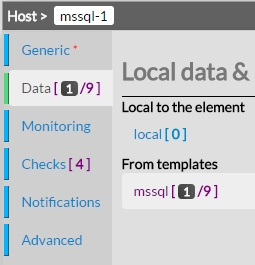 |
Look for the field DATABASES in the From templates data | |
Type the name of the database to be monitoring |  |
| Check if the Following data are ok. | 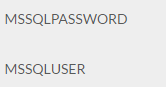 |
You can monitor multiple database on the same host in typing the name of the database name separated by a comma. Exemple : DB1,DB2,DB3 |