Description
The aim of the SLA widget is to print percentage of availability of the chosen element (cluster, host or check) for the last 7 x 24 hours SLA.
2 SLA are present:
- Between 99% to 100% of the time, the status will be OK.
| 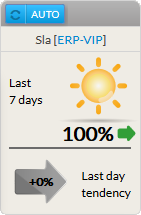 |
- Between 97% to 99% (not included => 98,9%) of the time, the status will be Warning.
| |
- Between 0% to 97% (not included => 97,9%) of the time, the status will be Critical.
- A red cloud with lightning will be displayed.
| 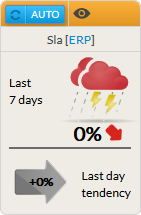 |
- The previous day tendancy:
- It shows if during the last day, the SLA has been gobaly improving or not.
The status refers to an element, a click in the widget will open the Detailed View Panel providing detail on the element (see the Host Detail View chapter).
- For a host, clicking on one of the checks summary box, will directly open the Detail panel on the tab checks panel.
- The list of check will be filtered to only display check matching this status.
- To get the full list of check, simply remove the filter ( See Checks Tab chapter)
Configuration
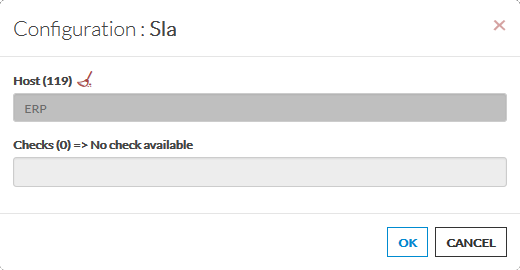
- Open the configuration box.
- Type the host or cluster name in the edit field under Host.
- The total number of host and cluster will be displayed near host (119 in our exemple).
- It will automatically show the list of available hosts.
- If you type characters, the list will be automatically filtered.
- As soon as you have typed 1 letter, a matching list of checks will be displayed below.
- Once your element is selected, if you want to monitor a specific check, you just have to type check name inside this second box.
- When configured, press the OK button.
|  |