Generally speaking, the aim of a Dashboard is to contain all information that will help you to monitor a bunch of elements, a concept or whatever you decide. It is only a visual container which will help you to be more efficient in your monitoring tasks.
For example, you can dedicate a Dashboard to monitor an ERP, containing all information that may help you to be sure that the ERP of the company is running well:
- Summary status of important elements (like hosts, database,fire wall, ...)
- The complete map of the ERP elements displaying dependance relationship between elements.
- In case the ERP is down, the list of roots problems that need to be first investigated.
- Graphics, SLA, ...
OVERVIEW
A dashboard is always linked to a tile of the hive. You can access to a dashboard by clicking on the tile representing it in the hive.
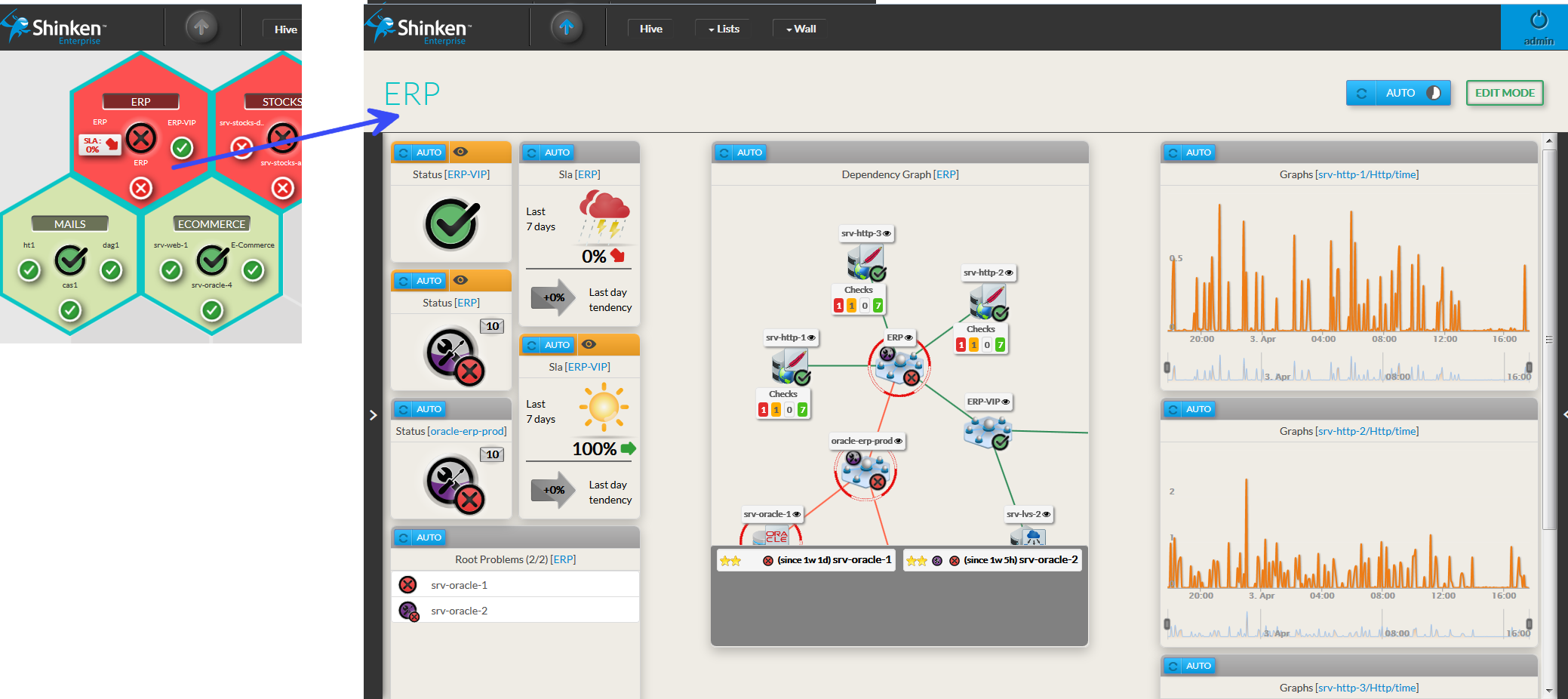
In our exemple, the ERP dashboard consists in 8 boxes that contain information of the concept we want to monitor.
We call these boxes Widgets (see widgets chapter for more details).
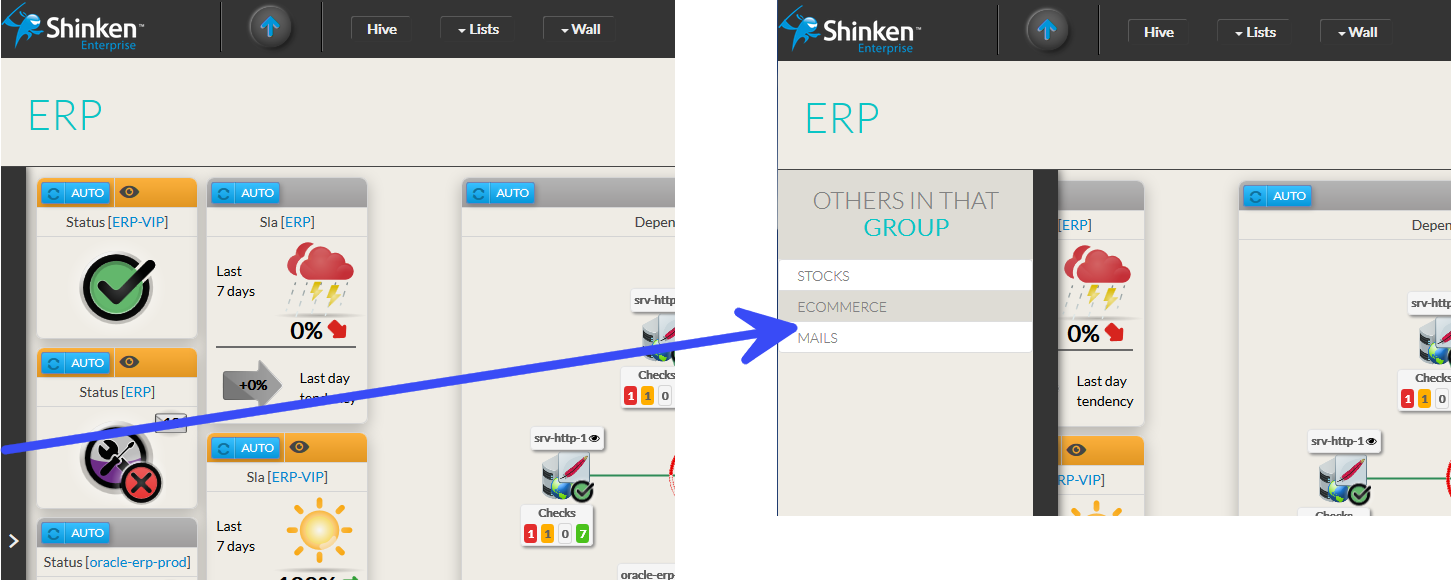
You can easily switch between dashboards of the same group of color. Click on the left border of the dashboard. The list of dashboards belonging to the group will appears automatically.
A Dashboard has 2 modes:
- Visualisation (view monitoring information)
- Edition (organize the dashboard)
When you open a dashboard, you are in Visualization mode.
Visualization mode
Each widget will be updated visually every minutes.
- By default, the refresh is automatic and will occur every 60 secondes.
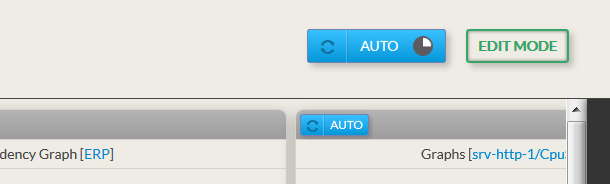
- When in automatic mode, the button is in blue.
- Next to auto, the timer is indicating when the next reload will be done.
|  |
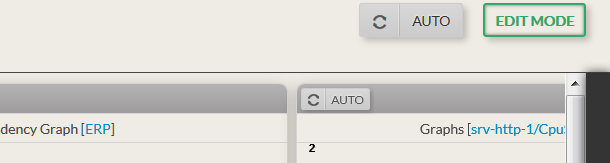
- You can desactivate the refresh by clicking on Auto
- The button and all similar button in widgets will become grey.
|  |
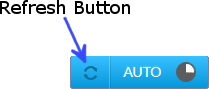
Force a Reload- Click on the left part of the auto button (the refresh button)
|  |
Enter in Edit Mode- Click the “edit button” on the top left corner .
|  |
Edit Mode
You can visually organize the dashboard as you want, like changing the layout of widgets, add widgets,...

| Being in the edit mode includes some specific access: | |
- On the top left corner, you can:
- Change the name of the Dashboard.
- Click on the name, type the new name and click outside of the grey box.
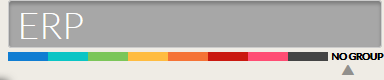
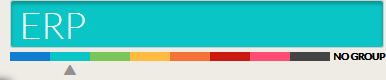
- Change the color (group) to which this dashboard belongs.
- Just click on the color you want to set or set it to no group.
- The triangle under the color will show you which one is selected.
- The background of the title will also change of color.
| 
|
- On the top right corner:
- OK: Leave the edit mode and validate all modifications done on the dashboard.
- Cancel: Leave the edit mode, but modifications won’t be taken into consideration.
|  |
- Go over a widget and simply drag it to the location you have chosen.
- While draging the widget,
| |
Add a widgetsFirst, In the top bar, click on the widget you want to add. Then clicking on the button “+ ADD” located on the top of the blue area, will add the widget on Dashboard. This new widget will always appears on the right of the Dashboard, sticked to the top. Depending on the widget, you will have an empty box or the default view. To make it operational, you will need to configure the widget, that is very easy to do (see widgets chapter).
|  |
| |
- Some widgets are resizable.
- They will be surrounded by a blue border.
- When placing the mouse over, a blue triangle will also be displayed in the bottom right corner.
- To initiate the resize, place the mouse on the border of the widget, click and move the mouse to the new size.
- Each widget as a minimum size.
| METTRE L'IMAGE |