Overview

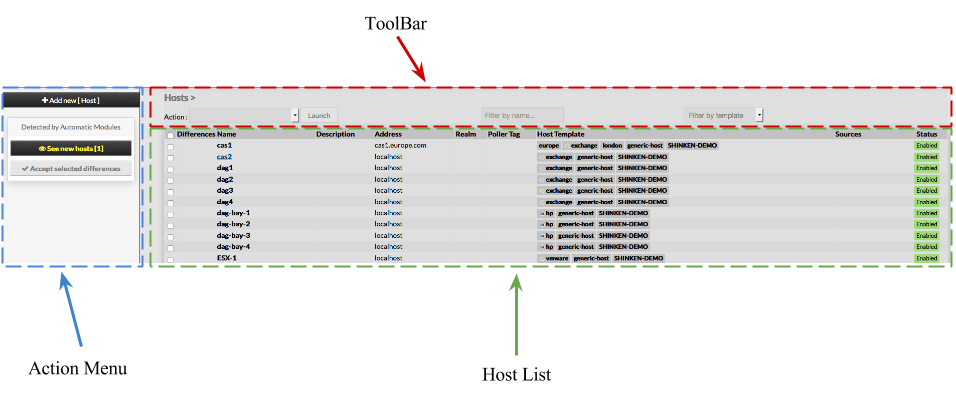
When accessing the Hosts Configuration Page, Administrators see an Host Table, listing all Hosts objects.

This table contains the following informations :

  • Differences
  • Name
  • Description
  • Address
  • Realm
  • PollerTag
  • Host Template
  • Sources
  • Status

This page also provides, on the left, an action Menu, used to :

  • Add a new Host
  • Show Hosts detected by Automatic Modules
  • Accept differencies on selected elements


On the top of the table, A tool bar let Administrators the ability to :

  • Enable, Disable, Delete or Duplicate selected Hosts
  • Filter List by Name
  • Filter List by Template applied on Hosts


Create a new Host

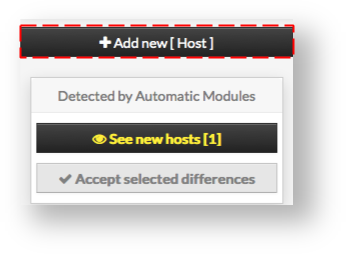
To create a new Host, use the button "Add new [Host]" located in the Action Menu


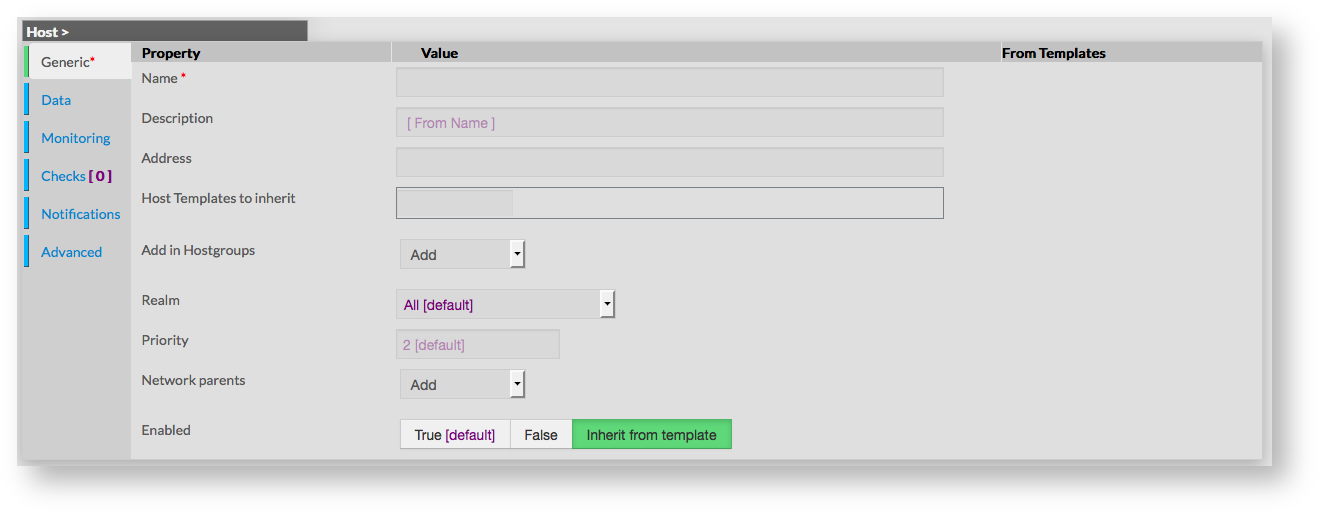
Host creation form will be displayed.

This form is composed of tabs, corresponding to categories of properties :

  • Generic

  • Data

  • Monitoring

  • Checks

  • Notifications

  • Advanced


The left menu give to Administrators the ability to :

  • Validate the new host
  • Cancel the action
  • Delete the host

For each category, a corresponding form is displayed.

Generic

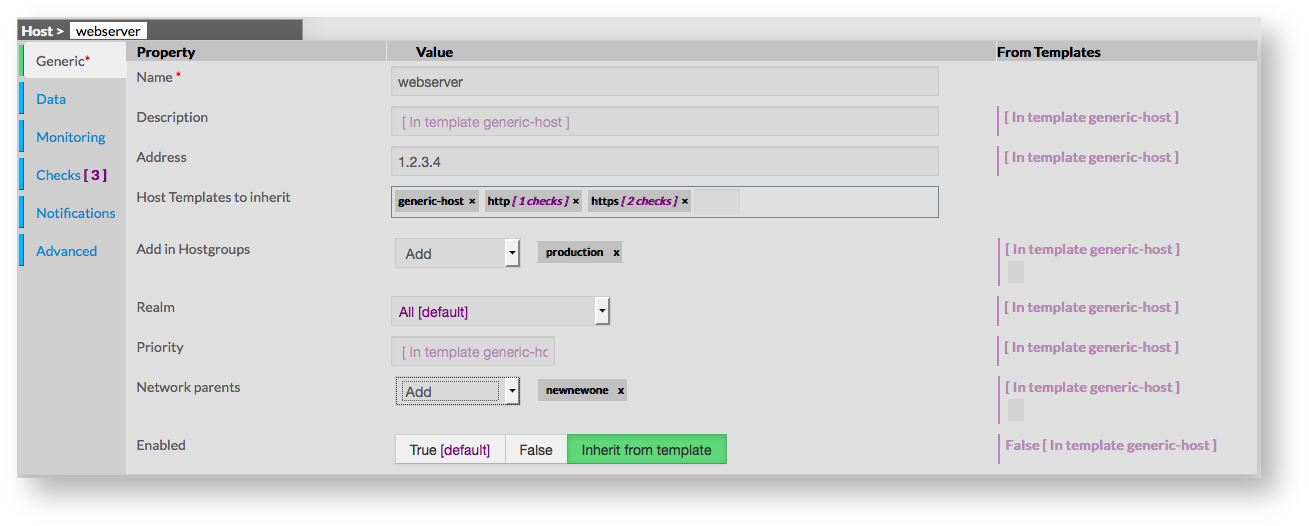
Generic properties contains the minimum properties requiered to create an Host :

  • Name
    • the name of the Host

    • this field is requiered

  • Description
    • extended description, displayed in Host Widget
    • Name is used if nothing is filled
  • Address
    • address used to join the host on the network
    • can be an IP Address, or a resolvable hostname (Short or FQDN)
  • Host Templates to inherit
    • list of templates the new host should herit to
    • templates name are suggested when starting to fill the field
  • Add in Hostgroups
    • a list of available Hostgroups the new host should be in
    • more than one hostgroup can be selected
  • Realm
    • realm from which the host should be monitored
    • only one choice can be made
  • Priroty
    • the priority is a feature used to show the criticality level of hosts
    • there is no impact on check method or notifications
    • by default, level of Host Template is used
  • Networks parents
    • this field is used to determine hosts located between poller and the new Host
    • filling this property helps in problem resolution, and in impact calculation
  • Enabled
    • this property determines if the host will be used or not by Shinken
    • a disabled host is still present in configuration, but is not scheduled, and is not visible on the WebUI
    • by default, the value is inherited by the template

Data


Data is used to show and create variables used by Shinken to perform checks.

Those values are also called Macros.

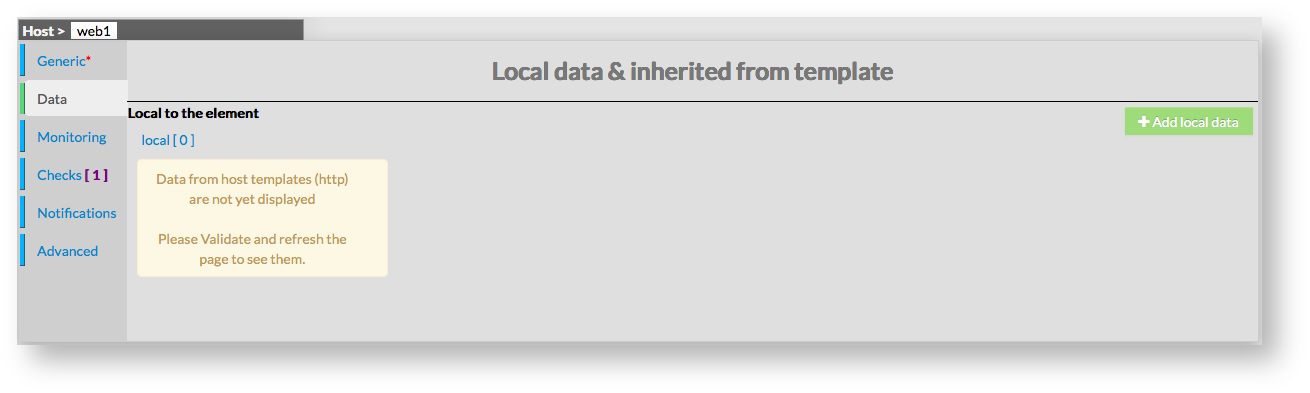
As shown on the picture, when creating a new host, no data are available, even if the new host inherit from Template.


To see data that will be applied to host, it is necessary to first validate the new host, and come-back to its configuration.

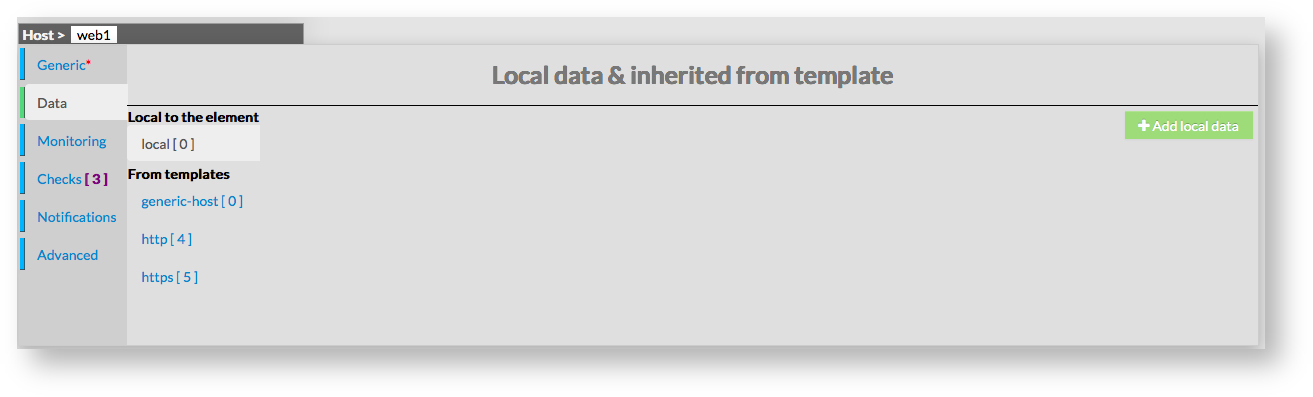
Data are displayed in two sections :

  • Local : data for this host only (custom data)
  • From Templates : data inherited from one or more templates

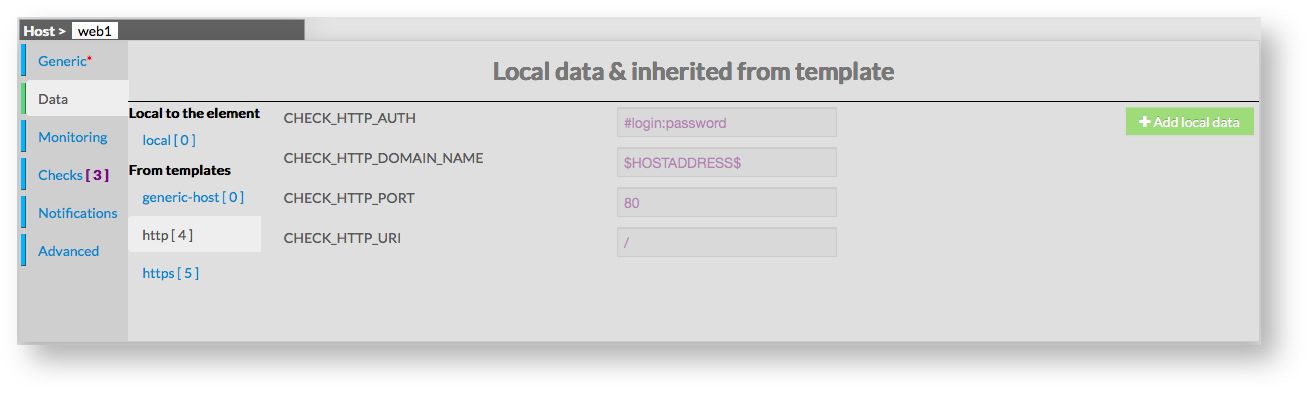
Data from templates are seperated by template names.

This allow Administrators to see what and where data have been get.

Data are represented by a Key and a Value.

When data are local, both of them can be modified.

When data are inherited, only values can be modified.

Monitoring

Checks

Notifications

Advanced